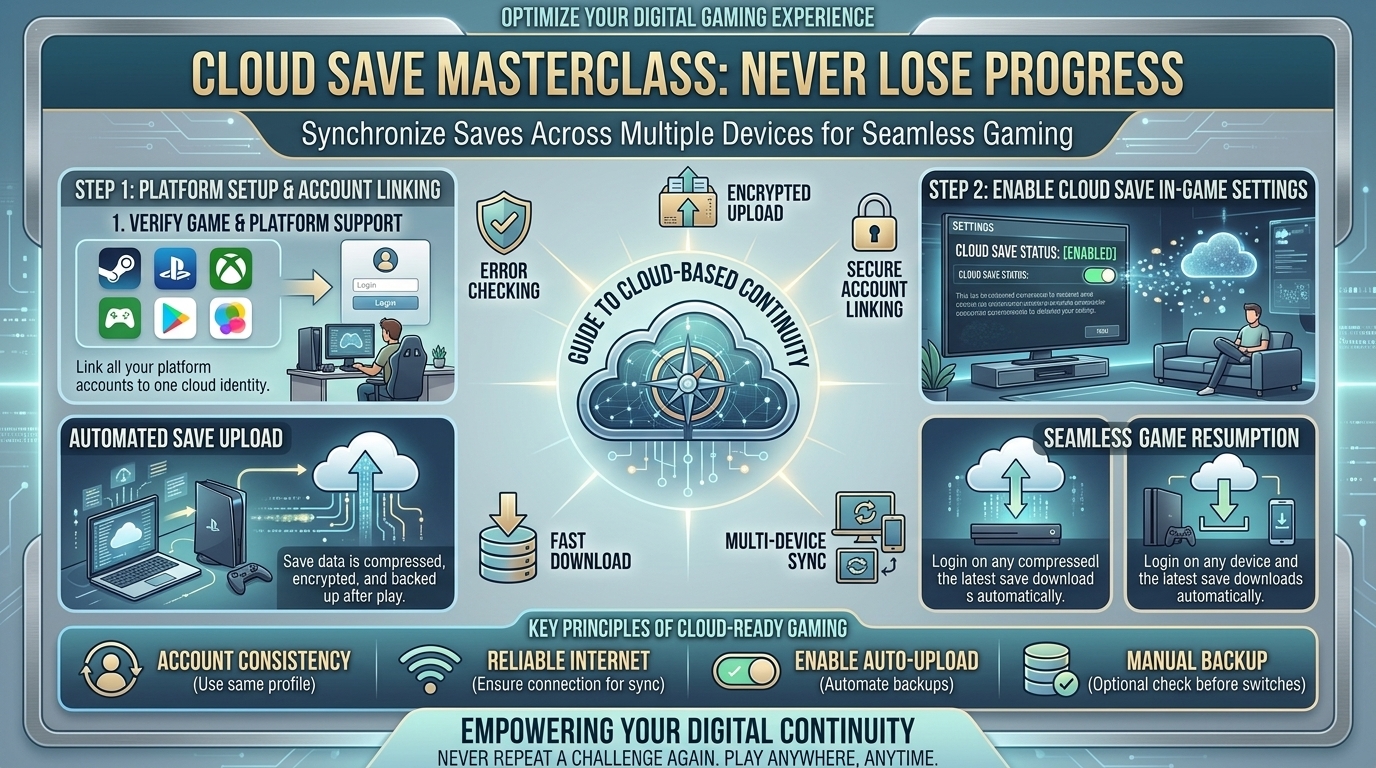
How to Use Cloud Save Synchronization Features to Never Lose Progress When Switching Between Multiple Devices
In today’s multi-platform gaming era, players rarely stick to a single screen. You might start a complex RPG session on your desktop PC at home, continue your campaign on a handheld PC during a flight, and wrap up side quests on a console or mobile tablet later that evening. However, seamless multi-device gaming relies entirely on one critical technology: cloud save synchronization.
When cloud saves fail, out-of-sync save files can lead to overwritten progress, lost save slots, or dozens of lost gameplay hours. Modern platforms—including Steam, Xbox, PlayStation, Nintendo, and Epic Games—each manage cloud synchronization differently. Understanding how to configure cloud save features, manually force syncs, resolve cloud conflicts, and handle cross-progression ensures your game saves follow you everywhere without friction.
At The Gamer Buzz, we focus on technical breakdowns, hardware optimization, platform setups, and cloud infrastructure for modern gamers. This comprehensive guide covers everything you need to know about setting up, troubleshooting, and mastering cloud save synchronization across PC, handhelds, mobile devices, and home consoles.
Whether gaming in tech and creative centers across Texas and California, configuring handheld setups in San Francisco and Washington, or managing home theater consoles in New York, this guide ensures your game progress remains fully protected.
How Cloud Save Synchronization Works Behind the Scenes
Understanding the underlying mechanics of cloud saves helps prevent accidental file overrides:
+--------------------------------------------------------------------------+
|                  CLOUD SAVE SYNCHRONIZATION ARCHITECTURE                 |
+------------------------------------+-------------------------------------+
| 1. LOCAL WRITE PHASE               | Game client writes save data to     |
|    Internal SSD / Local Storage    | local OS directory during gameplay  |
+------------------------------------+-------------------------------------+
| 2. EXIT & METADATA TIMESTAMPING    | Game exit triggers platform client  |
|    Local vs. Cloud hash check      | Client checks local vs. cloud hash  |
+------------------------------------+-------------------------------------+
| 3. CLOUD UPLOAD & CROSS-SYNC       | Platform uploads newest save file   |
|    Remote Server Encryption        | Other devices pull newest timestamp |
+------------------------------------+-------------------------------------+
Primary Cloud Sync Methods
- Platform-Level Cloud Sync (Steam Cloud, Xbox Cloud, PS Plus): The platform launcher automatically uploads local save folders to remote servers immediately after you close a game.
- Publisher Cross-Progression (Epic Games, Ubisoft Connect, EA, Hoyoverse): Game data is linked directly to a publisher account (e.g., your Epic or Hoyoverse account), storing progress directly on dedicated game servers regardless of which platform hardware you use.
- Third-Party Synchronization (Ludusavi, Syncthing, Dropbox): Manual or automated script solutions that mirror non-cloud-supported indie game saves across PCs and handhelds.
| Platform / Ecosystem | Cloud Requirement | Auto-Sync on Exit? | Conflict Resolution Prompt | Cross-Platform Compatibility |
| Steam (PC / Steam Deck) | Free for all users | Yes | Yes (Local vs. Cloud Timestamp) | Windows, macOS, Linux / SteamOS |
| Xbox Ecosystem | Free for all users | Yes | Automatic / Gamertag sync | Xbox Consoles, Windows PC, Cloud Gaming |
| PlayStation (PS4/PS5) | Requires PS Plus | Yes (Auto-upload) | Manual download option | PS4 to PS5 upgrade, Cloud Streaming |
| Nintendo Switch | Requires Switch Online | Yes (Automatic) | Manual backup download | Switch family of systems |
| Epic Games Store | Free (Game dependent) | Yes | Yes (Date & Time conflict pop-up) | Windows, macOS |
1. Configuring Cloud Saves on PC & Handhelds (Steam, Steam Deck & Epic)
For PC gamers who alternate between a desktop rig and a handheld PC (like the Steam Deck, ROG Ally, or Lenovo Legion Go), keeping saves synchronized is vital.
Steam & Steam Deck (Steam Cloud & Dynamic Cloud Sync)
Steam offers one of the most robust cloud save systems, but complex games require proper setup:
1.Step 1: Enable Steam Cloud Globally & Per-Game:Ensures global cloud backups are active across your account.
- Open Steam on your desktop PC or handheld. Go to Steam Settings > Cloud > toggle ON Enable Steam Cloud.
- Right-click any game in your library, select Properties > General, and verify Keep game saves in the Steam Cloud is checked.
2.Step 2: Respect the Exit Upload Window:Allow Steam time to complete sync uploads before turning off your device.
- When you close a game, do not instantly shut down your PC or put your Steam Deck into sleep mode.
- Look at the Steam Library interface. Next to the game title, you will briefly see status messages: Uploading -> Cloud Status: Up to date. Wait until you see Up to date before going offline.
3.Step 3: Resolving Steam Cloud Conflicts:How to correctly handle timestamp mismatch alerts.
- If you see a Cloud Sync Conflict dialog box, carefully inspect the Date Modified and Time for both the Local Save and Cloud Save.
- Always select the file with the most recent timestamp representing your actual play session. Selecting the older file will permanently overwrite your newer progress.
2. Managing Console Cloud Saves (Xbox, PlayStation & Nintendo Switch)
Console platforms make cloud saves straightforward, but account settings and subscription requirements vary across manufacturers.
Xbox (Series X/S & One)
Xbox provides free cloud save storage for all users without requiring an Xbox Game Pass subscription.
- Automatic Background Sync: Save files automatically link to your Microsoft Gamertag. When you launch a game on a secondary Xbox console or Windows PC (for Xbox Play Anywhere titles), the console automatically displays a “Syncing data for [Game Title]” screen to fetch the latest save.
- Troubleshooting: If a sync stalls, go to My Games & Apps > highlight the game > press Menu button > Manage game and add-ons > Saved data to inspect your local save state.
PlayStation 5 (PS5 & PS Plus)
- Subscription Requirement: PlayStation requires an active PlayStation Plus membership (Essential, Extra, or Premium) for cloud save functionality.
- Auto-Sync Configuration: On your PS5, navigate to Settings > Saved Data and Game/App Settings > Saved Data (PS5) > Sync Saved Data. Turn ON Auto-Sync Saved Data.
- Manual Cloud Management: If a save doesn’t update automatically, press the Options button on the game’s home screen tile and select Upload/Download Saved Data to manually push or pull the newest file.
Nintendo Switch
- Subscription Requirement: Requires an active Nintendo Switch Online membership.
- Automatic Save Data Backup: Highlight any game on the Home Menu, press (+) Options > Save Data Cloud. Ensure Automatic Save Data Backup and Automatic Save Data Download are both set to On.
- Note: Certain competitive titles (such as Pokémon series titles or Animal Crossing: New Horizons) restrict standard cloud saves to prevent item duping; these games require specialized transfer tools (e.g., the Island Transfer Tool).
3. Advanced Solutions for Unsupported Games: Syncthing & Ludusavi
Some classic titles, emulators, and smaller indie games do not support official platform cloud saves. Advanced PC and handheld gamers can set up automated local folder synchronization across their local network using open-source tools.
+--------------------------------------------------------------------------+
|                 THIRD-PARTY LOCAL NETWORK SYNC PIPELINE                  |
+------------------------------------+-------------------------------------+
| 1. LUDUSAVI SAVE DETECTION         | Scans system for obscure local save |
|    Automated Backup Tool           | paths across non-cloud PC titles    |
+------------------------------------+-------------------------------------+
| 2. SYNCTHING DIRECT CONNECTION     | Continuous encrypted peer-to-peer   |
|    Local Network P2P Sync          | directory mirror over Wi-Fi         |
+------------------------------------+-------------------------------------+
| 3. MULTI-DEVICE MIRRORING          | Desktop PC <--> Handheld PC <-->    |
|    Seamless File Parity            | Remote Backup Server / NAS          |
+------------------------------------+-------------------------------------+
Setting Up Syncthing for Handheld PCs & Desktop PCs
- Install Syncthing: Download and install Syncthing on both your desktop PC and your handheld PC (available on Windows, Linux, and Steam Deck Desktop mode).
- Locate Save Directory: Use tools like Ludusavi or check PCGamingWiki to find the exact save file path (e.g.,
C:\Users\Username\AppData\Local\GameName\Saves). - Pair Devices & Share Folders: Pair your devices using their unique Syncthing Device IDs over your local Wi-Fi. Add the game’s save directory to Syncthing and share it with your secondary device.
- Real-Time Synchronization: Whenever you exit the game, Syncthing automatically mirrors the updated save folder to your handheld device across your home network.
4. Best Practices to Prevent Lost Game Saves
Follow these technical habits to keep your game save files secure:
- Never Shut Down Immediately After Playing: Allow 10 to 15 seconds after returning to your launcher desktop for cloud sync indicators to turn green.
- Maintain Consistent System Clocks: Cloud sync systems rely heavily on date and time timestamps to evaluate which save file is newer. Ensure all your devices are set to auto-sync their clock settings via internet time servers.
- Create Periodic Manual Backups: For long 100+ hour RPG campaigns, manually copy your save directory to an external drive or cloud storage (Google Drive/OneDrive) once a month as a safety precaution.
10 Frequently Asked Questions (FAQ)
1. What should I do if a cloud sync conflict popup appears?
Always compare the date and timestamp listed for both files. Choose the file with the most recent date and time, as this represents your latest play session. Selecting the older file will permanently overwrite your recent progress.
2. Do Xbox cloud saves require an Xbox Game Pass subscription?
No. Xbox provides free cloud save backups to all users logged into a free Microsoft/Xbox account on Xbox Series X/S, Xbox One, and Windows PC.
3. Can I transfer my PS4 game saves to my PS5?
Yes. You can upload your PS4 save data to the PS Plus Cloud or transfer it via a USB flash drive, then download it onto your PS5 under Settings > Saved Data and Game/App Settings > Saved Data (PS4).
4. Why aren’t my Pokémon game saves backing up on Nintendo Switch?
Mainline Pokémon games disable standard Nintendo Switch Online Cloud Saves to prevent players from duplicating rare items or trading away Pokémon and reverting save files. Progress can only be transferred using the local System Transfer feature between two consoles.
5. Does Steam Cloud sync automatically between Windows and Steam Deck (Linux)?
Yes! For most games, Steam Cloud handles cross-platform directory mapping automatically, allowing you to transition seamlessly between a Windows PC and the Linux-based Steam Deck.
6. What happens if I play a cloud-supported game completely offline?
Your progress saves locally to your device’s internal drive. The next time your device connects to the internet and you launch or exit the game, the platform launcher will detect the newer local file and prompt you to upload it to the cloud.
7. How can I find where my PC games store their save files locally?
PC games store save files in various system paths, including Documents, AppData/Local, AppData/Roaming, or inside the Steam/userdata folder. Searching the specific game on PCGamingWiki.com will display its exact local save path.
8. Can I use cloud saves to play the same game on PC and PlayStation/Xbox?
Cross-platform cloud saves depend on whether the game publisher supports Cross-Progression. Games like Cyberpunk 2077, Witcher 3, Genshin Impact, Fortnite, and Call of Duty support cross-progression via publisher accounts (like CD Projekt RED, EA, or Epic Games accounts).
9. Will deleting a game from my console or PC delete my cloud save?
No. Uninstalling a game removes the local game installation files and sometimes local saves, but your cloud save data remains safely stored on remote platform servers tied to your account.
10. How do I fix a “Unable to Sync Cloud Saves” error on Steam?
First, check if Steam servers are operational. If online, restart your Steam client, toggle Wi-Fi off and on, or open Steam Settings > Downloads > Clear Download Cache.
Conclusion
Multi-device gaming relies on seamless data management. By configuring Steam Cloud settings, enabling auto-sync features on consoles, managing cross-progression accounts, and applying automated tools like Syncthing for unsupported titles, you can switch between desktops, consoles, and handhelds without losing a single minute of progress.
For more technical breakdowns, gaming optimizations, and hardware setup guides across Texas, California, San Francisco, Washington, and New York, stay tuned to The Gamer Buzz.
Leave a Reply