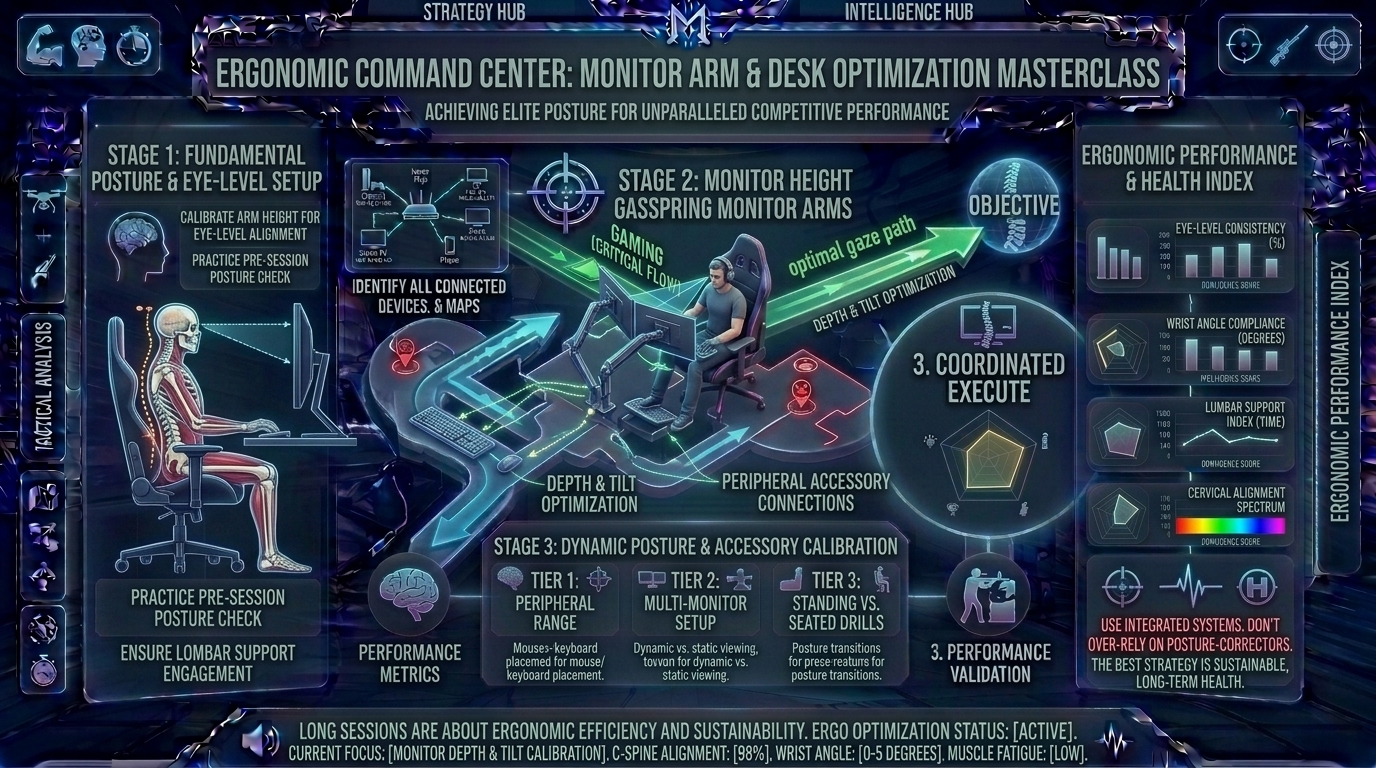
Welcome to The Gamer Buzz, your premier competitive performance and ergonomic health authority. Whether you are fine-tuning high-performance battle stations from tech hubs in San Francisco, New York, and Seattle, or optimizing long-hour gaming spaces across Texas, California, and Washington, one physical truth remains absolute: your competitive longevity depends entirely on your physical health.
When you are deeply engrossed in a multi-hour ranked session, climbing ladders in tactical first-person shooters or competing in intense battle royale endgames, posture is the first thing that deteriorates. You unconsciously slouch forward, crane your neck downward toward a low screen, hunch your shoulders toward your ears, and clamp your wrists onto a sharp desk edge.
Before long, you feel the burn: a dull ache creeping up your cervical spine, tight forearm tendons, lower back stiffness, and eye strain that ruins your visual focus.
In competitive gaming, physical discomfort is a performance killer. Poor posture restricts breathing, slows reaction times, and invites chronic repetitive strain injuries. In this exhaustive, master-level guide, we break down the biomechanics of desk ergonomics, the vital role of articulating monitor arms, and the step-by-step setup framework required to train hard and play pain-free.
1. The Biomechanics of Gaming Posture: Why Standard Desks Fail
To build an ergonomic setup, you must first understand how gravity and structural alignment affect your body during long sessions.
The Head-Forward Posture Trap
- The Physics: Your head weighs roughly 10 to 12 pounds when held neutrally over your spine. For every inch you lean your chin forward toward your monitor, the effective load experienced by your neck muscles and cervical vertebrae doubles.
- The Result: Hunching forward forces your trapezius and neck muscles into a constant state of isometric tension. This restricts blood flow to your brain, causes tension headaches, and destroys your visual reaction time during high-stress clutches.
2. The Golden Rules of Desk and Chair Alignment
Before adjusting your monitors, your seating foundation must be structurally sound. Follow this top-down ergonomic checklist:
[Phase 1: Chair & Feet Base] ➔ [Phase 2: Elbow & Armrest Angle] ➔ [Phase 3: Monitor Height & Eye Level] ➔ [Phase 4: Peripheral Floating Zone]
1. Chair Height and Feet Position
- Adjust your chair so your feet rest flat and firmly on the floor, with your knees bent at a comfortable 90-to-100-degree angle. If your feet dangle, your thighs experience pressure points that restrict lower body circulation. Use an ergonomic footrest if your desk height forces your chair too high.
2. Armrest and Elbow Ergonomics
- Set your desk and chair armrests so that your elbows form a relaxed 90-degree angle when your hands rest naturally on your keyboard and mouse.
- Your shoulders must remain completely relaxed and dropped—never shrugged upward toward your ears.
3. The Monitor Arm Advantage: Why Fixed Stands Are Outdated
The single most impactful hardware upgrade you can make for your posture is replacing stock monitor stands with a fully articulated gas-spring monitor arm.
Why Fixed Stands Restrict Ergonomics
Stock monitor stands typically offer zero height adjustment or force you to stack books underneath your display to get it level with your eyes. This leaves your screen locked in a rigid, non-ergonomic position.
The Benefits of Articulating Monitor Arms:
- Infinite Spatial Freedom: Gas-spring arms allow you to push your monitor backward, pull it closer, tilt it upward, or rotate it vertically with a single finger touch.
- Desk Real Estate Recovery: By clamping directly to the back of your desk, monitor arms completely remove the large plastic or metal tripod base from your playing surface, giving your mouse hand acres of unobstructed horizontal swipe room.
4. Comprehensive Matrix: Ergonomic Metrics for Competitive Setups
| Ergonomic Component | Optimal Measurement / Position | Biological / Competitive Benefit |
| Monitor Eye Level | Top 1/3 of screen aligned with eye height | Keeps cervical spine in a neutral, strain-free vertical position. |
| Viewing Distance | 20 to 28 inches (Arm’s length away) | Reduces eye accommodation strain and broadens peripheral vision. |
| Keyboard & Mouse Angle | Flat or slight negative tilt; wrists straight | Prevents carpal tunnel compression and tendonitis. |
| Monitor Tilt Angle | 10 to 20 degrees upward tilt | Eliminates overhead glare and matches natural downward gaze. |
5. Combatting Eye Strain and Lighting Fatigue
Long competitive sessions under harsh room lighting or glaring screens cause digital eye strain (asthenopia), leading to dry eyes, blurred focus, and mental fatigue.
- The 20-20-20 Rule: Every 20 minutes of intense gaming, look away from your screen at an object positioned at least 20 feet away for 20 seconds. This relaxes the ciliary muscles inside your eyes.
- Monitor Backlighting (Bias Lighting): Place a soft, dim LED bias light strip behind your monitor against the wall. This reduces the harsh contrast between a blindingly bright display and a dark room, drastically easing eye fatigue during late-night gaming sessions.
10 Frequently Asked Questions (FAQ)
1. How high should the top of my gaming monitor be relative to my eyes?
The top edge of your monitor screen should sit at or slightly below your eye level, forcing your eyes to look slightly downward (about 10 to 15 degrees) when focusing on the center of the crosshair.
2. Are gaming “bucket seat” racing chairs good for posture?
Most aesthetic racing-style gaming chairs are inspired by sports car bucket seats, which are designed to keep drivers locked in place during lateral G-forces—not for sitting upright at a computer desk for 6 hours. Ergonomic mesh office chairs with lumbar support and adjustable armrests are vastly superior for long-term spinal health.
3. What is the best monitor arm weight capacity to look for?
Always check your monitor’s exact weight without its stand. Choose a gas-spring monitor arm with a weight rating that comfortably exceeds your monitor’s weight to prevent sagging or drooping over time.
4. How do I stop myself from slouching forward during tense gaming moments?
Consciously check your posture between rounds. Additionally, setting up your monitor at the correct arm’s-length distance prevents you from having to lean your neck forward to spot micro-details on screen.
5. Should I tilt my monitor upward or keep it completely vertical?
A slight upward tilt of 10 to 20 degrees is ideal. This aligns the display plane perpendicular to your natural line of sight, reducing screen glare and neck strain.
6. Can poor posture actually lower my in-game reaction time?
Yes. Slouching compresses your diaphragm and restricts optimal oxygen intake. Reduced oxygen flow to the brain impairs cognitive processing speeds and fine motor coordination, directly tanking your competitive aim.
7. Is a standing desk worth it for competitive gamers?
Standing desks are fantastic for alternating between sitting and standing during casual tasks or long queue waits, but most competitive players prefer sitting for active gameplay to maintain absolute, micro-stable lower-body grounding and muscle control.
8. How do I prevent wrist pain caused by hard desk edges?
Never rest your bare wrists directly on a sharp desk edge. Use a soft, full-length desk mat (mousepad) or a rounded desk edge cushion to distribute arm pressure evenly across your forearms.
9. Does monitor refresh rate affect eye strain?
Low-refresh-rate monitors (60Hz) with high flicker rates or poor backlight dimming can cause subtle eye fatigue. Upgrading to a high-refresh monitor (144Hz to 240Hz+) offers smoother motion clarity, making it significantly easier on the eyes.
10. Where can I find more ergonomic hardware guides and health optimization tips?
Bookmark The Gamer Buzz and check back regularly for our comprehensive database of professional esports health guides, workspace setups, and competitive optimization tips!
Conclusion
Optimizing your monitor arm and desk ergonomics is the ultimate investment in your gaming career and physical well-being. By aligning your display at eye level, enforcing a neutral spine posture, setting up your desk at a 90-degree arm angle, and investing in articulating monitor arms, you banish physical fatigue and protect your body from repetitive strain injuries. Clean up your battle station layout, fix your posture, and play at your absolute peak comfortably for years to come!
Leave a Reply