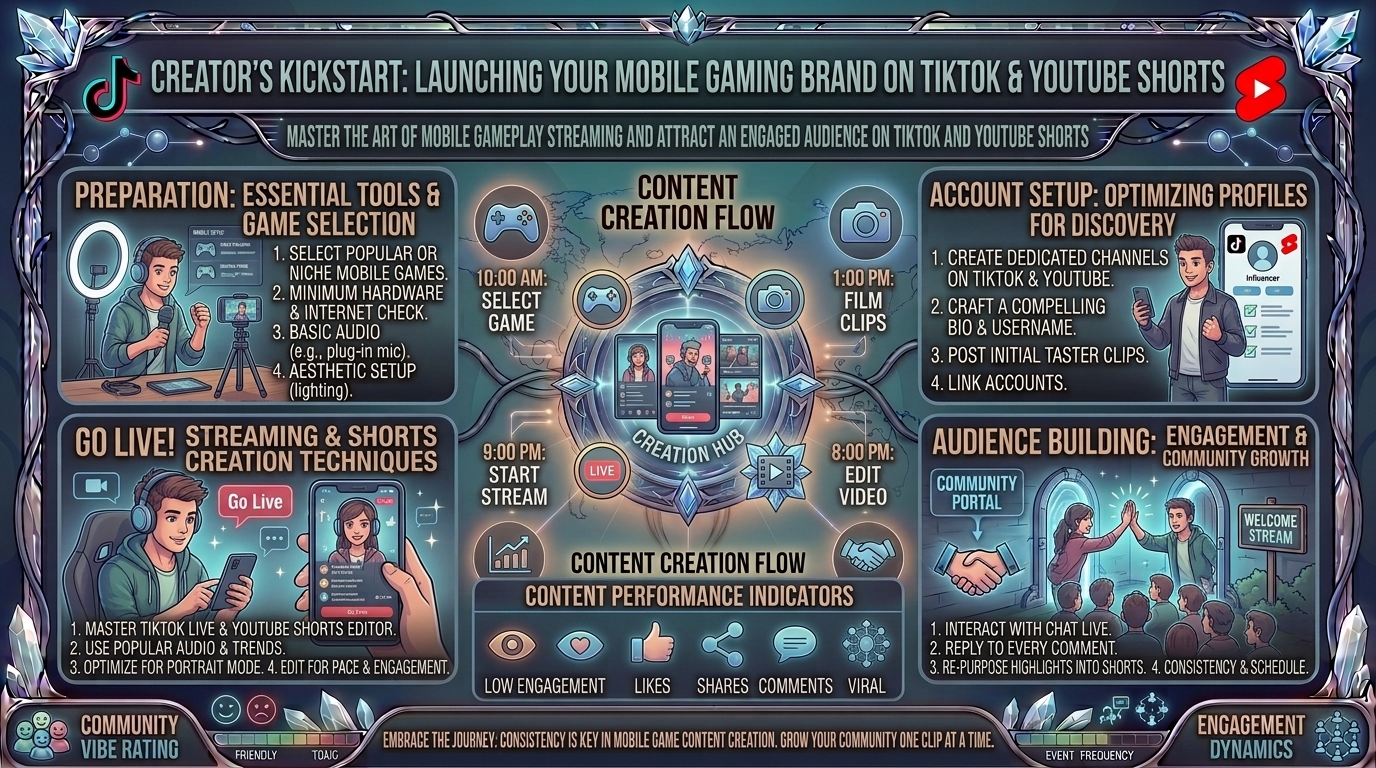
How to Get Started with Mobile Game Live Streaming and Content Creation on TikTok and YouTube Shorts
The landscape of content creation has experienced a seismic shift. Mobile devices are no longer just passive screens for consuming media; they are powerful, self-contained production studios capable of running high-fidelity games, broadcasting live video, and editing high-definition content. Fast-paced mobile titles like PUBG Mobile, Free Fire, Call of Duty: Mobile, Mobile Legends: Bang Bang, and Genshin Impact dominate global esports and casual gaming communities alike.
Simultaneously, the short-form vertical video algorithm has revolutionized discovery. TikTok and YouTube Shorts offer unprecedented reach, allowing new creators to gain thousands of impressions without an established audience base.
[ Mobile Device (Gameplay) ]
           │
           ├─── Direct Screen Capture / OBS Studio ───► [ Live Stream (TikTok / YT Shorts) ]
           │                                                        │
           └─── Built-in Screen Recorder ────────────► [ Video Editor (CapCut / Premiere) ]
                                                                    │
                                                                    ▼
                                                       [ Short-Form Clips & VODs ]
This comprehensive operational guide covers technical configurations, hardware choices, streaming software workflows, content strategies, and growth mechanics needed to launch a career in mobile game live streaming and short-form video creation.
1. Hardware & Software Requirements for Mobile Creators
Before launching a broadcast, establishing a reliable hardware foundation is critical. Mobile streaming subjects your smartphone to simultaneous processing demands: running a GPU-heavy game, encoding vertical video, processing external microphone audio, and maintaining a high-bandwidth network connection.
Essential Smartphone Specifications
- Processor (CPU/GPU): Snapdragon 8 Gen 2 / Gen 3, Apple A15 Bionic or higher, or MediaTek Dimensity 9200+.
- RAM: Minimum 8GB (Android) or 6GB (iOS) to prevent background system termination during intensive screen recording.
- Display & Refresh Rate: 90Hz to 120Hz panel with a minimum touch sampling rate of 240Hz for precise competitive inputs.
- Thermal Management: Internal vapor chamber cooling or an external active semiconductor cooling fan (e.g., Black Shark Magnetic Cooler) to prevent thermal throttling and dropped frames.
Audio & Visual Accessories
- Microphone: Built-in phone microphones pick up hand-swiping noise and speaker vibrations. Use a dedicated dual-channel wireless lavalier microphone (e.g., Hollyland Lark M2 or DJI Mic 2) or a USB-C condenser microphone with OTG support.
- Facecam Setup: A desk tripod with a dedicated smartphone holder paired with a compact bi-color LED ring light or key light (CRI > 95).
- Network Connection: High-speed Wi-Fi 6 (5GHz/6GHz band) or a USB-C to Ethernet adapter for a direct wired connection. Your network should maintain an upload speed of at least 15–20 Mbps.
2. Choosing Your Platform: TikTok vs. YouTube Shorts
Both platforms prioritize vertical 9:16 video content, but their discovery algorithms, technical entry requirements, and live broadcast mechanics differ significantly.
| Feature | TikTok LIVE & Clips | YouTube Shorts & Shorts Live |
| Mobile Live Requirements | Unlocked via account status/followers (typically 1,000 followers, varying by region). | 50 subscribers minimum + phone verified account with no active strikes. |
| Aspect Ratio & Resolution | 9:16 Vertical (720×1280 or 1080×1920). | 9:16 Vertical (1080×1920 recommended). |
| Livestream Discovery | TikTok Algorithm feeds vertical streams directly into the main FYP swipe feed. | Streams appear directly inside the YouTube Shorts vertical feed and Subscriptions tab. |
| Primary Audience Vibe | High-energy, trend-driven, direct interactive chat, Virtual Gifts. | Search-intent driven, guide/gameplay oriented, Super Chats, Memberships. |
| PC/OBS Streaming Options | TikTok LIVE Studio or Streamlabs Desktop with TikTok integration. | OBS Studio / Streamlabs via standard RTMP stream key. |
3. Step-by-Step Setup: Direct Mobile Streaming
Streaming directly from your mobile device is the most portable and accessible route. Both platforms provide native screen-sharing capabilities.
1.Configure System Settings & Do Not Disturb:Crucial preliminary step to protect personal privacy.
Enable ‘Do Not Disturb’ or ‘Gaming Mode’ on iOS or Android. Block all incoming calls, text previews, and app notifications from rendering on-screen during the broadcast.
2.Connect External Audio & Thermal Cooling:Hardware check prior to opening streaming apps.
Attach your wireless mic receiver or USB-C audio interface. Clip on your semiconductor phone cooler to maintain maximum clock speeds and prevent thermal frame drops.
3.Launch the TikTok or YouTube App:Selecting the correct broadcast mode.
For TikTok: Tap the (+) button, swipe to ‘LIVE’, select ‘Mobile Gaming’, and choose your specific game title. For YouTube: Tap (+), select ‘Go Live’, and toggle the camera orientation icon to ‘Portrait/Shorts’ mode.
4.Set Up Your Broadcast Metadata:Maximizing algorithmic reach.
Input a high-converting stream title containing the target game’s exact keyword (e.g., “Ranked Push to Grandmaster | COD Mobile”). Select appropriate category tags and upload an eye-catching thumbnail.
5.Grant Screen Recording Permissions & Go Live:Initiating the system capture feed.
Confirm screen capture permissions when prompted by your operating system (iOS Screen Broadcast or Android Media Projection) and tap ‘Start Broadcast’.
4. Pro-Level Setup: Streaming Mobile Games via PC (OBS Studio)
For professional overlays, custom alerts, camera control, and dual-output streaming (simultaneously broadcasting horizontally and vertically), routing your mobile game feed into a PC running OBS Studio is the industry standard.
[ Mobile Device (USB/Wi-Fi Screen Capture) ]
                    │
                    ▼
[ PC Running OBS Studio / Streamlabs ] ──► [ Overlays / Mic / Webcam ]
                    │
                    ├─── RTMP Stream Key ───► [ TikTok LIVE ]
                    │
                    └─── RTMP Stream Key ───► [ YouTube Shorts Live ]
Method A: Wired USB Mirroring (Low Latency)
- Android: Use SCRCPY (Screen Copy), an open-source, ultra-low latency tool that mirrors your screen via USB Debugging at up to 120 FPS with audio passthrough. Alternatively, use hardware capture cards like the Elgato HD60 X via a Type-C to HDMI adapter.
- iOS: Connect your iPhone via Lightning/USB-C to a Mac or PC. Use Apple’s native screen capture in QuickTime, or software like ApowerMirror / Elgato Capture over USB.
Method B: Setting Up Vertical OBS Layouts
- Canvas Resolution: Open OBS Studio settings → Video. Change the Base (Canvas) Resolution to
1080x1920(9:16 vertical orientation). - Game Capture Source: Add a ‘Window Capture’ or ‘Display Capture’ source targeted at your device mirroring software.
- Webcam & Overlays: Position your webcam in the top or bottom third of the frame. Ensure the center of the canvas remains completely clear for primary mobile gameplay.
- Encoding Settings: Set encoder to NVENC (NVIDIA) or AMF (AMD). Use a Constant Bitrate (CBR) between 4,000 kbps and 6,000 kbps at 60 FPS.
5. Content Creation Engine: Turning Streams into Shorts & TikToks
Going live is only half the battle. Long-term channel growth relies on a strategic content funnel: converting live stream VODs (Video on Demand) into bite-sized, viral vertical clips.
[ 2-Hour Mobile Stream VOD ] ──► [ AI Clip Marker / Manual Review ]
                                                 │
                                                 ▼
[ CapCut / Premiere Pro Vertical Timeline ] ──► [ Dynamic Captions & Sound Effects ]
                                                 │
                                                 ▼
[ Published to TikTok, YT Shorts & Instagram Reels ]
Strategic Editing Blueprint
- The 3-Second Hook: Eliminate intro animations, long greetings, or silence. Start directly with an intense gameplay moment, a shocking reaction, or a high-stakes question (e.g., “This is the rarest weapon loadout in Warzone Mobile…”).
- Dynamic Captions: Over 60% of short-form videos are consumed on mute. Use auto-caption tools in CapCut, Opus Clip, or Adobe Premiere Pro to generate bold, color-coded subtitles placed centrally on the screen.
- Framing & Zoom: Crop landscape gameplay recordings to fit a vertical frame using keyframes. Keep the crosshair or primary character model centered, and place your facecam directly above or below the gameplay UI.
- Audio Balancing: Ensure commentary audio sits at -6dB to -3dB, background game audio at -18dB, and trending background music tracks at -22dB.
6. Algorithmic Optimization & Audience Engagement Strategies
Understanding how platforms distribute vertical content determines whether your stream or short gets 100 views or 100,000 views.
TikTok Algorithm Drivers
- Watch Time & Completion Rate: The single most critical metric. Keep videos between 15–30 seconds for maximum completion rate percentage.
- Comment Triggers: End videos or streams with controversial or open-ended questions regarding game builds, character tier lists, or patch updates to drive comment velocity.
- Live Stream Interaction Rate: The TikTok algorithm prioritizes live streams that receive frequent screen taps (likes), comments, and virtual gift sends.
YouTube Shorts Algorithm Drivers
- Shown in Feed vs. Viewed Ratio: Aim for a “Viewed” percentage above 70%. Your video title and visual thumbnail frame must immediately capture attention when swiped into view.
- Audience Retention Graph: Avoid dead space or slow transitions. Use quick jump cuts, sound effects (swooshes, pops), and visual zoom-ins to prevent drop-off.
- Search Optimization (SEO): Optimize descriptions with searchable intent (e.g., “How to unlock golden camo COD Mobile guide”).
7. Monetization Pathways for Mobile Gaming Creators
[ Virtual Gifts & Super Chats ] ──► [ Brand Sponsorships & Affiliate Links ] ──► [ Ad Revenue Share ]
- Platform Fan Funding:
- TikTok LIVE Gifts & Subscription: Viewers buy virtual coins to send gifts during streams, which convert into diamond rewards cashable by the creator.
- YouTube Super Chats & Channel Memberships: Direct financial support during vertical live streams and access to custom channel badges.
- Publisher & Brand Sponsorships: Mobile game developers actively sponsor creators to showcase new game updates, champion skin launches, or perform sponsored app installations via affiliate download links.
- Ad Revenue Sharing: YouTube Partner Program provides a ad revenue share from the Shorts Feed based on total monthly views.
- Affiliate Marketing: MonetiZe hardware gear (mobile controllers like Backbone One, cooling fans, lavalier mics) via Amazon or TikTok Shop links placed in bio links or pinned comments.
Frequently Asked Questions (FAQ)
1. Can I stream mobile games without a high-end PC?
Yes! You can stream directly from your smartphone using the native live streaming tools inside the TikTok app or YouTube app. Alternatively, mobile streaming apps like Streamlabs Mobile or Prism Live Studio allow you to add basic overlays and facecams entirely on your phone.
2. How many subscribers or followers do I need to go live?
For YouTube, you need a minimum of 50 subscribers and a phone-verified account to stream via the mobile app. For TikTok, the standard requirement is typically 1,000 followers, though access can vary based on regional account rollouts.
3. How do I prevent my phone from overheating while playing and streaming simultaneously?
Use an active semiconductor cooling fan attached to the back of your device. Additionally, reduce your screen brightness, close all background applications, avoid playing while charging on fast-chargers, and stream in a climate-controlled room.
4. Which platform is better for new creators: TikTok or YouTube Shorts?
TikTok generally offers faster initial discovery and immediate feedback for brand-new creators due to its interest-based algorithm. However, YouTube Shorts provides superior long-term content durability through search engines and offers higher long-term monetization stability via the YouTube Partner Program.
5. Do I need a camera to become a successful mobile gaming creator?
No, many top mobile gaming creators operate faceless channels focusing on elite gameplay, educational guides, commentary, or voiceovers. However, adding a facecam generally increases audience retention and community connection during live broadcasts.
6. What is the ideal video bitrate for streaming mobile games?
When streaming in 1080p vertical format (9:16) at 60 FPS, set your bit rate between 4,500 kbps and 6,000 kbps in OBS Studio or Streamlabs. If streaming via mobile cellular data, drop your settings to 720p at 2,500–3,500 kbps to maintain stability.
7. How do I capture mobile game audio without capturing background room noise?
Use internal system audio capture (available natively in iOS and modern Android versions). Ensure your streaming software or mobile app routes “Internal Audio” to the broadcast while taking “Microphone Audio” exclusively from an external lavalier or headset microphone.
8. What editing software is best for vertical mobile gaming videos?
CapCut (available on mobile and desktop) is widely considered the best beginner-to-intermediate tool due to its automatic captions, vertical templates, and trend integrations. For advanced desktop editing, Adobe Premiere Pro or DaVinci Resolve offer superior color grading and keyframing control.
9. How do I handle incoming phone calls or messages while streaming?
Always enable ‘Do Not Disturb’ or activate your smartphone’s dedicated ‘Focus Mode’ / ‘Game Booster’ before initiating a live broadcast. This blocks incoming caller pop-ups and hides sensitive push notifications from displaying on your public stream.
10. Where can I read more mobile gaming guides, gear reviews, and streaming tips?
You can find regularly updated hardware breakdowns, streaming technical guides, and mobile gaming news directly on TheGamerBuzz!
Conclusion
Starting your content creation journey in mobile game streaming requires a strategic balance of technical preparation, platform consistency, and smart editing mechanics. By optimizing your smartphone hardware, choosing the right broadcast workflow (direct mobile vs. OBS Studio), and repurposing your live streams into dynamic vertical short-form videos, you can build a thriving audience on both TikTok and YouTube Shorts.
Leave a Reply