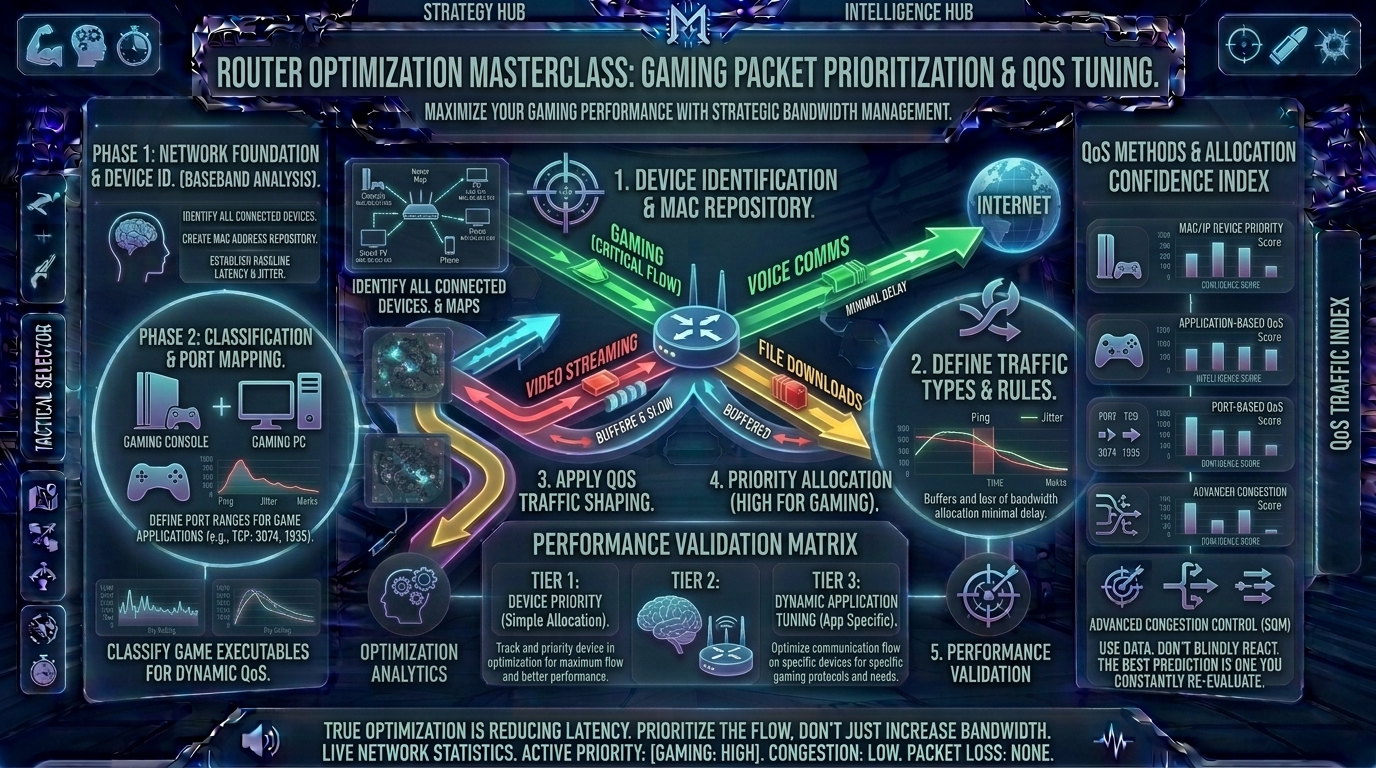
Welcome to The Gamer Buzz, your definitive competitive performance and networking authority. Whether you are running high-stakes ranked matches from advanced fiber-optic connections in San Francisco, New York, and Seattle, or battling high ping spikes across residential setups in Texas, California, and Washington, one invisible enemy ruins more matches than bad aim: network congestion.
Picture this scenario: You are sitting in a 1v2 clutch situation in a high-tier competitive match. Suddenly, your ping skyrockets from 20ms to 350ms, your character rubber-bands backward, and you die helplessly while your screen freezes. You check the house network, only to discover someone started downloading a 100GB game update or streaming 4K video on another device.
In competitive multiplayer gaming (Counter-Strike 2, Valorant, Apex Legends, Call of Duty), raw download speed matters far less than packet consistency and low latency. This is where Quality of Service (QoS) comes in. By properly configuring your router’s QoS engine, you can teach your home network to treat your gaming traffic like an emergency ambulance, pushing all other household downloads to the back of the line. In this exhaustive, master-level guide, we break down network packets, bufferbloat mitigation, router settings, and step-by-step optimization procedures to lock in rock-solid connection stability.
1. Understanding the Culprit: Bufferbloat and Network Congestion
To fix your gaming network, you must first understand why your ping spikes the moment someone else uses the internet in your house.
The Highway Analogy
Think of your home internet connection as a multi-lane highway leading to game servers:
- Your Gaming Packets: These are tiny, high-priority motorcycles. They don’t need a lot of physical space, but they must travel continuously without interruption. If they get delayed by even 50 milliseconds, your game desynchronizes.
- Household Downloads/Streams: These are massive freight trucks carrying movie data or file downloads. They require heavy bandwidth.
- The Traffic Jam: When your router lacks proper management, a massive freight truck (a background download) hogs the entire highway. When your gaming motorcycle arrives, it gets stuck waiting behind the truck. This queuing delay is called bufferbloat, and it is the primary cause of sudden in-game lag spikes.
2. What Is Quality of Service (QoS) and How Does It Work?
Quality of Service is a feature built into modern routers that allows you to prioritize specific types of network traffic over others.
[Incoming Internet Traffic] ➔ [Router QoS Engine / Packet Inspection] ➔ [Instant Gaming Priority Lane] ➔ [Background Downloads / Streaming Lane]
The Two Core Functions of Gaming QoS
- Bandwidth Allocation: Ensuring your game always has a reserved slice of your total upload and download speed, no matter how busy the house gets.
- Packet Prioritization (DSCP/Queue Management): Instructing the router to inspect outgoing and incoming data packets and place real-time gaming UDP/TCP packets at the front of the transmission queue.
3. Step-by-Step Guide to Configuring Router QoS Settings
Every router brand (ASUS, Netgear, TP-Link, or custom firmware like DD-WRT/OpenWrt) has a slightly different dashboard layout, but the core configuration steps remain identical. Follow this framework to set up your optimization profile:
Step 1: Log Into Your Router Admin Dashboard
- Open a web browser on a PC connected to your network.
- Type your router’s default gateway IP address (commonly
192.168.1.1or192.168.0.1) into the URL bar. - Log in using your admin username and password (found printed on a sticker underneath your physical router).
Step 2: Run a Baseline Speed Test (Crucial for Bandwidth Shaping)
- Go to a site like Speedtest.net and run a test while no one else is using the internet.
- Note down your maximum Download Speed and Upload Speed in Megabits per second (Mbps).
- The Golden Rule: When configuring QoS bandwidth limits, set your router’s QoS bandwidth ceiling to 85% to 90% of your actual tested speed (e.g., if your fiber is 500 Mbps download, set your QoS limit to 450 Mbps). This prevents your internet service provider (ISP) line from hitting raw saturation bottlenecks.
Step 3: Locate and Enable the QoS Engine
- Navigate to your router settings menu. Look for tabs labeled QoS, Bandwidth Control, Traffic Manager, or Game Acceleration.
- Enable the master toggle switch for QoS.
Step 4: Choose Your Prioritization Method
Modern routers generally offer three distinct methods to prioritize gaming. Choose the one that matches your router’s capabilities:
- Method A: Device-Based Priority (The Easiest Method)
- Find your gaming PC or console’s physical MAC address or IP address in the connected devices list.
- Assign that specific device as “Highest Priority” or “Gaming Device” profile. The router will automatically prioritize all network traffic moving to and from that machine.
- Method B: Application / Port-Based Priority
- Some routers feature pre-built application presets (e.g., Steam, Xbox Live, PlayStation Network, specific game titles). Check these boxes to ensure traffic running on those specific network ports is prioritized.
- Method C: Smart Queue Management (SQM / Cake / FQ-CoDel)
- If your router runs advanced firmware (like ASUS Adaptive QoS or OpenWrt), enable SQM algorithms like Cake or FQ-CoDel. These advanced algorithms dynamically eliminate bufferbloat without requiring manual port configuration.
4. Comprehensive Matrix: Router QoS Features and Their Benefits
| QoS Feature / Setting | Recommended Setting for Gaming | Purpose / Network Benefit |
| QoS Master Switch | Enabled | Activates packet inspection and traffic shaping engines. |
| Bandwidth Allocation | Set to 85% – 90% of max speed | Prevents ISP line saturation and eliminates bufferbloat. |
| Device Priority | Assign to Gaming PC / Console | Forces router to process your gaming packets first. |
| WMM (Wi-Fi Multimedia) | Enabled | Prioritizes wireless data packets for gaming on Wi-Fi (if wired is impossible). |
| UPnP / Port Forwarding | Configured for specific games | Ensures clean, direct data handshakes with game servers. |
5. Wired vs. Wireless: The Hardware Foundation of Network Quality
Even the most advanced QoS settings cannot fully overcome the physical limitations of a congested, interference-heavy Wi-Fi network.
- The Ethernet Imperative: Whenever possible, connect your gaming PC or console directly to your router using a Cat6 or Cat7 Ethernet cable. Ethernet eliminates wireless packet loss, microwave/Bluetooth interference, and micro-jitter caused by walls and distance.
- If You Must Use Wi-Fi: Ensure your router has WMM (Wi-Fi Multimedia) enabled in the wireless settings. WMM is the wireless equivalent of QoS, ensuring your gaming data packets get priority access over the airwaves.
10 Frequently Asked Questions (FAQ)
1. Will enabling QoS slow down my overall internet download speeds?
Slightly, by design. Because QoS requires your router to reserve a small percentage of bandwidth headroom (usually 10%) to prevent traffic jams, your maximum raw download speed for massive file downloads may drop slightly. However, your latency stability during gaming will improve dramatically.
2. Should I prioritize my gaming PC by its IP address or MAC address?
Using its MAC address is safer because it is a permanent hardware identifier, ensuring your prioritization settings don’t break if your router changes your PC’s dynamic local IP address. Alternatively, assign a Static IP to your gaming PC.
3. What is “bufferbloat” and how does QoS fix it?
Bufferbloat happens when data packets queue up in massive buffers inside your modem or router when your connection is fully saturated. QoS fixes this by actively dropping or reprioritizing packets so queues never form, keeping ping times ultra-low.
4. Are gaming routers with built-in QoS worth buying?
If your current ISP-provided router is basic and lacks advanced traffic shaping controls, purchasing a dedicated gaming router (or installing custom open-source firmware like OpenWrt) provides a massive upgrade in connection stability.
5. Can QoS fix high ping caused by being too far from game servers?
No. QoS can only manage traffic inside your home network and up to your ISP’s local gateway. If you live in Texas and connect to a server in Europe, physics dictates your baseline ping will be high due to distance; QoS cannot bend the speed of light.
6. What is the difference between bandwidth and latency?
Bandwidth is the width of your pipe (how much data can pass per second, measured in Mbps). Latency (ping) is the speed at which that data travels back and forth (measured in milliseconds). Gamers need low latency far more than massive bandwidth.
7. Does QoS help if I live alone and no one else uses my internet?
If you are the sole user of your internet connection and no background apps are running on your PC, QoS offers minimal benefit because your network highway is already completely empty. QoS shines in multi-device, multi-user households.
8. How do I know if my router supports Smart Queue Management (SQM)?
Check your router’s advanced WAN or QoS settings menu. Look for terms like FQ-CoDel, Cake, or Bufferbloat Mitigation. If your stock ISP router lacks these, flashing third-party firmware or upgrading to an ASUS/Netgear router unlocks them.
9. Should I turn on “Game Acceleration” or “QoS” if I have multi-gigabit fiber internet?
If you have a massive 1-Gigabit or 2-Gigabit fiber connection and live with only one or two other people, your bandwidth is so large that household devices rarely saturate it. However, enabling QoS still helps if someone starts a massive 4K stream or cloud backup while you are in a match.
10. Where can I find more networking and hardware optimization guides?
Bookmark The Gamer Buzz and check back regularly for our comprehensive database of professional esports guides, router setups, and competitive optimization tips!
Conclusion
Optimizing your internet router’s Quality of Service (QoS) settings is one of the most effective ways to protect your competitive matches from household network chaos. By identifying your baseline bandwidth speeds, allocating priority to your gaming hardware, eliminating bufferbloat, and prioritizing wired Ethernet connections, you permanently banish lag spikes from your gaming setup. Configure your router today, take control of your packets, and enjoy an unshakeable connection in every ranked lobby!
Leave a Reply