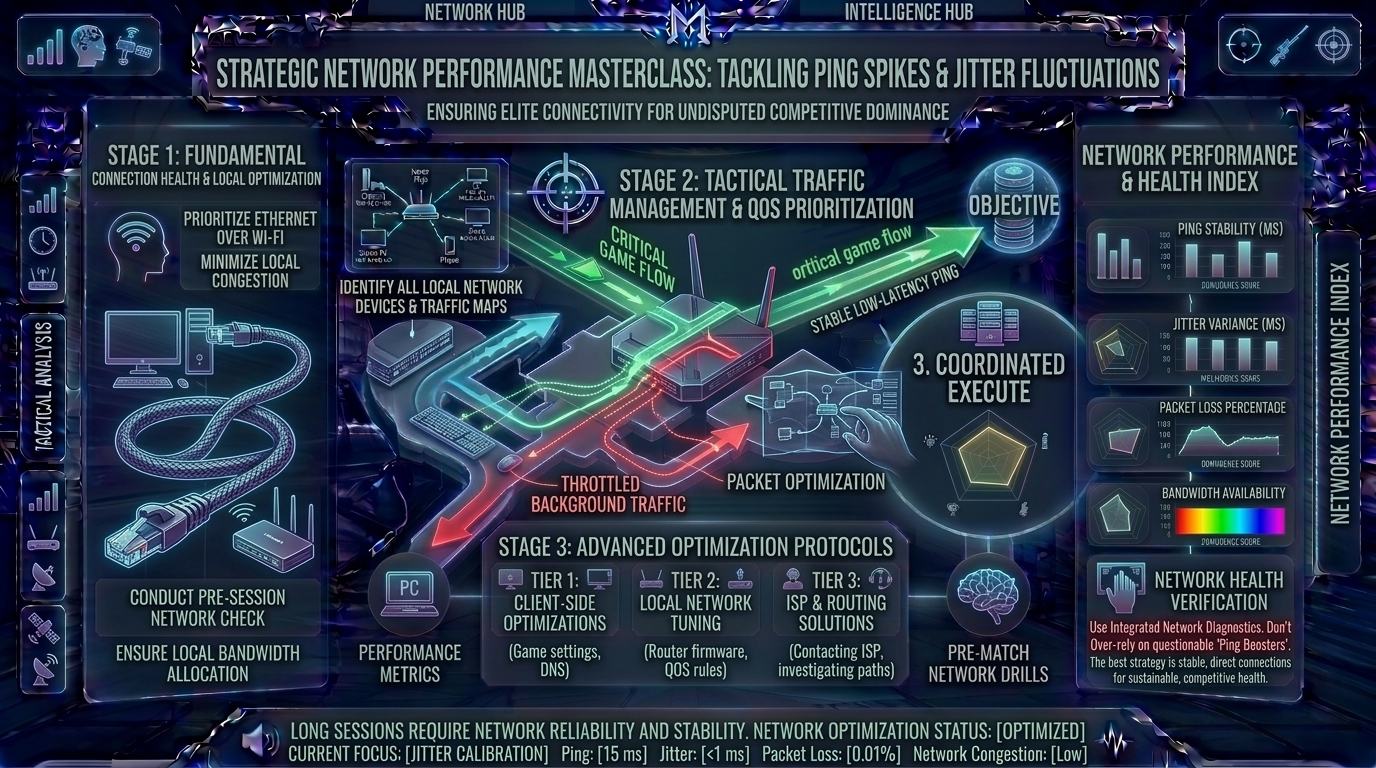
Welcome to The Gamer Buzz, your definitive competitive performance and network stability authority. Whether you are troubleshooting fiber connections from high-tech hubs in San Francisco, New York, and Seattle, or battling intermittent packet loss across residential internet networks in Texas, California, and Washington, one reality unites all competitive gamers: nothing causes more immediate rage than a sudden ping spike during a 1v1 clutch.
Picture the scene: You have outsmarted the enemy team, positioned your crosshair perfectly, and are about to secure the final elimination to win the match. Suddenly, your latency leaps from a pristine 20ms to 650ms. Your character teleports backward into a wall, your shots fail to register, and you watch helplessly as the defeat screen flashes.
In competitive multiplayer games (Counter-Strike 2, Valorant, Apex Legends, Overwatch 2, Call of Duty), raw download speed matters far less than network consistency. Latency spikes, packet loss, and jitter fluctuations turn skilled outplays into luck-based disasters. In this exhaustive, master-level guide, we break down network diagnostics, wired optimization pipelines, Quality of Service adjustments, and step-by-step mitigation strategies to bulletproof your connection.
1. The Anatomy of Network Instability: Ping, Packet Loss, and Jitter
To fix connection stutter, you must first understand the three core metrics that dictate online gaming performance.
[Game Client Input] ➔ [Packet Transmission (Ping)] ➔ [Jitter (Variance)] ➔ [Server Registration / Response]
1. Ping (Latency)
- Ping measures the round-trip time (RTT) it takes for a data packet to travel from your gaming PC or console to the game server and back, measured in milliseconds (ms). High ping means a constant delay between your physical click and the server’s registration.
2. Jitter (The Silent Killer)
- Jitter is the variance in your ping over time. If your ping fluctuates wildly between 15ms, 120ms, 45ms, and 300ms from second to second, your game engine struggles to predict player movement accurately, resulting in heavy rubber-banding and desynchronization.
3. Packet Loss
- Packet loss occurs when data packets transmitted between your machine and the server vanish entirely into the digital void. Even with a low ping of 20ms, a 5% packet loss rate means every twentieth action you take never reaches the server.
2. The 4-Stage Network Stabilization Protocol
Fixing erratic lag spikes requires a systematic, troubleshooting-first approach. Never jump straight to buying new hardware until you have exhausted software and diagnostic optimizations.
Stage 1: Eliminating Wireless Interference (The Wi-Fi Trap)
- The Problem: Wi-Fi is inherently susceptible to environmental interference. Microwaves, Bluetooth devices, thick walls, and neighboring router channels cause micro-drops in signal strength, manifesting as sudden ping spikes.
- The Fix: Connect your gaming rig directly to your router using a Cat6 or Cat7 shielded Ethernet cable. A hardwired connection instantly eliminates 90% of random jitter fluctuations.
Stage 2: Background Bandwidth Hogs and Cloud Syncs
- The Problem: Windows updates, cloud backups (OneDrive, Google Drive, iCloud), streaming services, and background downloads launch silently, saturating your upload and download pipelines.
- The Fix: Disable automatic background downloads during competitive play. Check your Task Manager before queuing to ensure no hidden applications are utilizing network bandwidth.
Stage 3: ISP Throttling and Bufferbloat Mitigation
- The Problem: When multiple devices on your home network pull data simultaneously, your router’s data queues become overwhelmed, creating bufferbloat (massive latency inflation).
- The Fix: Log into your router dashboard and enable Quality of Service (QoS) or Smart Queue Management (SQM) to prioritize your gaming device above all other household traffic.
Stage 4: DNS and Server Routing Optimization
- The Problem: Default Internet Service Provider (ISP) Domain Name System (DNS) servers often route your data through congested, inefficient pathways before reaching game server hubs.
- The Fix: Switch your network adapter settings to high-performance, low-latency public DNS servers like Cloudflare (
1.1.1.1) or Google (8.8.8.8).
3. Comprehensive Matrix: Network Symptoms vs. Root Causes
| Symptom / Behavior | Likely Root Cause | Recommended Immediate Solution |
| Consistent High Ping (100ms+) | Connected to a distant geographic server region. | Change matchmaking settings to local data centers; use wired connection. |
| Wild Jitter Fluctuations | Wi-Fi packet interference or background downloads. | Switch to an Ethernet cable; pause all cloud syncing apps. |
| Rubber-Banding & Teleporting | Packet loss or sudden bufferbloat saturation. | Enable router QoS settings; restart modem and router hardware. |
| Lag Spikes Every Few Minutes | ISP background maintenance or thermal throttling on router. | Power-cycle your networking hardware; check for firmware updates. |
4. Advanced Network Commands for Troubleshooting
When diagnosing connection instabilities on PC, utilize Windows command-line tools to isolate where the packet breakdown occurs:
- The Ping Stability Test: Open Command Prompt and type
ping 8.8.8.8 -t. Let it run for 5 minutes while you play. Look at the latency output. If times are stable (e.g., 22ms, 23ms, 22ms), your connection is clean. If you see erratic jumps (22ms, 450ms, 19ms), your local network or ISP line has severe jitter. - Trace Route Analysis: Type
tracert 1.1.1.1to track every individual “hop” your data takes from your home router through your ISP’s nodes to the destination server. This identifies precisely which network hop introduces lag.
10 Frequently Asked Questions (FAQ)
1. Why does my ping spike only during specific times of the day?
This is typically caused by neighborhood peak hour congestion. In residential areas, when everyone comes home from work and streams 4K video or downloads files (usually between 7 PM and 11 PM), local ISP node bandwidth becomes heavily saturated, causing latency spikes.
2. Does upgrading to a “gaming router” actually reduce ping?
A high-end gaming router with advanced QoS, SQM, and hardware acceleration will not magically make your base ping lower than the speed of light allows, but it will eliminate internal home network jitter and bufferbloat caused by other family members using the internet.
3. Is a wired Ethernet connection always better than Wi-Fi for gaming?
Without exception, yes. Even the most expensive Wi-Fi 6E or Wi-Fi 7 routers experience micro-packet loss and environmental interference. Ethernet provides a dedicated, uninterrupted copper or fiber pathway for your data packets.
4. What is “bufferbloat” and how do I know if I have it?
Bufferbloat happens when data queues up in excessively large buffers inside your modem or router. You can test for it using online diagnostic tools like the Bufferbloat Test on Waveform. If your latency shoots up by 200ms+ during active downloads, you suffer from bufferbloat.
5. Can changing my DNS server lower my in-game ping?
DNS servers translate web addresses into IP addresses. While changing your DNS to Cloudflare or Google won’t directly speed up live game server data packets, it can significantly speed up initial matchmaking server lookups and menu loading times.
6. What should I do if my ISP refuses to fix my high jitter rates?
Document your ping tests with screenshots and logs over several days. Call your ISP tech support, request a line inspection for packet loss, and ask if your node requires a port reset or signal amplification. If they fail to fix it, consider switching to a dedicated fiber provider.
7. Do background VPNs or anti-virus firewalls cause ping spikes?
Running a consumer VPN adds an extra routing layer, increasing your baseline ping and introducing potential jitter. Furthermore, aggressive third-party antivirus real-time network scanning can inspect incoming game packets, causing micro-stutters.
8. How often should I restart my internet modem and router?
Power-cycling (unplugging for 30 seconds and plugging back in) your modem and router once a month clears out cached RAM leaks, refreshes local IP allocations, and stabilizes internal routing tables.
9. Why do I get good ping in some games but terrible ping in others?
Different games host their servers in different geographic data centers. If a game has servers located across the country or overseas, your physical distance to that server dictates a naturally higher baseline ping.
10. Where can I find more networking guides and hardware optimization tips?
Bookmark The Gamer Buzz and check back regularly for our comprehensive database of professional esports guides, router setups, and competitive optimization tips!
Conclusion
Dealing with ping spikes and jitter fluctuations during crucial moments in competitive matches requires moving away from guesswork and adopting a systematic diagnostic approach. By switching to a hardwired Ethernet connection, eliminating background bandwidth hogs, configuring router Quality of Service settings, and monitoring your network health, you permanently banish erratic lag spikes. Protect your competitive rank, secure your connections, and dominate your lobbies with absolute stability!
Leave a Reply