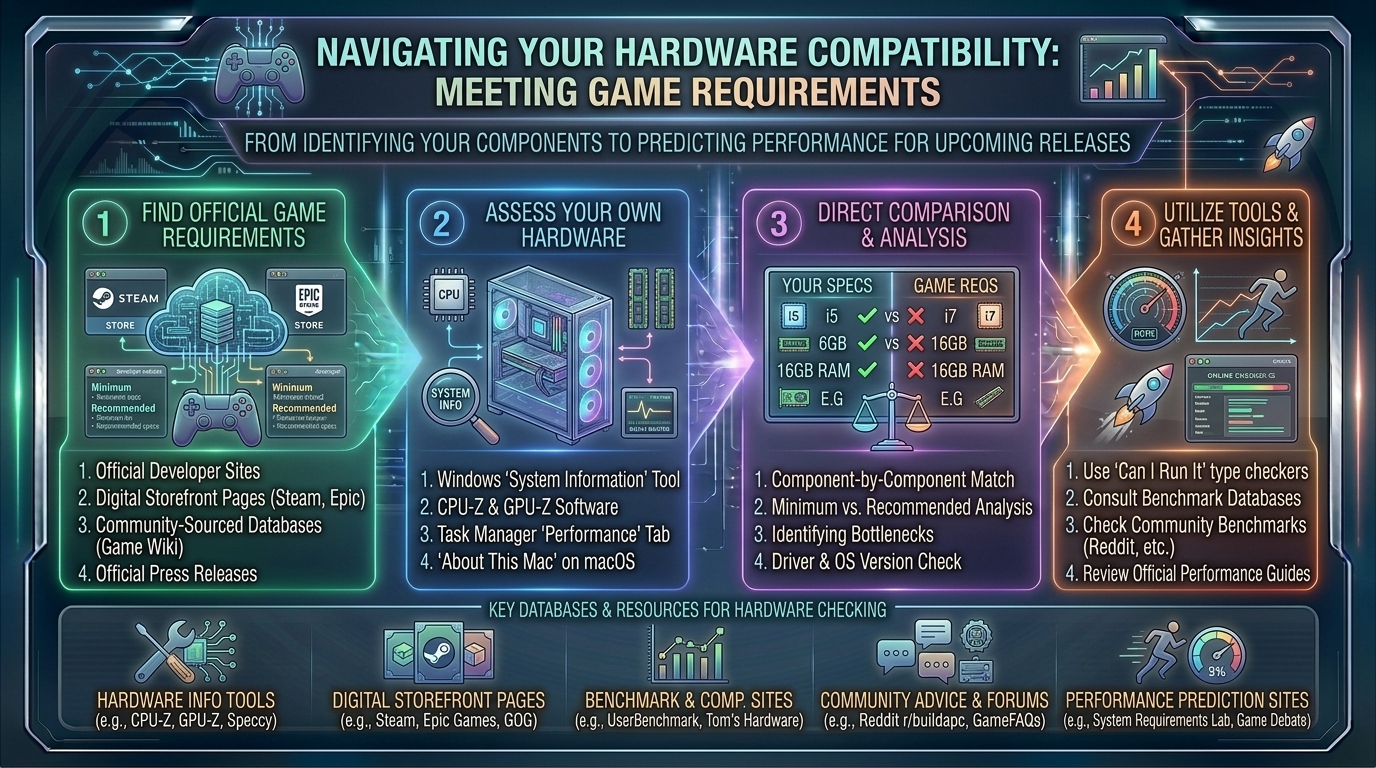
How to Check If Your Current Computer Hardware Meets the Official System Requirements for Upcoming Game Releases
Welcome to thegamerbuzz.com! Whether you are building a cutting-edge battle station in San Francisco or New York, upgrading a rig across Washington or Texas, or checking your frame rates in California, knowing whether your computer can handle the newest AAA blockbusters is essential.
With game developers pushing the envelope using advanced technologies like ray tracing, path tracing, and complex procedural world generation, official system requirements have become increasingly nuanced. Simply looking at an Intel Core i7 label no longer tells the whole story.
This comprehensive, highly informative master guide walks you through every step of identifying your current computer hardware, decoding publisher system requirements, utilizing automated compatibility checkers, and preparing your rig for upcoming game releases.
1. How to Find Your Computer’s Current Hardware Specs
Before you can compare your PC against an upcoming game’s target specifications, you need to know exactly what hardware is running under your hood.
The Fastest Method: Windows Task Manager
- Press
Ctrl + Shift + Escsimultaneously to open the Task Manager. - Click on the Performance tab on the left-hand menu.
- Select CPU to view your processor model and clock speed.
- Select Memory to see your total RAM capacity and speed.
- Select GPU (GPU 0 or GPU 1) to identify your dedicated graphics card model and Video RAM (VRAM) size.
The Detailed Method: DirectX Diagnostic Tool (dxdiag)
- Press
Windows Key + Rto open the Run dialog box. - Type
dxdiagand hit Enter. - Under the System tab, note your exact operating system, processor, and RAM.
- Click on the Display (and Display 2, if applicable) tab to view comprehensive details about your graphics card and integrated video memory.
+-------------------------------------------------------------------------+
                      CORE HARDWARE CHECKLIST
+-------------------------------------------------------------------------+
  1. CPU (Processor)    -> Intel Core / AMD Ryzen series & generation
  2. GPU (Graphics)     -> NVIDIA GeForce RTX / AMD Radeon RX series
  3. VRAM (Video RAM)   -> Dedicated memory on your graphics card (e.g., 8GB/12GB)
  4. System RAM         -> System memory (16GB, 32GB, etc.)
  5. Storage Type       -> NVMe SSD vs. traditional mechanical HDD
+-------------------------------------------------------------------------+
2. Decoding Publisher System Requirements: Minimum vs. Recommended
When publishers drop system requirements for an upcoming title, they typically split them into tiers. Understanding what these tiers actually mean prevents disappointment on launch day.
- Minimum Requirements: This usually targets a 720p or 1080p resolution at 30 frames per second (FPS) using low or medium graphic presets. If your hardware sits below this tier, expect severe stuttering, unplayable frame rates, or outright failure to launch.
- Recommended Requirements: This baseline generally targets a 1080p or 1440p resolution at a smooth 60 FPS on high graphical settings. This is the sweet spot most gamers aim for.
- Ultra / Enthusiast Requirements: Designed for 4K resolution, high refresh rates, and maxed-out ray tracing features. These requirements often demand top-tier flagship GPUs and massive amounts of RAM.
3. Best Tools to Automatically Check Game Compatibility
Instead of manually cross-referencing your components line-by-line, several trusted online tools can automate the process instantly.
- Can I Run It (System Requirements Lab): A staple in the PC gaming community, this tool allows you to search for any game from a database of over 15,000 titles and compare it against a quick detection scan of your system.
- PCGameBenchmark: Excellent for rating your overall gaming PC score, checking specific component bottlenecks, and viewing real-world estimated FPS charts based on community benchmarks.
- IObit Rate My PC: A lightweight, browser-based tool that lets you input your CPU, GPU, and RAM to generate instant compatibility scores and performance expectations.
4. Pro Tips for Future-Proofing Your Rig
- Never Ignore the Storage Requirement: Modern blockbuster games heavily utilize DirectStorage and massive open-world streaming assets. If an upcoming game states “SSD Required,” installing it on an old mechanical Hard Disk Drive (HDD) will cause severe texture pop-in and infinite loading screens.
- Pay Close Attention to VRAM: While system RAM (like 16GB or 32GB) is important, Video RAM (VRAM) on your graphics card is critical for high-resolution textures. Modern games running on Unreal Engine 5 frequently demand 8GB to 12GB of VRAM minimum at high settings.
- Check for Upgraded Upscaling Support: If your GPU is slightly older, check if the game supports DLSS (NVIDIA), FSR (AMD), or XeSS (Intel). Upscaling technologies can breathe new life into older hardware, allowing you to hit target frame rates without buying a whole new graphics card.
- Keep Your Drivers Fresh: Always update your NVIDIA, AMD, or Intel graphics drivers right before a major game launch. Publishers release “Day-0 game-ready drivers” that provide massive performance optimizations specifically tailored for upcoming titles.
10 Frequently Asked Questions (FAQs)
1. What happens if my CPU meets minimum requirements, but my GPU does not?
Your graphics card will bottleneck your system. Even if your processor can process game logic, your GPU will fail to render frames smoothly, resulting in abysmal frame rates and choppy gameplay.
2. Can I run a game if I only have 8GB of RAM when 16GB is required?
You may be able to launch the game, but expect severe stuttering and hitching as Windows constantly swaps data to your page file due to a lack of physical memory. 16GB is the modern gaming baseline.
3. Do laptop graphics cards perform the same as desktop graphics cards?
No. Mobile (laptop) variants of GPUs are physically restricted by thermal and power limits. A laptop labeled with an RTX 4060 will typically perform around 15% to 25% slower than its desktop equivalent.
4. What is VRAM and why is it so important for new games?
VRAM (Video Random Access Memory) is dedicated memory on your graphics card used to store image textures and geometry data. Running out of VRAM forces the system to use regular system RAM, causing extreme stuttering.
5. Why do some games require an SSD instead of an HDD?
Modern games stream massive amounts of map data dynamically as you move through the world. Traditional HDDs are too slow to feed data to the CPU and GPU fast enough, leading to frozen assets.
6. Can integrated graphics (like Intel Iris Xe or AMD Radeon Graphics) run upcoming AAA games?
Generally, integrated graphics are designed for basic productivity, media streaming, and older or indie games. They lack dedicated VRAM and structural hardware pipelines required for modern AAA blockbusters.
7. How accurate are online compatibility checkers like “Can I Run It”?
They are generally very accurate for baseline hardware comparisons. However, they rely on general algorithms and cannot always predict day-one optimization patches or unique software conflicts on your specific operating system.
8. What is a “bottleneck” in a gaming PC?
A bottleneck occurs when one component (usually the CPU or GPU) limits the performance potential of the other component because it cannot process data fast enough to keep up.
9. Should I upgrade my CPU or GPU first for upcoming games?
For 90% of modern games, the graphics card (GPU) is the most critical component. Upgrade your GPU first unless your processor is severely outdated (causing a massive bottleneck).
10. How far in advance do publishers release system requirements?
Publishers typically release official system requirements anywhere from a few weeks to a few months before a game’s launch, once optimization passes are finalized.
Conclusion
Checking your computer hardware against upcoming game releases doesn’t have to be a guessing game. By leveraging built-in Windows diagnostics tools, understanding the nuances between minimum and recommended publisher metrics, and using automated compatibility checkers, you can make informed decisions before spending your hard-earned money. Whether you are prepping for the next big RPG in New York or optimizing your hardware setup out in San Francisco, staying informed ensures your rig is always ready for action.
How to Check and Benchmark Your PC Hardware
This video provides a practical, visual walkthrough of how to utilize task manager, diagnostic tools, and benchmarking software to evaluate your PC’s gaming readiness.
Leave a Reply