Category: Blog

  • How to optimize battery life and screen brightness on handheld gaming pcs to get longer playtime outdoors

    How to optimize battery life and screen brightness on handheld gaming pcs to get longer playtime outdoors

    How to Optimize Battery Life and Screen Brightness on Handheld Gaming PCs to Get Longer Playtime Outdoors

    Handheld gaming PCs—like the Valve Steam Deck OLED, ASUS ROG Ally X, Lenovo Legion Go, and MSI Claw—have revolutionized PC gaming by bringing AAA titles out of the home and into the real world. However, taking high-end PC hardware outside introduces two major challenges: harsh outdoor sunlight that washes out displays and rapid battery drain caused by demanding APU power draw.

    Playing your favorite titles outdoors at full screen brightness and high performance settings can drain a handheld battery in as little as 60 to 90 minutes. Fortunately, with the right combination of display calibration, System-on-Chip (SoC) power management, thermal tuning, and outdoor accessories, you can dramatically extend your battery life without sacrificing visual readability.

    At The Gamer Buzz, we test handheld performance, thermal dissipation, battery capacity, and outdoor display visibility across every major gaming handheld. This comprehensive guide breaks down step-by-step techniques to optimize your screen brightness, tune TDP (Thermal Design Power), configure refresh rates, and maximize your outdoor play sessions.

    Whether playing under the bright sun in Texas and California, navigating parks in San Francisco and Washington, or gaming on long outdoor commutes in New York, this guide will keep your handheld running longer on a single charge.

    1. The Science of Outdoor Battery Drain: Display vs. APU Power Draw

    To maximize outdoor playtime, you must first understand where your handheld’s battery power actually goes. Total power consumption is measured as System Power Draw (W), which combines the power used by the display panel, processor (APU), memory, cooling fans, and wireless modules.

    Breaking Down System Power Draw

    +-------------------------------------------------------------------------+
    |                    TOTAL SYSTEM POWER DRAW (WATTS)                      |
    +-----------------------------------+-------------------------------------+
    | 1. APU POWER DRAW (TDP)           | 5W - 30W                            |
    |    CPU/GPU core processing power  | Primary battery consumer in AAA     |
    +-----------------------------------+-------------------------------------+
    | 2. DISPLAY BACKLIGHT & PANEL      | 1.5W - 5.5W                         |
    |    100% Brightness vs 50%         | Doubles at max outdoor brightness   |
    +-----------------------------------+-------------------------------------+
    | 3. COOLING FANS & SYSTEM BUS      | 1W - 3.5W                           |
    |    RPM scales with thermal load   | Higher heat = higher fan power draw |
    +-----------------------------------+-------------------------------------+
    
    • Display Backlight Load: Increasing screen brightness from 50% (approx. 200 nits) to 100% (500–1000 nits for outdoor readability) adds an extra 2.5W to 4.5W of continuous drain. On a 40Wh battery, this alone cuts total runtime by up to 45 minutes.
    • APU Power Draw (TDP): Running demanding 3D games at unlocked 25W or 30W Turbo modes drains batteries rapidly regardless of screen brightness.
    • Thermal Throttling & Fan Efficiency: Hot outdoor ambient temperatures force cooling fans to run at maximum RPM, adding an extra 1W to 2W of power consumption while raising internal temperatures.
    Handheld ModelBattery CapacityMax Screen BrightnessStock Outdoor Battery Life (30W/Max Brightness)Optimized Outdoor Battery Life (TDP & Display Tuned)
    Steam Deck OLED50 Wh1,000 nits (HDR) / 600 nits (SDR)~2.0 Hours4.5 to 7.0 Hours
    ASUS ROG Ally X80 Wh500 nits~2.5 Hours5.5 to 9.0 Hours
    Lenovo Legion Go49.2 Wh500 nits~1.1 Hours3.0 to 5.0 Hours
    Steam Deck LCD40 Wh400 nits~1.2 Hours2.5 to 4.5 Hours

    2. Optimizing Screen Brightness & Outdoor Display Visibility

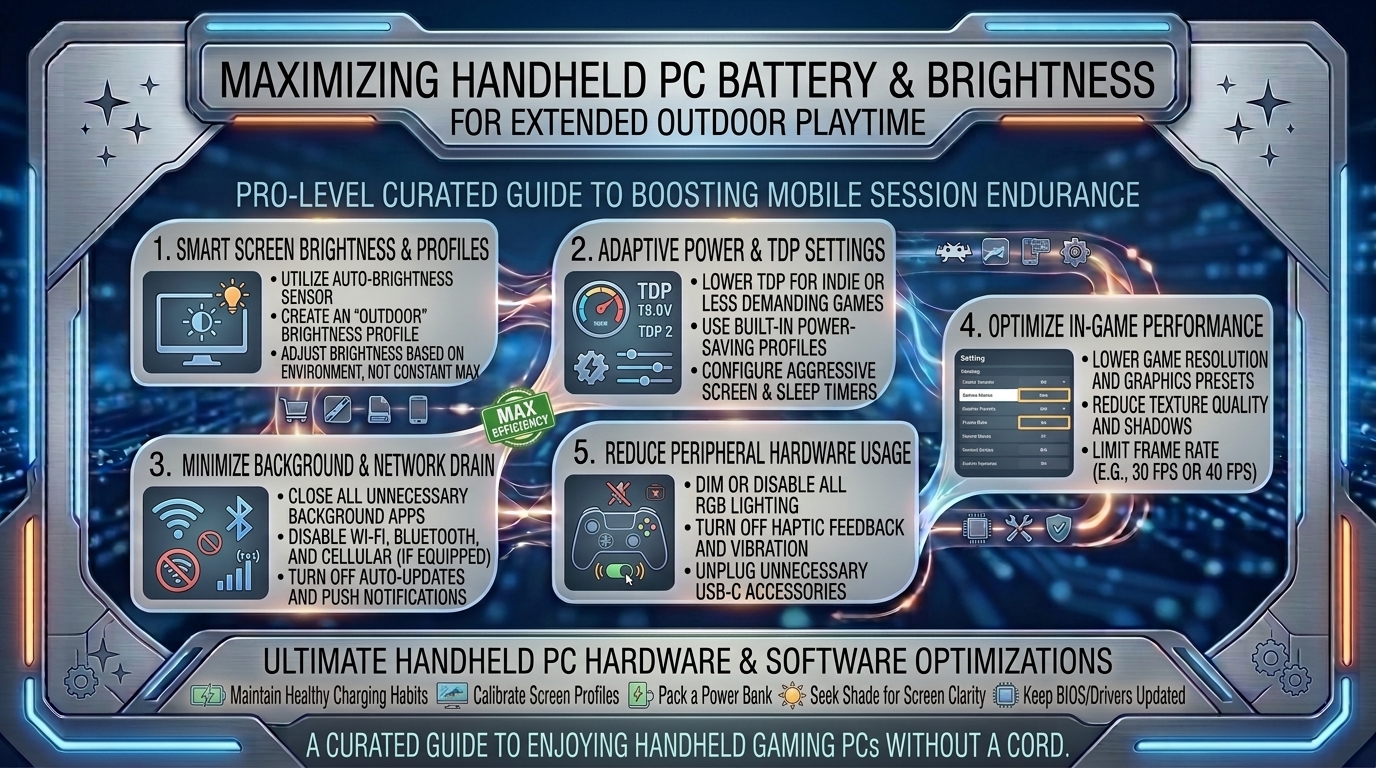
    Blasting your screen at 100% brightness is the default reaction to direct sunlight, but it is the least power-efficient way to achieve readability. Use these display calibration steps instead:

    1.Step 1: Install an Anti-Glare Matte Screen Protector:Eliminate glare without boosting display backlight wattage.

    Harsh outdoor glare forces you to max out your screen brightness just to see through reflections. Installing a high-quality etched-glass matte screen protector diffuses ambient sunlight, drastically improving screen visibility at lower brightness levels (e.g., 60% to 70%), saving 1.5W to 2W of battery power continuously.

    2.Step 2: Calibrate In-Game Gamma & Contrast Boost:Adjust display gamma to boost shadow visibility under sunlight.

    Instead of raising system backlight brightness, open your game’s video settings and raise the In-Game Gamma / Brightness Slider by 10% to 15%. This brightens dark shadow areas in the game world natively without forcing the physical display backlight to draw more power from the battery.

    3.Step 3: Disable Ambient Light Sensors (Auto-Brightness):Prevent unwanted brightness spikes under shifting outdoor light.

    Automatic brightness features constantly adjust backlight levels when moving under trees, umbrellas, or cloud cover, often spiking the display to 100% unnecessarily. Disable Auto-Brightness in SteamOS or Windows 11 settings and manually lock your screen at the lowest comfortable readable percentage.

    3. Power-Tuning the APU: TDP, Frame Limits, and Resolution Scaling

    Lowering display power draw is only half the battle. Tuning your handheld’s APU (CPU/GPU) power settings delivers the largest battery life improvements.

    1. Cap Your Frame Rate (The 30 FPS / 40 FPS Sweet Spot)

    Running games at uncapped frame rates (70–90 FPS) wastes battery power on frames your eyes barely register outdoors.

    • The 40Hz / 40 FPS Limit: On 120Hz or 90Hz displays (Steam Deck OLED, ROG Ally X), cap your refresh rate to 40Hz and lock frame rates to 40 FPS. This delivers significantly smoother visuals than 30 FPS while cutting APU power consumption by 30% to 40%.
    • The 30 FPS Saver Limit: For heavy AAA games (Cyberpunk 2077, Elden Ring), lock the frame rate to 30 FPS. This lowers required APU wattage from 25W down to 12W–15W.

    2. Manual Thermal Design Power (TDP) Tuning

    Never leave your handheld in “Performance” or “Turbo” mode when playing outdoors on battery power.

    • Indie / 2D Games: Set manual TDP limit to 5W – 8W (e.g., Balatro, Hollow Knight, Stardew Valley).
    • Mid-Range / Older 3D Games: Set manual TDP limit to 9W – 12W (e.g., Fallout 4, GTA V, Skyrim).
    • Modern AAA Titles: Cap manual TDP limit to 15W (Steam Deck) or 17W–20W (ROG Ally X / Legion Go).

    3. Leverage Resolution Scaling (FSR / XeSS)

    Render games at lower internal resolutions and let spatial upscalers sharpen the final image:

    • Set in-game resolution to 720p (1280×720) or 800p (1280×800) instead of 1080p.
    • Enable AMD FSR 3 / FSR 2 or Intel XeSS on Balanced or Quality mode. This reduces GPU workload, saving 3W to 6W of system power.

    4. Outdoor Accessories: Power Banks, Sunshades, and Thermal Management

    Smart accessory choices help maintain comfortable handheld temperatures and ensure continuous power while gaming outdoors.

    1. High-Wattage TSA-Approved Power Banks

    Internal batteries have physical size limits. Carrying a dedicated USB-C Power Delivery (PD) power bank extends your outdoor gaming sessions significantly.

    • Minimum Specs: Look for power banks rated at 20,000mAh to 27,600mAh supporting 65W to 100W USB-C PD output.
    • TSA Compliance Limit: Ensure your power bank is rated at or below 99.9Wh (the maximum capacity allowed on commercial flights without airline approval).
    • Runtime Gain: A 24,000mAh (88Wh) battery bank can fully recharge a Steam Deck OLED or ROG Ally 1.5 to 2 times, providing up to 10 total hours of outdoor play.

    2. Physical Sunshades & Clip-On Visors

    Using a clip-on 3D-printed or folding fabric sunshade around your handheld creates a shaded pocket over your display. Blocked direct sunlight allows you to lower screen brightness from 100% to 50%, saving screen power while eliminating thermal heat soak on the device housing.

    10 Frequently Asked Questions (FAQ)

    1. Does playing handheld games in direct sunlight damage the screen?

    Direct sunlight won’t immediately break your screen, but prolonged exposure causes heat accumulation, raising battery temperatures past safe thresholds (45°C+). OLED panels can also suffer accelerated degradation under extreme heat and UV exposure. Play in shaded areas whenever possible.

    2. Is OLED more power-efficient than LCD for outdoor gaming?

    Yes! OLED screens (like on the Steam Deck OLED) emit light per-pixel. Displaying dark themes, dark game environments, or lower black levels uses far less energy than an LCD backlight, which lights the entire panel regardless of on-screen colors.

    3. How much battery life do I gain by dropping screen brightness from 100% to 50%?

    Lowering brightness from 100% to 50% reduces display power draw by roughly 2W to 3.5W. Depending on your APU settings, this adds 30 to 60 minutes of additional playtime on a single charge.

    4. What is the single most effective setting to save battery life on a handheld PC?

    Lowering your APU TDP limit and capping your frame rate (e.g., locking to 30 FPS or 40 FPS at 12W–15W TDP) yields the largest battery savings, often doubling your device’s total runtime.

    5. Why does my handheld battery drain faster outdoors even at the same settings?

    Outdoor heat causes internal temperatures to rise. The system’s cooling fans must spin at maximum RPM, drawing extra power. If temperatures rise too high, thermal inefficiency can also increase power loss across system voltage regulators.

    6. Can I use any mobile phone power bank to charge my gaming handheld outdoors?

    No. Standard smartphone power banks only output 5W to 15W, which cannot charge a handheld while gaming. You need a power bank supporting USB-C Power Delivery (PD 3.0 or higher) with at least 45W to 65W output.

    7. Does disabling Bluetooth and Wi-Fi extend outdoor battery life?

    Yes. Turning on Airplane Mode disables background network scanning and wireless radios, saving approximately 0.5W to 1.5W of power—adding 15 to 30 extra minutes of offline gaming runtime.

    8. Will using an anti-glare screen protector ruin screen clarity?

    High-quality etched matte glass protectors slightly soften extreme micro-sharpness, but they eliminate direct mirror-like glare under sunlight. The ability to see your game clearly without maxing out screen brightness far outweighs the minor trade-off in grain.

    9. What TDP setting should I use for 2D indie games outdoors?

    For lightweight 2D games (Balatro, Dead Cells, Terraria), set your manual TDP limit to 5W to 7W. This allows your handheld to run for 5 to 8 hours on internal battery alone.

    10. How do I prevent my handheld from overheating when playing outdoors in summer heat?

    Play in shaded spots, avoid playing on hot asphalt surfaces, remove thick rubber protective cases that trap heat, keep air vents clear, and avoid fast-charging your device while actively playing high-TDP games in the heat.

    Conclusion

    Optimizing battery performance and display readability on handheld gaming PCs relies on balancing visual settings with smart power limits. By installing anti-glare matte protection, calibrating in-game gamma, locking frame rates to 30 or 40 FPS, enforcing manual TDP limits, and carrying a TSA-approved 65W+ USB-C Power Delivery power bank, you can double or triple your outdoor gaming sessions.
  • What are the best free to play mobile gacha games that do not require spending money to progress

    What are the best free to play mobile gacha games that do not require spending money to progress

    What Are the Best Free-to-Play Mobile Gacha Games That Do Not Require Spending Money to Progress?

    The mobile gaming landscape is dominated by gacha games—titles characterized by randomized character banners, stamina systems, and rich RPG progression. However, many gacha titles hide aggressive paywalls, locking high-end endgame content, PvP arenas, and character ascensions behind real-money microtransactions.

    Fortunately, a select group of developers prioritizes long-term free-to-play (F2P) sustainability. These games feature generous pull currencies, viable low-rarity units, skill-based mechanics, and robust pity guarantees, allowing dedicated players to complete 100% of PVE story campaigns and high-tier endgame dungeons without spending a dime.

    At The Gamer Buzz, we review handheld performance, mobile gaming setups, and F2P monetization models. This comprehensive guide breaks down the best genuinely F2P-friendly gacha games on iOS and Android, strategies for managing in-game currencies, red flags for predatory monetization, and essential tips for mobile play.

    Whether gaming on the go across Texas, managing daily stamina during a daily commute in New York, playing in tech hubs across San Francisco and California, or relaxing in Washington, these free-to-play mobile gacha games deliver top-tier entertainment without requiring real-money purchases.

    1. What Makes a Gacha Game Truly Free-to-Play Friendly?

    Not all gacha systems are created equal. Distinguishing between a truly fair F2P title and a predatory pay-to-win (P2W) game requires evaluating five key monetization mechanics.

    The F2P Sustainability Framework

    • Viability of 3-Star / Low-Rarity Units: In fair gacha games, low-rarity characters remain essential for endgame content due to unique utility, buff mechanics, or low resource investment costs.
    • Hard Pity & Spark Systems: A transparent pity system guarantees high-rarity characters after a set number of pulls (e.g., 80 to 90 pulls) and carries over pull counts across limited-time banners.
    • Abundant Currency Income: The game must supply a steady stream of premium currency through daily quests, weekly reset rewards, story clearing, and seasonal events.
    • No Power-Gated PVE Content: Single-player story chapters, raid bosses, and endgame dungeons must be beatable through strategy, gear optimization, and elemental counters rather than requiring specific paid units.
    • Absence of Predatory PvP Paywalls: In-game PvP modes should either be optional, offer balanced stat modes, or not lock core character progression behind top-tier leaderboards.
    Game TitleGenre / Combat SystemHard Pity GuaranteeLow-Rarity ViabilityPremium Currency IncomeStandout F2P Feature
    Genshin ImpactOpen-World Action RPG90 Pulls (Carries Over)High (Core 4-Stars top-tier)High (Events + Exploration)Complete open-world story accessible for 100% free
    Honkai: Star RailTurn-Based Tactical RPG90 Pulls (Carries Over)Extremely HighVery High (Simulated Universe)Daily routines take under 10 minutes
    ArknightsStrategic Tower Defense50-60 Soft / Hard PityExceptional (3/4-Stars excel)High (Weekly Annihilation)Zero PvP pressure; pure tactical skill emphasis
    Fate/Grand OrderTurn-Based Card Fighter330 Pulls (High)Legendary (1-3 Stars essential)Moderate to HighLow-rarity units are top-tier damage options
    Limbus CompanyTurn-Based RPG / StrategyCrafting / Shard SystemExceptionalVery High (Battle Pass / Lunacy)Target farm characters via gameplay without rolling gacha
    Reverse: 1999Tactical Card Battler70 Pulls (Carries Over)HighHigh (Daily / Weekly Tasks)Generous limited banner pity system

    2. Top Verified F2P-Friendly Mobile Gacha Games

    Here are the top mobile gacha games that respect player time and wallet balance:

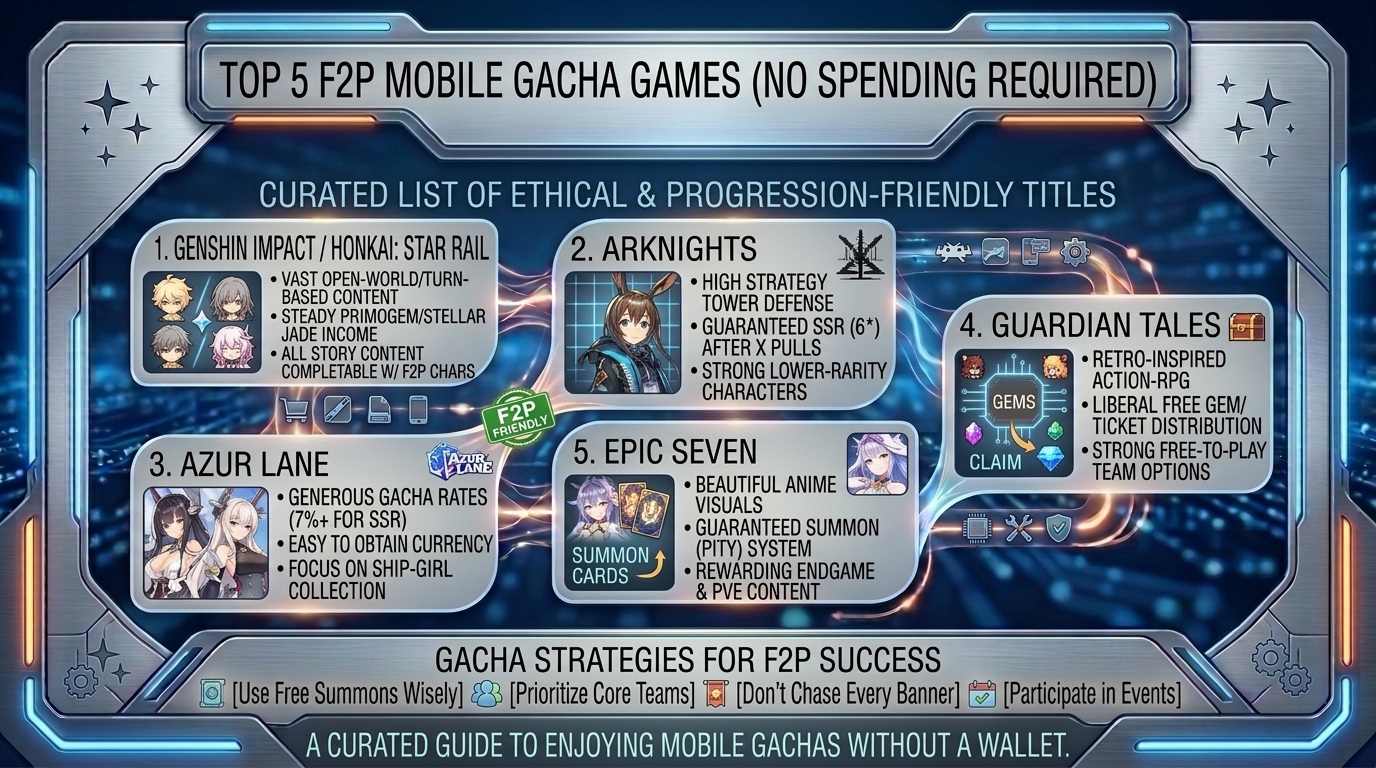
    1.Category 1: High-Production Action & Tactical RPGs:Open-world exploration and tactical turn-based RPGs with strong F2P design.

    • Genshin Impact (iOS/Android): Offers a massive AAA open-world campaign that can be cleared entirely with free starter characters (Traveler, Xiangling, Amber, Kaeya, Lisa). High 4-star character viability ensures players never need 5-star characters to complete story content.
    • Honkai: Star Rail (iOS/Android): A turn-based sci-fi RPG featuring strategic combat and accessible daily routines. Free characters like Herta, Trailblazer, and March 7th are top-tier options in endgame modes like Forgotten Hall and Simulated Universe.
    • Zenless Zone Zero (iOS/Android): A fast-paced urban action game with combo-driven combat. The game heavily rewards player dodge timing and parry mechanics over raw stats.

    2.Category 2: Strategy & Tower Defense Masterpieces:Pure strategy games where tactical positioning outperforms expensive stats.

    • Arknights: One of the most F2P-friendly gacha games ever created. High-level strategy creators consistently clear the game’s hardest difficulty stages using only basic 3-star and 4-star units, proving skill outweighs gacha pulls.
    • Limbus Company: Features a unique “Sparking” system that allows players to target-farm specific character identities and E.G.O equipment by completing daily/weekly gameplay loops without rolling on banner banners.
    • Reverse: 1999: A turn-based card battler featuring retro aesthetics, rich storytelling, generous banner pity guarantees, and strong low-rarity unit utility.

    3.Category 3: Story-Driven & Classic Anime RPGs:Deep narrative experiences with accessible character pools.

    • Fate/Grand Order (FGO): Famous for its immersive visual novel campaign. Low-rarity servants like Arash, Spartacus, and Hans Christian Andersen remain top-tier farming and support options even years after release.
    • Blue Archive: A tactical military anime RPG featuring generous currency giveaways during maintenance, frequent free pulls during anniversary events, and farmable character shards.
    • Granblue Fantasy: A classic browser/mobile RPG known for massive free roll events (such as the annual Roulette Wheel event), granting players dozens of free daily pulls.

    3. Essential F2P Resource Management Strategies

    Succeeding in gacha games without spending money requires smart resource management.

    1. The Priority Pull Rule

    • Target Meta-Defining Supports First: Always prioritize pulling for universal support characters over pure damage dealers (DPS). DPS characters are frequently power-crept by newer releases, whereas top-tier buffer/debuffer supports remain valuable for years.
    • Never Spend Premium Currency on Standard Banners: Only spend free premium pull currency (Primogems, Stellar Jades, Orundum) on limited-time event banners. Standard banner tickets are earned naturally through leveling up and playing game modes.

    2. Efficiency & Stamina Management

    • Avoid Refilling Stamina with Premium Currency: Using free premium currency to buy stamina refills drains your gacha pull savings quickly. Allow stamina (Energy/Resin/Sanity) to regenerate naturally over time.
    • Focus on Gear & Skill Upgrades: Character levels, weapon upgrades, talent trees, and gear stats provide guaranteed power increases without relying on gacha luck.

    4. Mobile Hardware, Thermal, and Battery Optimizations

    Gacha games feature high-end 3D graphics that can strain smartphone hardware during daily gameplay sessions.

    1. Lower Graphics to 60 FPS / Medium Settings: Running games like Genshin Impact or Zenless Zone Zero on Max/Ultra 120Hz settings causes quick thermal throttling and battery drain. Dropping settings to 60 FPS / Medium Quality yields smooth gameplay while preserving battery life.
    2. Use External Gamepads / Mobile Controllers: For action-heavy gacha games, pairing a mobile controller (such as the Backbone One, Razer Kishi, or Xbox Controller) improves precision, removes on-screen thumb clutter, and improves physical ergonomics.
    3. Disable Background App Refresh: Close background social media apps while playing graphics-heavy mobile gacha games to allocate full RAM and system bandwidth to your game.

    10 Frequently Asked Questions (FAQ)

    1. Can you truly beat Genshin Impact’s story without spending money?

    Yes! 100% of Genshin Impact’s main story, exploration regions, and side quests can be completed using free starter characters. The game does not hide story progression behind paywalls.

    2. What is a “Soft Pity” vs. “Hard Pity” system in gacha games?

    Soft Pity refers to an increased probability rate of pulling a high-rarity character as you approach a specific pull threshold (e.g., pulls 74–89 in Hoyoverse games). Hard Pity is the absolute guaranteed pull threshold (e.g., 90th pull) where a high-rarity character is granted automatically.

    3. Are low-rarity characters useful in Arknights?

    Extremely useful. 3-star and 4-star operators in Arknights cost significantly fewer resources to upgrade, deploy quickly on tactical grids, and possess core utility required to clear even high-difficulty event stages.

    4. How long do daily routines take in F2P-friendly gacha games?

    Most modern F2P gacha games design their daily quest loops to be completed in 5 to 15 minutes, making them easy to fit into daily routines or commutes.

    5. What does “Power Creep” mean in mobile gacha gaming?

    Power creep occurs when a developer continuously releases newer characters that are stronger than older ones, making older character pools less effective over time. F2P-friendly games minimize power creep by balancing older characters or releasing gear upgrades.

    6. Can I transfer my mobile gacha game save progress between iOS, Android, and PC?

    Most modern gacha games (including Genshin Impact, Honkai: Star Rail, and Zenless Zone Zero) feature seamless cross-save support via unified publisher accounts (e.g., HoYoverse account), allowing you to swap between mobile devices and PC freely.

    7. Should I use free premium currency to refresh daily stamina/energy?

    No. Saving your premium currency exclusively for limited character banners is the best F2P strategy. Let your stamina regenerate naturally over time.

    8. What is “Rerolling,” and is it necessary for F2P players?

    Rerolling is the practice of creating new game accounts repeatedly to use initial free pulls until you acquire a top-tier high-rarity character. While helpful for starting ahead, it is rarely necessary in F2P-friendly games.

    9. Which mobile gacha game has the most generous banner rates?

    Games like Limbus Company (with direct identity crafting systems), Arknights, and Granblue Fantasy (during free pull festival events) rank among the most generous titles in mobile gaming.

    10. How can I avoid falling into predatory spending traps in gacha games?

    Set strict personal rules: never link a quick-pay credit card to your mobile app store account, never pull on banners without having enough currency saved for hard pity, and evaluate games based on gameplay enjoyment rather than fear of missing out (FOMO).

    Conclusion

    Mobile gacha games do not have to drain your wallet to deliver rewarding gameplay experiences. Titles like Genshin Impact, Honkai: Star Rail, Arknights, Limbus Company, and Fate/Grand Order demonstrate that fair monetization, strong low-rarity design, transparent pity guarantees, and accessible story campaigns can provide endless entertainment completely free of charge. By managing your pull currencies wisely, focusing on character synergies, and optimizing your mobile device settings, you can enjoy high-quality mobile RPGs on your own terms.

  • How to set up emulator software legally to play classic retro console games on modern handheld devices

    How to set up emulator software legally to play classic retro console games on modern handheld devices

    How to Set Up Emulator Software Legally to Play Classic Retro Console Games on Modern Handheld Devices

    The golden age of video games has not vanished; it has simply migrated into the palm of your hand. Powerful modern handheld devices—ranging from specialized Linux-based retro consoles (Anbernic, Retroid Pocket, Ayn Odin) to full-fledged x86 handheld PCs (Valve Steam Deck, ASUS ROG Ally, Lenovo Legion Go) and smartphones—allow enthusiasts to carry decades of gaming history in a single pocketable device.

    However, entering the world of retro emulation can feel daunting. Media coverage often conflates emulation with software piracy, creating confusion around what is legal, what requires extra hardware, and how to configure software for an optimal experience.

    At The Gamer Buzz, we test handheld hardware optimizations, storage solutions, open-source firmware, and legal retro emulation workflows. This comprehensive guide breaks down the legal framework of emulation, how to dump your owned physical cartridges and system BIOS files legally, how to set up frontends like RetroArch and EmuDeck, and how to optimize your handheld settings for high-tier performance.

    Whether configuring your handheld setup in tech hubs like San Francisco, California, and Washington, building a portable retro collection in Texas, or setting up a mobile rig in New York, this guide provides the step-by-step roadmap to legal, seamless retro gaming.

    1. The Legal Framework: Emulators, ROMs, and System BIOS

    Understanding the legal boundary between emulator applications, BIOS firmware, and game files (ROMs/ISOs) is essential before downloading software.

    The Three Pillars of Legal Emulation

    +-----------------------------------------------------------------------+
    |                       LEGAL EMULATION PILLARS                         |
    +------------------------------------+----------------------------------+
    | 1. EMULATOR SOFTWARE               | Fully Legal                      |
    |    Reverse-engineered hardware     | Public domain / open-source code |
    +------------------------------------+----------------------------------+
    | 2. SYSTEM BIOS FIRMWARE            | Restricted / Proprietary         |
    |    Copyrighted console system code | Must be dumped from personal unit|
    +------------------------------------+----------------------------------+
    | 3. GAME ROMS & DISK IMAGES         | Strictly Protected               |
    |    Copyrighted game assets         | Must be dumped from personal cart|
    +------------------------------------+----------------------------------+
    
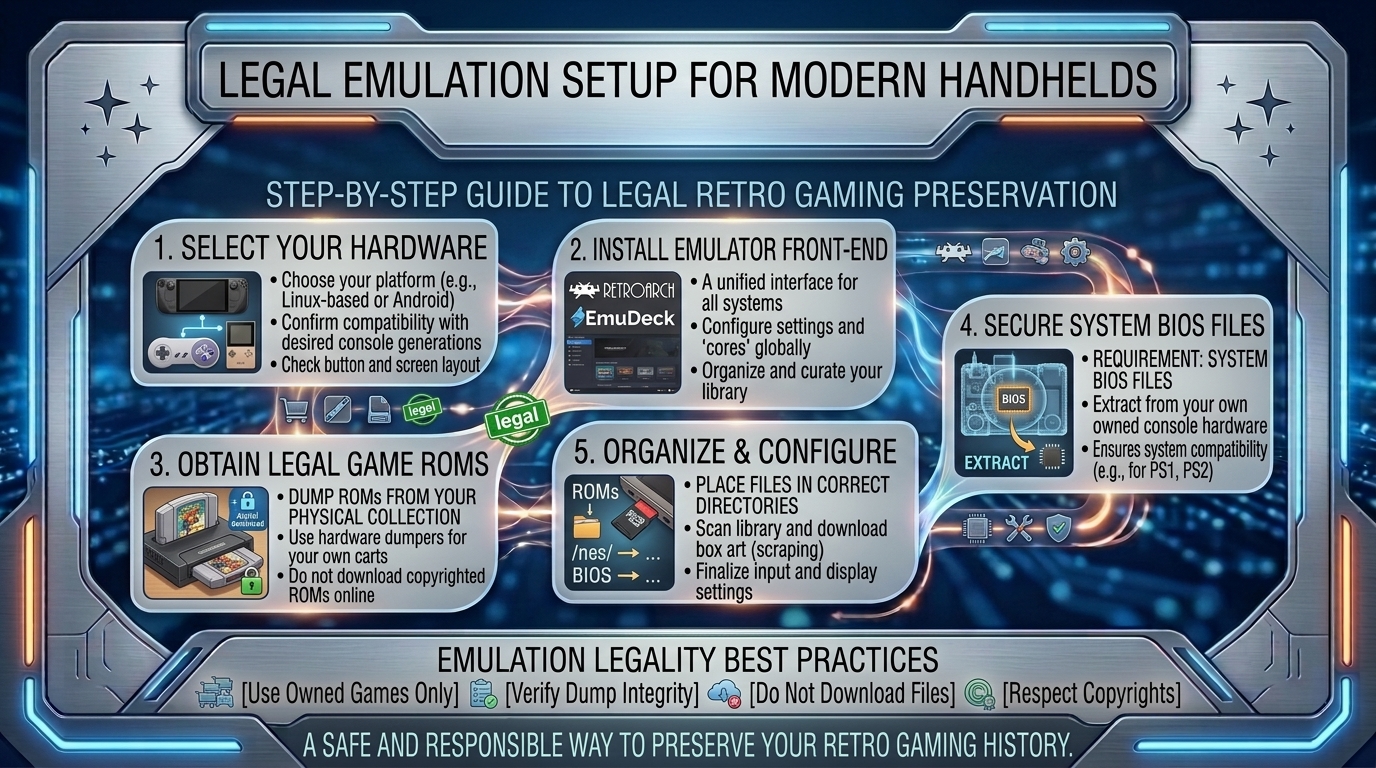
    • Emulator Software (100% Legal): Courts have repeatedly established (notably in Sony Computer Entertainment v. Connectix Corp. and Bleem!) that reverse-engineering game console hardware to write clean-room software emulators is entirely legal. Emulators do not contain proprietary manufacturer code.
    • System BIOS Files (Proprietary Firmware): Certain systems (such as Sony PlayStation, PlayStation 2, SEGA Saturn, and Nintendo Switch) require an official Operating System boot ROM file (BIOS) to launch games. Because BIOS files are copyrighted code owned by the console manufacturer, downloading them from public websites is illegal. The only legal method to obtain a BIOS file is to dump it directly from a physical console that you personally own.
    • Game ROMs / ISOs (Protected Media): Downloading commercial game ROMs from third-party websites or torrent networks is copyright infringement—even if you physically own a copy of the cartridge or disc. Under “Fair Use” and personal archiving laws in many regions, users are permitted to create digital backup copies (dumps) of media they physically own for personal use.

    2. Hardware vs. Software Matrix: Choosing Your Target Handheld

    Before configuring your software, match your desired console era with the right handheld processor architecture.

    Handheld ClassExample DevicesEmulation LimitKey Strengths
    Linux Budget HandheldsAnbernic RG35XX, TrimUI Brick, Miyoo MiniGame Boy, SNES, PS1, ArcadeUltra-portable, instant boot, multi-day battery life
    Mid-Range AndroidRetroid Pocket 5, Ayn Odin 2, Smartphone + ControllerGameCube, Wii, PS2, PSP, N64Vibrant OLED screens, deep app ecosystem, long battery life
    High-End x86 Handheld PCsSteam Deck OLED, ASUS ROG Ally X, Legion GoPS3, Xbox 360, Switch, Wii UMassive computing power, full desktop OS flexibility

    3. How to Legally Dump Your Own Cartridges, Discs, and BIOS Files

    Building a legal retro library requires extracting the software data from your physical game collection and console hardware.

    1.Step 1: Dumping Cartridge-Based Games (NES, SNES, Genesis, GBA, N64):Extract ROM files from physical game cartridges.

    Use an open-hardware cartridge dumper (such as the Retrode 2, Open Source Cartridge Reader, or GB Operator).

    • Connect the USB cartridge reader to your desktop PC.
    • Insert your physical cartridge into the designated slot.
    • The reader mounts the cartridge as a standard USB storage drive.
    • Copy the .gb, .gba, .sfc, or .z64 game file directly to your PC storage drive.

    2.Step 2: Dumping Optical Media (PS1, PS2, GameCube, Saturn, Dreamcast):Create 1:1 disc images from physical optical media.

    CD and DVD-based games can be dumped using standard PC disc drives and free backup utilities.

    • PS1 & PS2 Discs: Insert your original game disc into a PC optical drive and use open-source burning software like ImgBurn or MPF (Media Preservation Frontend) to save the disc as a .bin/.cue or .iso image.
    • GameCube & Wii Discs: Proprietary optical layouts require inserting the disc into a softmodded Nintendo Wii console running the homebrew utility CleanRip to save a 1:1 .iso copy onto an SD card.

    3.Step 3: Extracting Console BIOS Files:Extract system firmware directly from owned console hardware.

    To legally acquire system BIOS files (e.g., PlayStation SCPH-1001.bin or PS2 bios.bin), extract the firmware from hardware you physically own.

    • PlayStation 1 / 2: Boot a modified PS2 console equipped with FreeMCBoot and launch PCSX2 BIOS Dumper to export your console’s factory BIOS file directly to a USB stick.
    • Nintendo GameCube / Wii: Launch DumpMii on a homebrew-enabled Wii to extract the console’s internal system files safely.

    4. Software Suite Setup: RetroArch and EmuDeck Optimization

    Once your legally dumped ROMs and BIOS files are organized on your PC, configure the frontend software on your handheld device.

    HANDHELD STORAGE DIRECTORY STRUCTURE
    ├── Emulation/
    │   ├── bios/                  <-- [Place SCPH-1001.bin, PS2 bios.bin here]
    │   └── roms/
    │       ├── gba/               <-- [Place .gba cartridge dumps here]
    │       ├── ps1/               <-- [Place PS1 .bin/.cue files here]
    │       ├── ps2/               <-- [Place PS2 .iso files here]
    │       └── snes/              <-- [Place .sfc files here]
    

    1. RetroArch Deployment (Android, iOS, PC, and Linux)

    RetroArch acts as a unified visual frontend that manages specialized emulation engines called Cores.

    • Install RetroArch: Download RetroArch from the official website or Google Play / App Store.
    • Download Core Engines: Navigate to Main Menu -> Online Updater -> Core Downloader. Download top-rated cores such as mGBA (for Game Boy Advance), BSNES (for SNES), and DuckStation (for PS1).
    • Directory Mapping: Map your System/BIOS path in RetroArch settings to target your handheld’s dedicated BIOS folder.

    2. Automated EmuDeck Setup for Handheld PCs (Steam Deck, ROG Ally)

    For powerful x86 handhelds running SteamOS or Windows, EmuDeck automates emulator installations, directory creations, controller profiles, and Steam Library artwork integration.

    1. Download EmuDeck in Desktop Mode on your handheld device.
    2. Select Easy Mode or Custom Mode and select your installation target (Internal Storage or microSD card).
    3. Transfer your dumped ROMs into their corresponding subfolders under Emulation/roms/.
    4. Run Steam ROM Manager inside EmuDeck to automatically parse your games, download box art, and inject playable shortcuts directly into your native Steam interface.

    5. Visual Shaders, Controls, and Battery Performance Tuning

    To get the most out of your retro gaming handheld, fine-tune display shaders, latency settings, and power profiles.

    1. Enhancing CRT and Handheld Display Quality

    Modern high-resolution displays make low-resolution retro games look overly pixelated. Use built-in RetroArch GPU shaders to restore authentic retro visuals:

    • CRT-Geom / CRT-Royale: Adds scanlines, glass curvature, and phosphors for PS1, N64, and SNES games.
    • LCD3x / Handheld Grid: Recreates the sub-pixel grid patterns of original Game Boy Color and Game Boy Advance screens.

    2. Reducing Input Lag (Frame Delay)

    To eliminate touch or controller latency during fast-paced games, navigate to RetroArch’s Latency menu:

    • Enable Run-Ahead Processing (set to 1 or 2 frames). This forces the emulator to compute input frames ahead of time, eliminating the input lag inherent to modern flat-screen displays.

    3. Extending Battery Duration

    Modern handheld CPUs do not need full clock speeds to run retro platforms:

    • Limit Thermal Design Power (TDP): Set your handheld’s power limit to 3W–5W for 8-bit and 16-bit consoles to extend total battery life to 7+ hours.
    • Cap Frame Rates: Limit refresh rates to 60Hz to match classic NTSC timing speed.

    10 Frequently Asked Questions (FAQ)

    1. Is downloading a ROM legal if I already physically own the game cartridge?

    No. Under U.S. and international copyright law, owning a physical retail copy does not give you legal authorization to download a digital file from a third-party website. To remain legal, you must extract (dump) the data file directly from your owned physical cartridge.

    2. Are console emulators legal to download and use?

    Yes! Emulator apps themselves are legal software tools. As established by legal precedent, software that emulates hardware without using stolen proprietary code is safe and legal to distribute.

    3. Can I legally sell or share the ROM files I dump from my own games?

    No. Backup files created under fair use provisions are strictly for personal archival use. Distributing, selling, or uploading your dumped ROM files to the internet is copyright infringement.

    4. What are BIOS files, and why do some emulators require them?

    A BIOS (Basic Input/Output System) is the proprietary operating system software baked into a console’s hardware chips. Emulators for complex systems require this file to correctly handle system calls, boot animations, and memory cards.

    5. What hardware tools do I need to dump Game Boy or SNES cartridges at home?

    Devices like the Retrode 2, GB Operator, or an Open Source Cartridge Reader (OSCR) plug into your PC via USB, allowing you to insert original cartridges and read the ROM and save data directly.

    6. Do I need an internet connection to play retro games on a handheld?

    No. Once your emulator software, BIOS files, and game ROMs are installed locally on your handheld’s internal drive or microSD card, you can play completely offline in Airplane Mode.

    7. How do I transfer my original physical save games to my emulation handheld?

    Cartridge readers like the Retrode 2 allow you to read and copy both the game ROM and the internal .sav RAM file from your physical cartridge. Place the .sav file into your emulator’s designated saves directory to continue your childhood save states.

    8. What is the difference between a standalone emulator and RetroArch?

    A standalone emulator is a single dedicated app designed for one console (e.g., PPSSPP for PSP, DuckStation for PS1). RetroArch is a unified frontend wrapper that runs many individual emulator engines (“cores”) within a single user interface.

    9. Will modern handhelds emulate retro games smoothly without extra configuration?

    8-bit, 16-bit, and 32-bit platforms (NES, Genesis, SNES, PS1, GBA) run at 60 FPS on basic handheld hardware. Demanding systems like GameCube, PS2, and PS3 require adjusting resolution multipliers, selecting specific renderer backends (Vulkan vs. OpenGL), and configuring CPU power limits.

    10. Can I legally emulate games from publishers that no longer exist (“Abandonware”)?

    Legal “abandonware” status does not exist under current copyright law. Copyrights for commercial software persist for decades, even if the original developer or publisher went out of business. Creating your own dumps from physical media remains the primary legal avenue.

    Conclusion

    Setting up retro emulation software legally transforms your modern handheld device into an organized arcade archive. By extracting ROMs and BIOS files from your personal physical game collection, organizing directory paths, and utilizing community frontends like RetroArch and EmuDeck, you can preserve gaming history while enjoying modern displays, custom shaders, and extended battery life.

    For more handheld hardware tests, open-source setup guides, and retro gaming optimizations across Texas, California, San Francisco, Washington, and New York, stay tuned to The Gamer Buzz.

  • What are the best co op split screen indie games to play with your partner or friends on the couch

    What are the best co op split screen indie games to play with your partner or friends on the couch

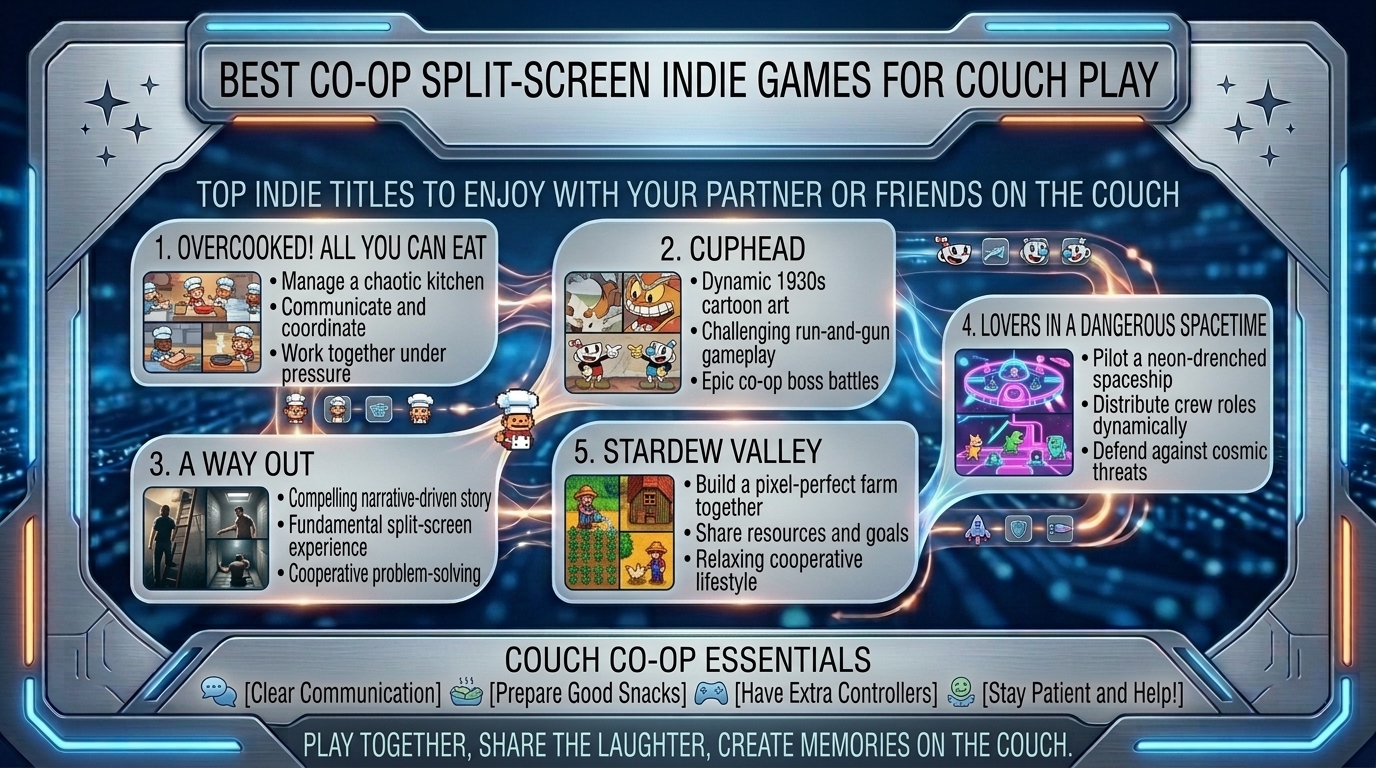
    There is something irreplaceable about local couch co-op. Online multiplayer can bridge distances, but sharing a sofa, trading high-fives after a brutal boss fight, or laughing uncontrollably over a split-second mistake offers an experience that digital lobbies simply cannot match.

    While mainstream AAA studios have largely phased out shared-screen and split-screen features in favor of separate-console online models, indie developers have stepped in to keep local multiplayer thriving. Indie games excel at local co-op because they emphasize tight mechanics, innovative mechanics, tactile visual design, and low-friction pickup-and-play setups.

    At The Gamer Buzz, we test handheld optimizations, local multiplayer setups, and indie gaming releases across all major platforms. This comprehensive guide breaks down the absolute best local co-op and split-screen indie games for couples, casual gamers, and hardcore gaming friends.

    Whether you’re setting up a cozy gaming station in San Francisco, California, hosting game night in Texas or Washington, or looking for low-latency indie gems to play in New York, these titles deliver high-tier local multiplayer action.

    1. What Makes a Couch Co-Op Game Truly Great for Couples & Groups?

    Not all co-op games are created equal. A great couch co-op title must balance skill curves, prevent one player from carrying the entire experience, and minimize interface frustration on a shared screen.

    Key Factors for Couch Co-Op Success

    • Asymmetric Skill Accessibility: The best partner games allow a veteran gamer and a non-gamer to play together harmoniously without causing friction or frustration.
    • Dynamic vs. Fixed Split-Screen: Games using dynamic split-screen (where screens merge into one when players are near, and split seamlessly when they separate) offer better immersion than permanent black-bar divides.
    • Low Friction & Quick Restarts: Fast loading times and immediate respawns keep energy high during challenging levels.
    • Controller Versatility: Excellent indie titles natively support mixed inputs—such as pairing an Xbox controller, DualSense, Switch Pro Controller, or keyboard seamlessly on PC and handheld devices.
    Game TitleGameplay GenrePlayer CountSplit-Screen / Shared Screen TypeSkill FloorIdeal Play Environment
    It Takes TwoNarrative Action-Adventure2 PlayersDynamic Split-Screen & Shared ScreenMediumCouples, Long Story Sessions
    Overcooked! All You Can EatManagement & Chaos Sim2–4 PlayersSingle Shared ScreenLow to HighGroup Parties, High-Energy Friends
    PlateUp!Restaurant Roguelite Sim1–4 PlayersSingle Shared ScreenMediumCouples, Tactical Planners
    Cult of the Lamb (Unholy Alliance)Action Roguelite & Base Sim2 PlayersShared Dynamic ScreenMediumAction RPG Fans, Dungeon Crawlers
    Unravel TwoPhysics Puzzle Platformer2 PlayersShared Screen (Tethered)Low to MediumPartners, Relaxed Evening Play
    Ship of FoolsNautical Action Roguelite2 PlayersSingle Shared ScreenMedium-HighFast-Paced Combat Buddies

    2. Top Verified Co-Op Indie Games for Couch Play

    Here are the top-rated split-screen and shared-screen indie games, organized by playstyle and group dynamic:

    1.Category 1: Narrative & Puzzle-Focused Partner Experiences:Masterpieces crafted exclusively for dual-player coordination.

    • It Takes Two: Winner of Game of the Year, this mandatory 2-player game seamlessly shifts between split-screen camera angles and shared-screen puzzles. It requires constant communication and introduces new mechanics in every level.
    • Unravel Two: A serene, visually rich physics platformer where two Yarnys are physically bound by a string of yarn. Players can fuse together when one player faces a tough jump, making it very forgiving for less experienced partners.
    • Blankos / Haven: A romantic sci-fi RPG built specifically for two players controlling lovers exploring an alien world together, offering turn-based tactical combat and fluid traversal.

    2.Category 2: Rogue-Lites & Tactical Action Co-Op:High-stakes, fast-paced action games that demand active strategy.

    • Cult of the Lamb (Co-Op Update): Thanks to local multiplayer updates, a second player can join as the Goat. Together, you manage your cult base, perform rituals, and venture into dangerous combat dungeons side-by-side.
    • PlateUp!: Combines rogue-lite progression with kitchen management. Unlike linear arcade cooking games, PlateUp! allows you to layout your kitchen, automate workflows with conveyor belts, and choose how your restaurant expands.
    • Ship of Fools: A naval rogue-lite where two players crew a ship, load cannons, repair hull leaks, and battle deep-sea monsters.

    3.Category 3: Couch Party Chaos & Pick-Up-and-Play Gems:Fast, fun, and accessible games for group gatherings and party nights.

    • Overcooked! All You Can Eat: The ultimate test of relationship communication. Players chop, cook, assemble, and serve dishes across surreal, shifting kitchens while dealing with fire hazards and moving platforms.
    • Lovers in a Dangerous Spacetime: Up to 4 players run around inside a circular neon battleship, manually operating turrets, shields, engines, and map controls.
    • TowerFall Ascension / Duck Game: Hilarious, fast-paced retro arena brawlers where single hits result in quick knockouts, making them perfect for rotating controllers during group game nights.

    3. Optimizing Your Local Co-Op Display and Hardware Setup

    Setting up a seamless split-screen gaming environment requires configuring your TV, monitors, and wireless controllers for low latency.

    1. Eliminating Input Lag on Big Screen Displays

    • Enable Game Mode: Ensure your TV display mode is set to Game Mode. Standard image processing modes add up to 100ms of display latency, making timing-based games like Overcooked! or Cuphead feel sluggish.
    • Use High-Bandwidth HDMI Cables: Ensure your PC or console is connected using an HDMI 2.1 cable to enable 4K resolution at 120Hz with Variable Refresh Rate (VRR) support.

    2. Wireless Controller Bluetooth Bandwidth Management

    • Connecting four Bluetooth controllers to a single PC or console can saturate the 2.4GHz wireless spectrum, resulting in dropped inputs.
    • Use First-Party Wireless Adapters: On PC, use official Xbox Wireless Adapters or 2.4GHz USB dongles instead of standard Bluetooth receivers to handle multiple controllers cleanly.
    • Mixed Input Remapping: Use Steam Input to map multiple non-standard controllers, Nintendo Joy-Cons, or third-party Bluetooth gamepads easily.

    4. Game Night Comfort: Ergonomics & Display Layout

    Playing couch co-op for hours requires minor adjustments to maintain comfort and screen clarity:

    1. Split-Screen Orientation (Horizontal vs. Vertical): In games that allow custom split-screen layouts, choose Horizontal Split for wide rooms so each player maintains a full field of view. Choose Vertical Split if sitting close to a large widescreen television.
    2. Distance and Screen Size Scaling: For split-screen titles, sit at a distance where the split frame fills your primary field of view. Increase in-game UI scale and font sizes in the accessibility menu so small text is easy to read across the room.
    3. Use Docked Handhelds for Portable Game Nights: Gaming handhelds like the Valve Steam Deck or ASUS ROG Ally can double as local co-op consoles. Dock your handheld to a TV via USB-C, attach two wireless controllers, and run full PC indie co-op games anywhere.

    10 Frequently Asked Questions (FAQ)

    1. Can we play split-screen indie games on PC with two different controllers?

    Yes! Modern PC platforms like Steam support mixing different controller brands. You can pair a PlayStation DualSense, an Xbox Wireless Controller, a Nintendo Switch Pro Controller, or a USB gamepad simultaneously.

    2. What are the best offline co-op games for a partner who doesn’t play games?

    Unravel Two, It Takes Two, Monument Valley, and Untitled Goose Game are top choices. They offer simple mechanics, low pressure, intuitive controls, and forgiving fail states.

    3. How does Steam Remote Play Together work for local co-op games?

    Steam Remote Play Together allows you to stream your local co-op indie games to a friend over the internet. Only one player needs to own and install the game, while the second player joins remotely as if plugged into the same room.

    4. Do we need high-end PC specs to run local split-screen games?

    No. Most indie local co-op games feature optimized 2D graphics or stylized 3D art styles, allowing them to run at smooth 60 FPS speeds even on mid-range PCs, laptops, and handheld devices like the Steam Deck.

    5. What is the difference between shared-screen and split-screen co-op?

    Shared-screen co-op places both players inside the exact same camera view without dividing the display (PlateUp!, Overcooked!). Split-screen physically divides the display into separate viewports (It Takes Two, A Way Out).

    6. Can you play Cult of the Lamb local co-op on Nintendo Switch?

    Yes! The Unholy Alliance update enables full 2-player local co-op across PC, PlayStation, Xbox, and Nintendo Switch consoles.

    7. Are there couch co-op games that support up to 4 players on one TV?

    Yes! Games like Overcooked! All You Can Eat, Lovers in a Dangerous Spacetime, TowerFall, PlateUp!, and Teenage Mutant Ninja Turtles: Shredder’s Revenge support 4 players on a single screen.

    8. How do we resolve screen tearing when playing split-screen PC games on a TV?

    Enable V-Sync in the game’s graphics menu or activate G-Sync/FreeSync on your PC and compatible monitor/TV to synchronize the frame rate and eliminate screen tearing.

    9. Which indie co-op games offer the longest campaign playtimes?

    Titles like Stardew Valley (co-op mode), Cult of the Lamb, Children of Morta, and It Takes Two offer 15 to 40+ hours of co-op content per playthrough.

    10. Can two players play It Takes Two using only one purchased copy?

    Yes! It Takes Two includes a “Friend’s Pass,” allowing a second player to join your game session locally or online for free using a complimentary download client.

    Conclusion

    Local couch co-op remains one of the most rewarding ways to play video games. From narrative puzzle-adventures like It Takes Two and Unravel Two to high-energy cooking and management games like Overcooked! and PlateUp!, indie developers continue to prove that local multiplayer gaming is alive and thriving. By optimizing your TV lag settings, choosing the right controller layout, and selecting titles tailored to your partner or group’s skill levels, you can host memorable gaming sessions right from your living room sofa.

    For more gaming hardware tests, controller optimizations, and local multiplayer guides across Texas, California, San Francisco, Washington, and New York, stay tuned to The Gamer Buzz.

  • How to transfer your game save files seamlessly between pc and portable gaming handheld devices like steam deck

    How to transfer your game save files seamlessly between pc and portable gaming handheld devices like steam deck

    How to Transfer Your Game Save Files Seamlessly Between PC and Portable Gaming Handheld Devices Like Steam Deck

    The rise of high-performance handheld gaming PCs—such as the Valve Steam Deck, ASUS ROG Ally, Lenovo Legion Go, and MSI Claw—has completely changed how we play modern PC titles. The ability to pause a graphics-intensive game at your desktop workstation, pick up your handheld while relaxing on the couch, and resume gameplay from the exact second you left off is the ultimate modern gaming convenience.

    However, cross-platform save synchronization does not always work automatically out of the box. Cloud sync glitches, non-Steam launcher isolation (Epic Games, GOG, Xbox PC Game Pass), offline play conflicts, and Linux Proton directory structures can cause progress desynchronization, corrupted save files, or lost play hours.

    At The Gamer Buzz, we test handheld optimizations, storage solutions, and cross-platform hardware workflows. This guide breaks down the file systems of PC and handheld operating systems, cloud sync mechanics, local network transfer tools, and manual directory mappings to ensure your game saves transfer smoothly across your devices.

    Whether setting up hardware in tech centers like San Francisco, California, and Washington, gaming on the go in Texas, or managing your gaming library in New York, these transfer methods will keep your game saves aligned.

    1. Cloud Sync vs. Local Manual Transfer: How Handheld Save Systems Work

    Understanding where game saves are stored and how sync software handles save files is critical to preventing lost progress.

    The Save File Pipeline

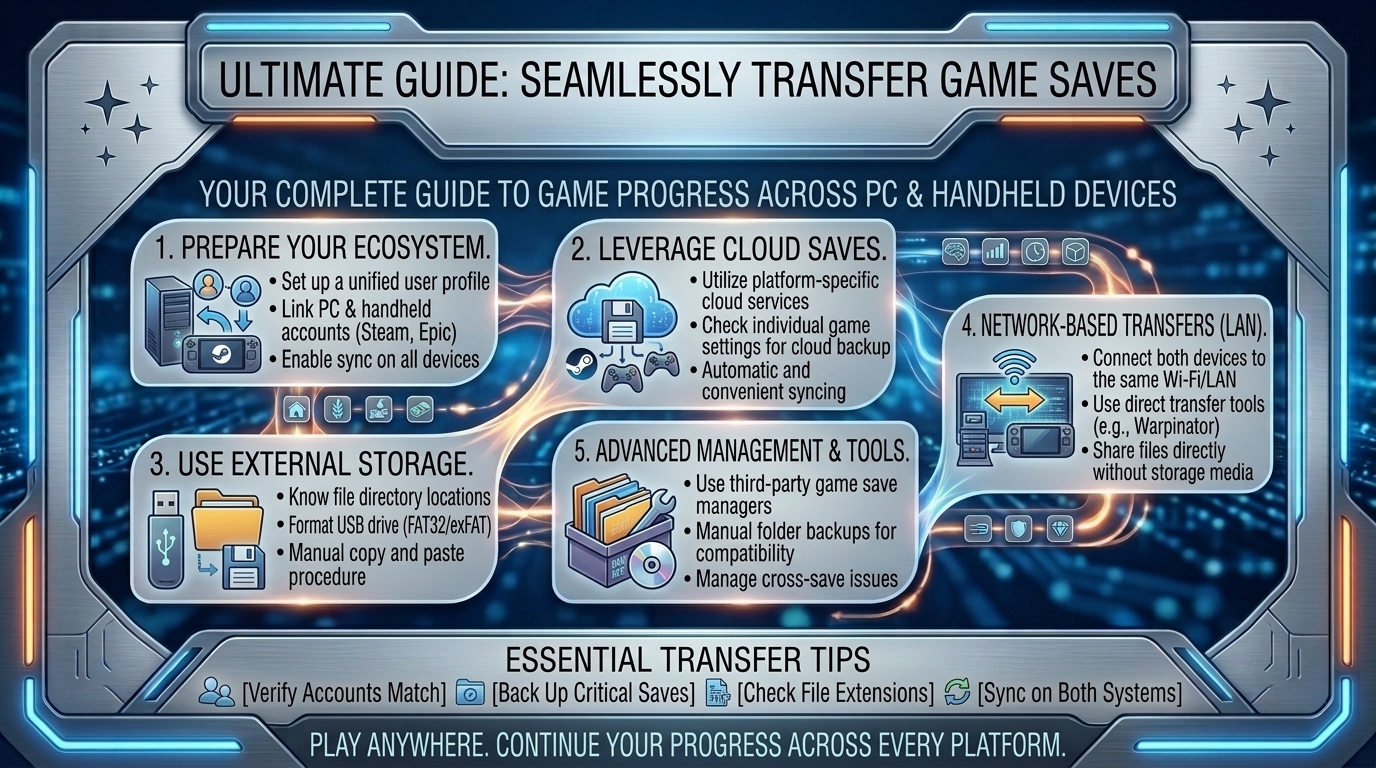
    • Steam Cloud Auto-Sync: Native Steam titles using Steam Cloud upload save data directly to Valve’s cloud servers upon closing a game. When launching the title on your Steam Deck, the device checks server timestamps and downloads the latest file revision.
    • Third-Party Cloud Services: Launchers like Epic Games Store, GOG Galaxy, Ubisoft Connect, and EA App maintain separate cloud sync pipelines. On handhelds running Windows (ROG Ally, Legion Go), these work natively. On SteamOS (Linux), third-party launchers run inside isolated Proton Wine prefixes (compatdata folders), which can prevent direct cloud access if not configured correctly.
    • Emulators & DRM-Free Indies: Titles played through emulators (PCSX2, RPCS3, Yuzu/Ryujinx) or non-DRM setups store save data locally in hidden system folders, requiring manual sync utilities or local network file transfers.
    Transfer MethodSupported PlatformsAutomation LevelInternet Required?Best Used For
    Steam CloudSteam (PC & SteamOS)Fully AutomaticYesNative Steam Store Purchases
    Ludusavi + SyncthingAll PCs, Steam Deck, ROG AllyFully Automated (Background)No (Local Wi-Fi)Non-Steam Games, Emulators, GOG/Epic
    Karakuri / SyncthingWindows, Linux, AndroidAutomated Peer-to-PeerNo (Local Wi-Fi)Multi-device local save folders
    Warpinator / WinpinatorWindows PC to SteamOSManual Drag-and-DropNo (Local Wi-Fi)One-time manual file transfers
    SSH / SFTP (FileZilla)Windows, Linux, macOSManual Direct AccessNo (Local Network)Advanced power users & modders

    2. Setting Up Automatic Cross-Platform Save Syncing

    Automating your save backups ensures your progress syncs across your devices without manual file copying.

    1.Method 1: Local Network Syncing with Syncthing:Configure open-source peer-to-peer folder synchronization.

    Syncthing creates a private, encrypted peer-to-peer link between your desktop PC and handheld device over your local Wi-Fi network, eliminating third-party cloud dependencies.

    • Install Syncthing: Download Syncthing on your Windows PC and install the SyncThing-GTK (or SyncTrayzor) flatpak application from the Discover Store in Steam Deck Desktop Mode.
    • Pair Devices: Open Syncthing on both devices, generate a local device ID code, and approve the connection request.
    • Add Save Directories: Locate your game’s save folder on your PC (e.g., C:\Users\Username\AppData\Roaming\GameName) and select it as a shared folder in Syncthing.
    • Map Handheld Target Path: On your Steam Deck or Windows handheld, set the receiving folder path to the matching save location. Enable Send & Receive mode for instant background synchronization whenever both devices are powered on.

    2.Method 2: Multi-Launcher Save Backups with Ludusavi:Back up and manage multi-launcher save paths automatically.

    Ludusavi is an open-source tool that scans your system for thousands of PC game save locations automatically, making cross-platform backups straight-forward.

    • Install Ludusavi: Download Ludusavi on your PC and install its flatpak on your Steam Deck.
    • Perform System Scan: Click Scan to let Ludusavi detect save files from Steam, Epic Games, GOG, and emulators automatically.
    • Set Cloud / Shared Target: Configure Ludusavi’s backup directory to target a cloud drive folder (Google Drive, OneDrive, Nextcloud) or a local folder managed by Syncthing.
    • Automate Restores: Set a pre-launch script or click Restore on your secondary device before launching a game to pull down the newest save state.

    3.Method 3: Quick Transfers using Warpinator / Winpinator:Direct drag-and-drop transfers over local Wi-Fi.

    For occasional save transfers without background syncing, use Warpinator:

    • Install Warpinator on your Steam Deck via the Discover Store.
    • Install Winpinator on your desktop Windows PC.
    • Connect both devices to the same Wi-Fi network, open both apps, and drag your save files directly from your PC into the Winpinator window to send them to your handheld instantly.

    3. Locating Hidden Save File Directories Across Operating Systems

    The most challenging part of manual file transfer is finding where different launchers hide game save files.

    Standard Windows PC Save Directories

    On a traditional Windows 11/10 PC, game saves are stored in several key directories:

    • C:\Users\[Username]\AppData\Local\
    • C:\Users\[Username]\AppData\Roaming\
    • C:\Users\[Username]\Saved Games\
    • C:\Users\[Username]\Documents\
    • C:\Program Files (x86)\Steam\userdata\[YourSteamID]\[GameAppID]\remote\

    SteamOS (Linux) Proton Prefix Save Directories

    On the Steam Deck, games running under Proton create a virtualized Windows C: drive structure inside isolated folders called compatdata:

    • ~/.local/share/Steam/steamapps/compatdata/[AppID]/pfx/drive_c/users/steamuser/AppData/
    • ~/.local/share/Steam/steamapps/compatdata/[AppID]/pfx/drive_c/users/steamuser/Documents/

    Note: In SteamOS Desktop Mode, open Dolphin File Manager, click the menu burger icon, and check Show Hidden Files to view the .local directory.

    4. Best Practices to Prevent Save File Conflicts and Corruption

    1. Always Wait for Cloud Sync Completion: After quitting a game on your PC or Steam Deck, wait 5–10 seconds to allow the Steam client or third-party launcher to upload your save file before putting your handheld to sleep or shutting down your PC.
    2. Match Mod Packs and Game Versions: If you use game mods (e.g., Stardew Valley SMAPI mods, Cyberpunk 2077 scripts, or Baldur’s Gate 3 tweaks), ensure identical mod versions and load orders are installed on both your PC and handheld. Opening a modded save file on an unmodded handheld can permanently corrupt your save state.
    3. Mind Offline Play Overwrites: If you play your handheld while offline (such as on a flight) and then launch the same game on your desktop PC before reconnecting your handheld to Wi-Fi, Steam Cloud will detect a timestamp conflict. Always choose the Local File (Newer Timestamp) option when prompted to prevent your offline progress from being overwritten by older cloud data.

    10 Frequently Asked Questions (FAQ)

    1. Does Steam Cloud automatically transfer saves between Windows PC and Steam Deck?

    Yes! For native Steam games that support Steam Cloud, save files transfer automatically. When you exit a game on PC, your save is uploaded to Valve’s servers and downloaded to your Steam Deck when you launch the game online.

    2. What happens if a game does not support Steam Cloud?

    If a game lacks Steam Cloud support, saves remain locked to the original local machine. You must use tools like Syncthing, Ludusavi, or manual file transfers via Warpinator or USB drives to move saves between devices.

    3. How do I transfer saves for non-Steam games (Epic Games, GOG, Amazon Prime Gaming) on Steam Deck?

    If using third-party managers like Heroic Games Launcher or Lutris, enable their built-in cloud sync settings (which link directly to Epic/GOG cloud servers). Alternatively, use Syncthing to link the save folders between your PC and the handheld’s Proton prefix directory.

    4. Can I share save files between a Windows PC and an ROG Ally or Lenovo Legion Go?

    Yes! Because handhelds like the ASUS ROG Ally and Lenovo Legion Go run native Windows 11, save file paths match your desktop PC exactly, simplifying manual transfers, cloud syncs, and Syncthing setups.

    5. Why did my Steam Deck save revert to an older version after playing offline?

    This occurs when a device launches a game offline and reconnects to Wi-Fi later, causing Steam Cloud to detect a conflict between local and cloud saves. Always choose the option to keep the most recently modified file based on timestamp.

    6. Where are emulator save files stored on the Steam Deck?

    If using EmuDeck, all emulator save files are consolidated in a central directory: /home/deck/Emulation/saves/. You can map this entire directory via Syncthing to keep your emulator saves aligned with your PC.

    7. How do I find a game’s Steam App ID to locate its compatdata folder?

    Search for the game on SteamDB.info. The numbers in the URL (e.g., 1091500 for Cyberpunk 2077) match the folder name inside your Steam Deck’s steamapps/compatdata/ directory.

    8. Can I transfer PC save files to a console (like Nintendo Switch or PlayStation)?

    Cross-platform saves between PC and consoles are only supported if the game developer implements a custom account system (e.g., Witcher 3, Cyberpunk 2077, Genshin Impact, or Hades via cross-progression accounts). Otherwise, console file systems are locked.

    9. Will transfering save files manually trigger anti-cheat bans in multiplayer games?

    No. Transferring local save files for single-player games or standard campaign modes does not trigger anti-cheat bans. However, modifying or editing save file data (save editing) in online multiplayer titles can flag security systems.

    10. Can I use a physical USB flash drive to move save files to a Steam Deck?

    Yes! You can plug a USB-C flash drive or external SSD directly into your Steam Deck, switch to Desktop Mode, and drag save files between the USB drive and your internal storage using the Dolphin File Manager.

    Conclusion

    Transferring game save files between your PC and portable gaming handhelds ensures you can continue your gaming sessions anywhere. By taking advantage of Steam Cloud, automating non-Steam titles with open-source tools like Syncthing and Ludusavi, understanding Linux Proton prefix file paths, and managing offline timestamp conflicts, you can build a reliable cross-progression system across all your devices.

  • What are the best offline mobile games for long flights and road trips without needing internet connection

    What are the best offline mobile games for long flights and road trips without needing internet connection

    What Are the Best Offline Mobile Games for Long Flights and Road Trips Without Needing Internet Connection?

    Boarding a 14-hour cross-country flight or embarking on a long highway road trip often means dealing with spotty cellular data, expensive airplane Wi-Fi, and complete dead zones. When you are stuck in seat 22B or riding in the passenger seat through rural stretches of highway, relying on cloud streaming or online multiplayer games simply isn’t an option.

    To keep boredom at bay, you need true offline mobile games—titles that download all assets locally, function perfectly in Airplane Mode, require zero server pings, and deliver deep, engaging gameplay loops without draining your battery in 90 minutes.

    At The Gamer Buzz, we cover mobile hardware optimizations, indie gaming, portable setups, and on-the-go performance. This comprehensive guide covers the best offline iOS and Android games for long-distance travel, battery-saving optimizations, space management, and physical comfort tips for gaming on the move.

    Whether flying out of major hubs like JFK in New York, SFO in San Francisco, or LAX in California, embarking on long road trips across Texas, or traveling through Washington, these offline titles will keep you entertained for hours.

    1. What Makes a Mobile Game Ideal for Airplane Mode and Long Travel?

    Not all mobile games labeled “free to play” work well without an internet connection. Many titles claim to be playable offline, only to lock progression behind mandatory server check-ins, microtransaction authorization screens, or unskippable video ads that fail to load without Wi-Fi.

    The Travel-Ready Checklist

    • Zero In-Game Server Requirements: The game must launch, save, and progress completely locally without requiring an initial login ping.
    • Low Thermal & Battery Load: Complex 3D rendering engines burn through battery power quickly. Ideal travel games use optimized 2D shaders or low-poly graphics to extend device battery life.
    • High Replayability & Depth: Short, level-based hyper-casual games get boring after 20 minutes. Great travel games feature deep progression systems, procedural generation, or rich narratives.
    • One-Handed & Portrait Controls: When crammed into a middle seat or holding a drink on a bumpy car ride, games with simple one-thumb portrait controls are much easier to play than complex two-thumb layouts.
    Travel Game GenreBattery ConsumptionInput RequirementsBest Played OnStandout Travel Feature
    Rogue-lite DeckbuildersMinimal (3–5 Watts)Simple Taps / One-HandediPhone, Android, iPadEndless replayability, zero time pressure
    Turn-Based RPGsLow to ModerateScreen TapsPhone or TabletDeep narrative, automatic local saving
    Tactile Puzzle GamesUltra-LowDrag & DropSmartphoneCalming visual design, zero stress
    Management SimsLowTap & SwipePhone or TabletPassive progression, long play sessions

    2. Top Verified Offline Games for Travel (iOS & Android)

    Here are the best offline mobile games to install before turning on Airplane Mode, categorized by genre and gameplay style:

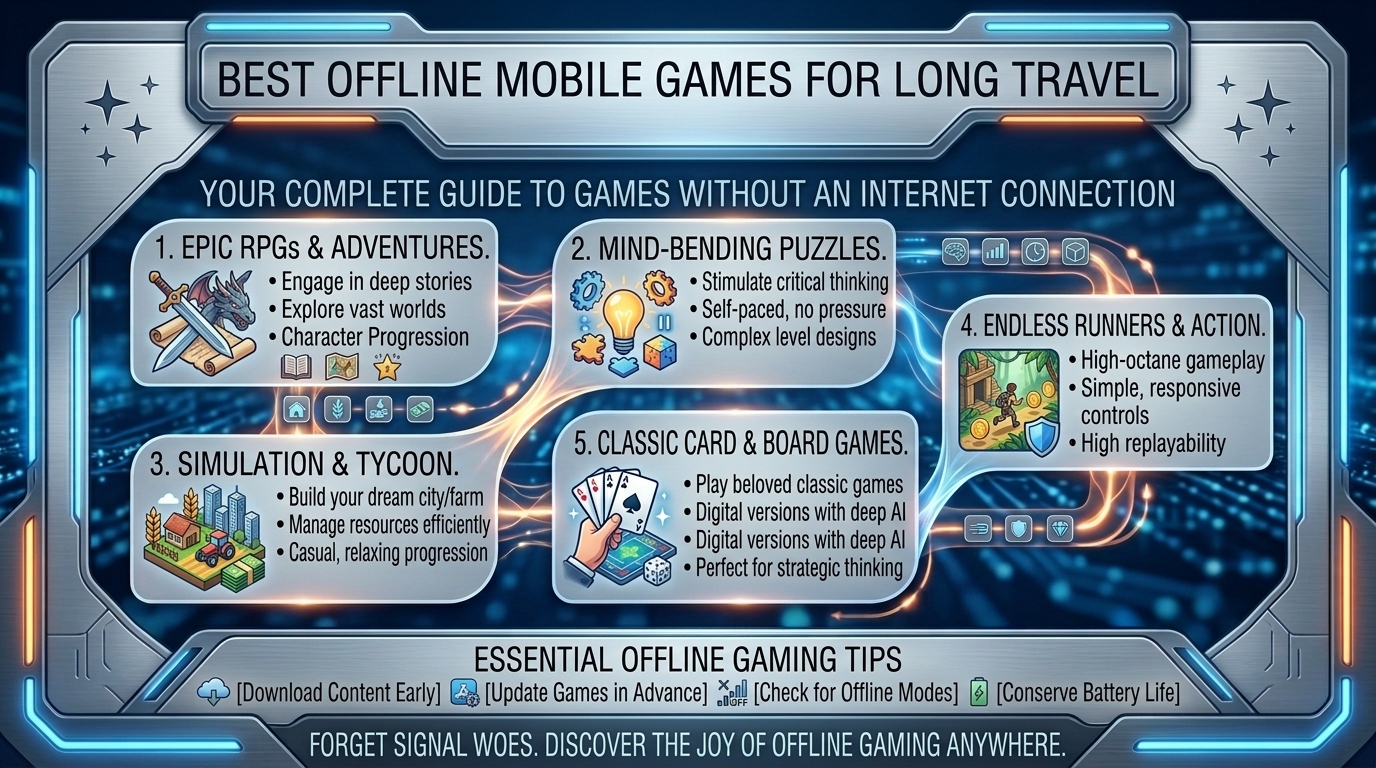
    1.Category 1: Turn-Based Roguelikes & Strategy Deckbuilders:Zero reaction-speed demands and infinite procedural replayability.

    • Slay the Spire (iOS/Android): The gold standard of card-battling deckbuilders. Fully offline, deep tactical strategy, zero battery strain, and seamless auto-saving after every single card played.
    • Balatro (iOS/Android): A poker-inspired deckbuilder that is dangerously addictive. Completely offline with one-handed touchscreen play, making it ideal for tight airplane tray tables.
    • Into the Breach (iOS/Android via Netflix Games): A turn-based tactical mechs-vs-aliens strategy game on a 8×8 grid. Requires a single online check-in during initial install, after which it runs offline smoothly.

    2.Category 2: Deep RPGs & Simulation Masterpieces:Long-term progression, deep world-building, and rich narratives.

    • Stardew Valley (iOS/Android): The ultimate farming and life simulation game. Features hundreds of hours of offline gameplay, custom touch controls, full controller support, and minimal battery drain.
    • Dead Cells (iOS/Android): A fast-paced, action-packed rogue-lite platformer. Runs at high frame rates with excellent touch-controls or external Bluetooth controller support.
    • Star Wars: Knights of the Old Republic I & II (iOS/Android): Complete 40+ hour console classic RPGs ported directly to mobile. Fully offline with deep storylines and customizable controls.

    3.Category 3: Zen Puzzles & Mind Games:Chill, atmospheric puzzle-solving without time limits or pressure.

    • Monument Valley 1 & 2 (iOS/Android): Visually stunning architectural puzzle games featuring impossible geometry and soothing soundscapes. Perfect for relaxing during takeoff or landing.
    • Mini Metro & Mini Motorways (iOS/Android/Apple Arcade): Minimalist subway and city road-planning strategy games. Simple to learn, deeply strategic, and low on battery consumption.
    • Unpacking (iOS/Android): A peaceful tactile puzzle game about unpacking belongings and placing them into new rooms over time.

    3. Power, Storage, and Device Optimization for Long Travel

    Preparing your smartphone or tablet before heading to the airport or starting a long road trip ensures your device lasts throughout the journey.

    1. Pre-Trip Storage and Installation Verification

    • Test Games in Full Airplane Mode at Home: Before leaving for the airport, turn off Wi-Fi and Cellular Data on your device and launch every installed game. Verify that the title loads past the title screen without demanding an internet connection.
    • Download Extra Asset Packs Ahead of Time: Many mobile RPGs download a small initial app from the App Store, requiring a secondary 2GB–5GB in-game asset download on first launch. Complete all secondary downloads over your home Wi-Fi.

    2. Battery Conservation Settings

    • Cap Frame Rates at 30 FPS or 60 FPS: Disable high-refresh-rate modes (120Hz ProMotion/Smooth Display) in your game settings to save significant battery power.
    • Enable Low Power Mode: Turn on iOS Low Power Mode or Android Battery Saver mode. This limits background CPU sync tasks while keeping offline games running smoothly.
    • Adjust Screen Brightness: Lowering your screen brightness from 100% to 50% can double your total battery life while gaming during a flight.

    4. Travel Ergonomics: Comfortable Gaming on the Go

    Extended mobile gaming in cramped seats can lead to neck stiffness and wrist fatigue. Use these physical adjustments for a more comfortable travel experience:

    1. Elevate Your Device to Eye Level: Avoid staring straight down into your lap for hours. Rest your elbows on a folded jacket or travel pillow placed on your tray table to bring your screen closer to eye level.
    2. Use a Lightweight Phone Stand or Case: Prop your device up on your tray table using a foldable kickstand case. Pairing your phone with a lightweight wireless controller (such as an 8BitDo Micro or Xbox Wireless Controller) takes all device weight off your wrists.
    3. Pack a 10,000mAh to 20,000mAh Power Bank: Airplane seat power outlets can be unreliable or output low wattage. A dedicated 20,000mAh power bank supporting USB-C Power Delivery (PD) can recharge your smartphone 3 to 4 times over.

    10 Frequently Asked Questions (FAQ)

    1. Do Netflix mobile games work completely offline during flights?

    Yes! Games downloaded via a Netflix subscription (like Into the Breach or GTA Trilogy) work offline during flights. However, you must log into the app online at least once every 30 days to maintain offline access verification.

    2. How can I prevent my phone from overheating while playing offline games on a plane?

    Remove thick protective phone cases while gaming, lower your screen brightness, close all background apps, and avoid charging your phone with a fast-charger while actively playing demanding 3D games.

    3. Which offline mobile games draw the least battery power?

    2D turn-based titles like Slay the Spire, Mini Metro, Stardew Valley, and Monument Valley use minimal processing power, allowing flagship phones to last 6 to 9 hours on a single charge.

    4. Can I play Apple Arcade games without an active internet connection?

    Yes. Apple Arcade titles can be played completely offline once downloaded to your iPhone or iPad, provided your subscription status was verified online prior to your flight.

    5. What are the best one-handed offline games for cramped middle seats?

    Top one-handed offline titles include Balatro, Cards of Darkness, Slay the Spire, Monument Valley, and Florence. Their vertical portrait orientation allows easy play with just one thumb.

    6. Can I pair a PlayStation or Xbox controller to my phone while in Airplane Mode?

    Yes! Bluetooth functionality remains fully operational while Airplane Mode is enabled. You can pair an Xbox, PlayStation DualSense, or Nintendo Switch Pro Controller to your phone or tablet without cellular data or Wi-Fi.

    7. Why do some “free-to-play” games refuse to load without Wi-Fi?

    Many free-to-play games rely on live servers to load video advertisements, process microtransactions, and prevent cheating. Without an active internet connection, these games lock you out at the loading screen.

    8. Are tablet screens better than smartphones for long-distance travel gaming?

    Tablets (like an iPad Mini or Samsung Galaxy Tab) offer larger displays that reduce eye strain during long gaming sessions. However, they consume slightly more battery power and are heavier to hold without a kickstand.

    9. How much storage space should I clear before a long flight?

    Clear at least 15GB to 20GB of local storage. This ensures enough room to install 3 to 5 deep offline titles alongside secondary asset packs, audio files, and offline media downloads.

    10. Does playing offline mobile games cause motion sickness on road trips?

    It can if you keep your eyes locked on a screen while a car turns or brakes. To prevent motion sickness, play games with low motion blur, take regular visual breaks every 20 minutes, keep air flowing toward your face, and avoid fast-paced 3D camera panning.

    Conclusion

    Preparing a solid lineup of offline mobile games is the best way to ensure entertainment on long flights and road trips. By downloading deep offline titles like Slay the Spire, Stardew Valley, Balatro, and Dead Cells, verifying Airplane Mode compatibility ahead of time, capping frame rates for battery efficiency, and bringing a reliable USB-C power bank, you can transform long travel days into relaxing gaming sessions.

  • How to play heavy demanding pc games on your mobile phone or tablet using cloud streaming services

    How to play heavy demanding pc games on your mobile phone or tablet using cloud streaming services

    How to Play Heavy Demanding PC Games on Your Mobile Phone or Tablet Using Cloud Streaming Services

    Playing graphics-intensive AAA PC games—such as Cyberpunk 2077, Black Myth: Wukong, GTA V, or Call of Duty—used to require an expensive desktop rig packed with a high-end graphics card. Today, cloud gaming technology allows you to stream demanding PC titles directly to your iOS or Android mobile phone or tablet at high frame rates with crisp visual quality.

    By leveraging powerful remote servers to handle rendering and ray tracing, your phone or tablet functions as a high-performance portable monitor. However, achieving smooth, low-latency cloud gaming requires proper network optimization, ideal streaming client settings, low-input-lag peripherals, and performance tweaks.

    At The Gamer Buzz, we test cloud gaming platforms, network optimization, mobile accessories, and mobile gaming setups. This comprehensive guide breaks down how cloud streaming works, how to choose the best service for your library, how to tune your home Wi-Fi and 5G connections for low latency, and how to turn any smartphone or tablet into a mobile gaming powerhouse.

    Whether streaming from tech centers across San Francisco, California, and Washington, gaming on the go in Texas, or commuting in New York, this guide provides everything you need to play AAA PC games anywhere.

    1. How Cloud Streaming Works: The Mechanics of Remote PC Gaming

    Cloud gaming replaces local hardware rendering with high-speed video decoding.

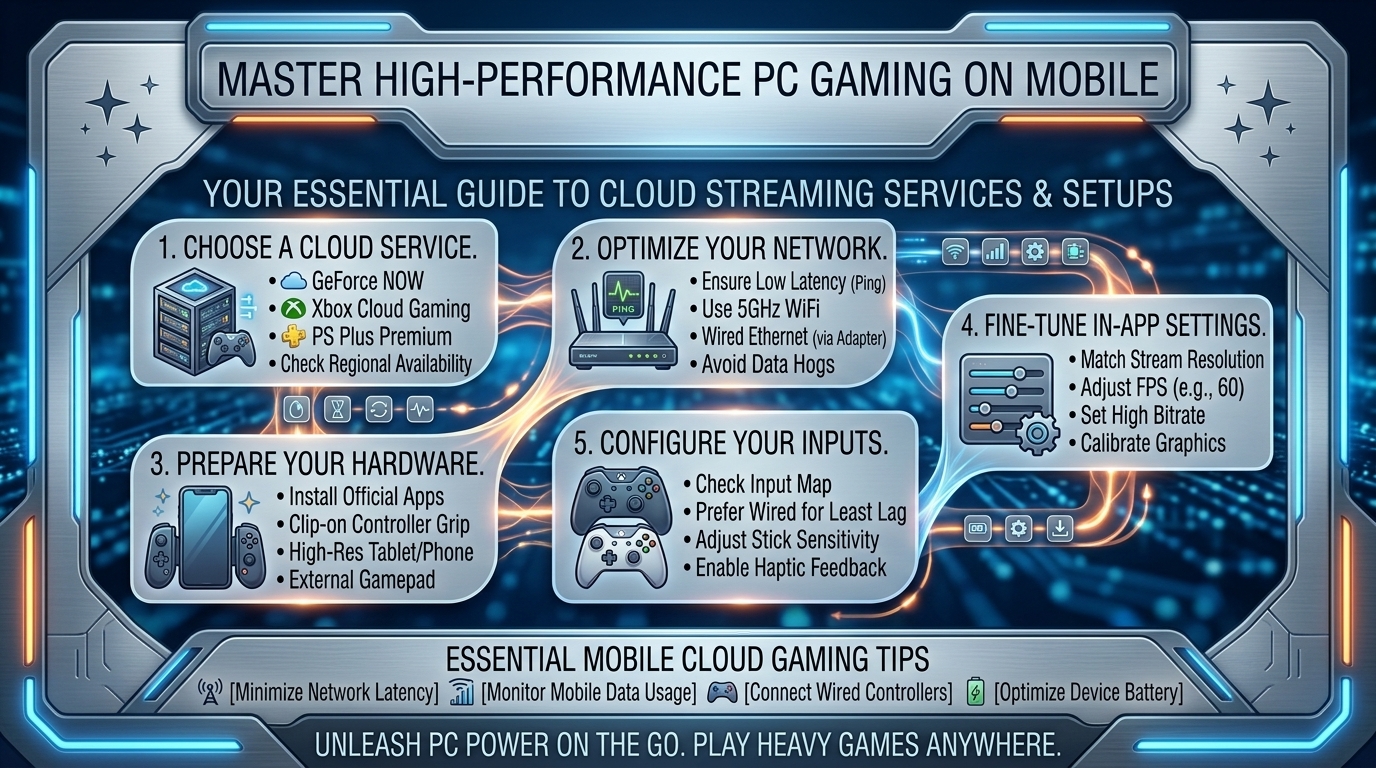
    The Streaming Pipeline

    1. Remote Execution: The game runs on a high-performance cloud server or remote PC rig.
    2. Real-Time Video Encoding: The server compresses rendered frames into low-latency video (usually H.264, HEVC/H.265, or AV1).
    3. High-Speed Transmission: Encoded frame data streams across the internet to your mobile phone or tablet.
    4. Local Decoding & Input Return: Your mobile device decodes the video stream on screen while sending touch or controller inputs back to the server in milliseconds.
    Cloud Gaming ServiceRendering HardwareSupported PlatformsIdeal Network RequirementStandout Feature
    NVIDIA GeForce NOWUp to RTX 4080 ClassAndroid, iOS (Safari Web App), iPadOS45+ Mbps (5GHz Wi-Fi / 5G)Native Steam/Epic/Xbox Library Sync
    Xbox Cloud Gaming (xCloud)Custom Xbox Series X HardwareAndroid, iOS, iPadOS, Web20+ MbpsIncluded with Xbox Game Pass Ultimate
    BoosteroidHigh-End Cloud RigsAndroid, iOS, Web, Smart TVs25+ MbpsAccess to popular AAA titles & Steam
    Moonlight + Sunshine (Self-Hosted)Your Personal Home PC GPUAndroid, iOS, iPadOSLocal 5GHz Wi-Fi or High-Upload Home FiberZero subscription cost, ultra-low latency

    2. Choosing the Right Cloud Platform for Your Gaming Setup

    Selecting the best cloud service depends on your game library and visual requirements:

    1.Option 1: NVIDIA GeForce NOW:Best for maximum graphic fidelity, 120 FPS, and ray tracing.

    GeForce NOW connects directly to your existing digital game storefronts (Steam, Epic Games Store, Ubisoft Connect, PC Game Pass). The Ultimate tier grants access to remote RTX 4080 servers, offering resolutions up to 4K and frame rates up to 120 FPS on supported mobile devices and tablets.

    2.Option 2: Xbox Cloud Gaming (xCloud):Best for all-in-one game access without owning titles individually.

    Integrated into Xbox Game Pass Ultimate, xCloud provides instant access to hundreds of console and PC games without needing to purchase them individually. It is ideal for casual streaming on mobile devices, though streams are currently capped at 1080p 60 FPS.

    3.Option 3: Moonlight + Sunshine (Self-Hosted PC Streaming):Best for low-latency streaming from your personal gaming PC.

    If you already own a gaming PC, host your own private cloud server using Sunshine on your desktop and the open-source Moonlight app on your tablet or phone. This setup delivers the lowest input latency and highest bitrate streaming across home Wi-Fi networks.

    4.Option 4: Boosteroid:Best for browser-based AAA accessibility.

    Boosteroid operates servers across North America and Europe, enabling direct browser or app-based gaming for major PC titles with simple setup requirements.

    3. Optimizing Mobile Hardware, Controllers, and Displays

    Unlocking a console-quality experience on your mobile device requires proper accessories and display configurations:

    1. Mobile Controllers and Input Peripherals

    While touch controls work for slow-paced strategy games, fast-paced action games and FPS titles require physical controls:

    • Direct-Connection Mobile Controllers: Controllers like the Backbone One or Razer Kishi connect directly via USB-C or Lightning ports, eliminating Bluetooth input latency entirely.
    • Standard Bluetooth Controllers: Connecting an Xbox Wireless Controller or PlayStation DualSense via Bluetooth provides familiar ergonomics, especially when combined with a tablet kickstand setup.

    2. Display and Refresh Rate Settings

    • Match Mobile Refresh Rate: On 120Hz displays (such as iPad Pro, Samsung Galaxy Tab, or flagship phones), enable 120Hz in your device settings and select 120 FPS in your cloud app settings to reduce perceived input lag.
    • Aspect Ratio Tweaks: Enable full-screen stretch options or set custom resolutions (such as 16:10 or 3:2) to minimize black bars on modern tablet screens.

    4. Network Tuning: Eliminating Lag, Packet Loss, and Stutter

    Network instability is the primary cause of cloud gaming lag and visual artifacts. Follow these network optimization steps:

    1. Always Use 5GHz or 6GHz Wi-Fi: Avoid standard 2.4GHz Wi-Fi bands, which are prone to interference. 5GHz and 6GHz (Wi-Fi 6E/7) provide high bandwidth and low latency.
    2. Enable UPnP or Port Forwarding: Ensure your home router prioritizes real-time gaming packets by enabling QoS (Quality of Service) settings for your mobile device’s MAC address.
    3. Optimize 5G Cellular Data Settings: When gaming on cellular networks, select 5G Standalone (5G SA) modes if supported by your carrier, and ensure clear line-of-sight to local cell towers to avoid mid-game packet drops.
    4. Lower Bitrate Settings During Instability: If you experience frequent micro-stutters, lower your cloud app stream bitrate slightly (e.g., from 45 Mbps to 25 Mbps) to ensure steady frame delivery over unstable connections.

    10 Frequently Asked Questions (FAQ)

    1. Can I play AAA games on my iPhone or iPad using cloud streaming?

    Yes! While Apple’s App Store historically limited dedicated cloud apps, services like NVIDIA GeForce NOW and Xbox Cloud Gaming run seamlessly through Safari web apps on iOS and iPadOS. Recent iOS updates also allow standalone cloud streaming apps in supported regions.

    2. How much mobile data does cloud gaming consume per hour?

    Cloud streaming uses a significant amount of data. Streaming at 1080p 60 FPS consumes roughly 3GB to 7GB of data per hour, while 4K or 120 FPS streams can use 10GB to 15GB+ per hour. Use unlimited data plans or unmetered Wi-Fi connections whenever possible.

    3. Will cloud gaming drain my mobile phone battery quickly?

    Cloud gaming is far gentler on your mobile battery than running games locally. Because your phone only decodes video rather than rendering complex 3D graphics, battery life is similar to watching high-definition streaming video.

    4. What is the minimum internet speed required for smooth cloud gaming?

    A minimum connection speed of 15 Mbps to 25 Mbps is required for reliable 1080p 60 FPS streaming. For 4K or high-refresh-rate 120 FPS streaming, a stable connection of 45 Mbps to 75+ Mbps is recommended.

    5. Why is there input lag when I play cloud games over Bluetooth?

    Bluetooth introduces natural wireless latency (often 10ms to 40ms). Combined with cloud transmission lag, this can feel noticeable. Using direct-connect USB-C controllers (like the Backbone One or Razer Kishi) eliminates controller-side latency entirely.

    6. Can I use a mouse and keyboard with cloud gaming on a tablet?

    Yes! Many mobile devices, Android tablets, and iPads support Bluetooth or USB-hub mouse and keyboard connections. Services like GeForce NOW offer full native mouse and keyboard mapping for PC titles.

    7. Do I need to re-purchase my PC games to play them in the cloud?

    With services like NVIDIA GeForce NOW, Boosteroid, and Moonlight, you do not need to repurchase games. You log into your existing Steam, Epic Games, or Ubisoft accounts to stream games you already own.

    8. What is the difference between GeForce NOW and Xbox Cloud Gaming?

    GeForce NOW streams games you own from PC storefronts using high-performance RTX server rigs, focusing on visual fidelity and low latency. Xbox Cloud Gaming acts like a “Netflix for games,” offering instant access to the Game Pass library from Xbox cloud hardware.

    9. How do I fix screen tearing and micro-stuttering during streams?

    Enable V-Sync or Adaptive Sync in your cloud app settings, lock your stream frame rate to match your display’s native refresh rate, and switch your router to an uncrowded 5GHz/6GHz Wi-Fi channel.

    10. Can I play competitive multiplayer FPS games comfortably over cloud streaming?

    While casual and semi-competitive multiplayer games play well on optimized low-latency cloud connections, high-stakes esports titles (like VALORANT or CS2) are best played on local hardware due to extreme sensitivity to millisecond input timing.

    Conclusion

    Cloud streaming technology has advanced to the point where playing demanding AAA PC games on a mobile phone or tablet is fast, visually impressive, and accessible. By picking the right cloud platform for your library, pairing your device with direct-connection controllers, tuning your home Wi-Fi or 5G data settings, and configuring display parameters, you can enjoy high-end PC gaming from virtually anywhere.

    For more cloud gaming performance tests, mobile peripheral reviews, and network optimization guides across Texas, California, San Francisco, Washington, and New York, stay tuned to The Gamer Buzz.

  • What are the best cozy relaxing indie video games to play on steam deck while lying in bed

    What are the best cozy relaxing indie video games to play on steam deck while lying in bed

    What Are the Best Cozy Relaxing Indie Video Games to Play on Steam Deck While Lying in Bed?

    After a high-stress day of competitive gaming, grinding ranked ladders, or managing work responsibilities, nothing beats sinking into bed, turning down the lights, and picking up your Steam Deck for a quiet, low-stakes gaming session. The handheld form factor of Valve’s Steam Deck makes it the ultimate device for comfortable, bedside relaxation.

    However, not every game is suited for cozy late-night sessions. Rapid twitch mechanics, stressful death penalties, tiny illegible text, and battery-hogging graphics can quickly ruin a relaxing evening. The ideal bed-gaming experience calls for rich indie titles with soothing soundtracks, low-stress gameplay loops, full controller compatibility, long battery performance, and easily readable UI elements.

    At The Gamer Buzz, we review indie gems, handheld hardware optimizations, and gaming lifestyle gear. This comprehensive guide covers the best cozy indie games for your Steam Deck, key graphics and power tweaks for maximum battery life, ergonomics for playing in bed, and essential tips for relaxing handheld gameplay.

    Whether unwinding in tech hubs across San Francisco, California, and Washington, resting up in Texas, or relaxing in a New York apartment, these cozy indie games deliver the ultimate late-night Steam Deck experience.

    1. What Makes a Game Truly “Cozy” on the Steam Deck?

    Not all cozy games play comfortably in bed. A genuinely great late-night handheld game satisfies several physical, visual, and design criteria:

    Key Criteria for Bedside Steam Deck Gaming

    • Low Cognitive Strain: Gameplay that encourages exploration, puzzle-solving, farming, or atmospheric storytelling without punishing fast-reaction fail states.
    • Unobtrusive Sound Design: Soothing ambient scores and gentle sound effects that sound great through speakers or headphones without sudden loud spikes.
    • Text Legibility & UI Scaling: Clear text rendering on a 7-inch display (1280×800 resolution) so you don’t have to strain your eyes in dim lighting.
    • Battery & Thermal Efficiency: Games running between 3W to 8W TDP (Thermal Design Power) keep the Deck cool, quiet, and capable of lasting 4 to 7 hours on a single charge.
    • Instant Pause & Sleep Mode Support: Games that suspend seamlessly when pressing the Steam Deck power button, allowing you to drift off to sleep without worrying about losing save progress.
    Game CategoryIdeal Gameplay TraitsExamplesTarget TDP / Battery Life
    Farming & Life SimsGentle daily routines, relationships, craft-buildingStardew Valley, Coral Island3W – 5W (5–7 Hours)
    Tactile Puzzle & SortOrganization, low time-pressure, rewarding loopsUnpacking, A Little to the Left4W – 6W (4–6 Hours)
    Narrative ExplorationRich atmosphere, passive pacing, strong art styleDredge, A Short Hike, Gris5W – 7W (4–5 Hours)
    Deckbuilders & StrategyTurn-based decisions, zero reaction speed demandsBalatro, Slay the Spire3W – 5W (5–7 Hours)

    2. Top Cozy Indie Video Games Verified for Steam Deck Bedside Play

    Here are some of the absolute best indie titles to play on your Steam Deck while curled up in bed, organized by genre and gameplay vibe:

    1.Category 1: Life Sims & Gentle Farming Adventures:Farming, life management, and long-term relaxing progression.

    • Stardew Valley: The undisputed king of cozy gaming. Runs at minimal power (3W TDP), offering endless hours of farming, fishing, and community building with native controller support and up to 7 hours of battery life on OLED models.
    • Coral Island: A vibrant, tropical twist on the farming sim genre with ocean cleanup mechanics, diverse characters, and excellent visual scaling for handheld play.
    • Dave the Diver: Combines ocean exploration with sushi restaurant management. The rhythmic gameplay loop and humorous animations make it ideal for winding down.

    2.Category 2: Tactile Puzzles & Satisfying Organization:Tactile organization, passive puzzle-solving, and chill mechanics.

    • Unpacking: A zen puzzle game about the familiar experience of pulling possessions out of boxes and fitting them into a new room. Rich sound design and zero timer pressure make it exceptionally peaceful.
    • A Little to the Left: A charming organization puzzle game where you sort, stack, and align everyday household objects while dealing with a mischievous cat.
    • Dorfromantik: A peaceful building strategy and puzzle game where you create expanding village landscapes by placing hexagonal tiles.

    3.Category 3: Atmospheric Exploration & Narrative Journeys:Rich atmospheric journeys and rich narrative exploration.

    • A Short Hike: A cozy adventure game about hiking up a serene mountain park. It features fluid movement, gliding, fishing, and can be completed at your own relaxing pace.
    • Dredge (Passive Mode): A single-player fishing adventure with a sinister undercurrent. Turning on “Passive Mode” removes aggressive sea monsters, transforming it into a relaxing coastal fishing voyage.
    • Gris: A breathtaking narrative platformer with water-color visual art and a stirring score, offering an effortless emotional journey free of danger or frustrating deaths.

    4.Category 4: Chill Turn-Based Strategy & Rogue-Lite Deckbuilders:Turn-based mechanics with zero physical reaction stress.

    • Balatro: A poker-inspired roguelike deckbuilder that is dangerously addictive yet completely turn-based. You can play entirely at your own pace with one-handed touchscreen or controller inputs.
    • Slay the Spire: The classic deckbuilder that runs efficiently on Steam Deck power. Perfect for lying down, contemplating tactical synergies, and sleeping whenever you choose.

    3. Steam Deck Performance Tweaks for Bedside Gaming

    Optimizing your Steam Deck settings ensures quiet fan operation, cool thermals, and extended battery life for night gaming.

    1. Optimize TDP (Thermal Design Power) and Frame Rate

    Open the Steam Deck Performance Overlay (using the ... Quick Access Button) and configure these settings for cozy indie titles:

    • Set Frame Rate Limit to 40 FPS or 60 FPS: Lowering the frame rate cap dramatically reduces GPU load and fan noise.
    • Enable Manual TDP Limit: Lower the TDP slider to 4W – 7W for standard 2D indie titles. This prevents the internal fans from spinning up, keeping your device silent in a dark bedroom.
    • Lower Refresh Rate (LCD Models): Set the screen refresh rate to 40Hz to save additional battery power without sacrificing visual fluidity.

    2. Adjust Display Brightness and Night Mode

    • Enable Night Mode: Turn on the built-in Night Mode tint (Filter Blue Light) in the Display menu to prevent eye strain and preserve natural melatonin production before sleep.
    • Lower Screen Brightness: Lower your brightness to 15%–25% for comfortable viewing in pitch-black rooms.

    4. Bedside Ergonomics: Playing Comfortably Without Arm Fatigue

    Holding a 1.4 lb (669g) device above your chest while lying flat on your back can cause elbow stiffness, wrist strain, and hand numbness. Use these physical adjustments for comfortable bedside gaming:

    1. Avoid the “Lying Flat on Back” Trap: Never hold the Steam Deck directly over your face while lying completely flat on your back. If your grip slips, the device can fall, and holding your arms elevated restricts forearm blood circulation.
    2. Use a Pregnancy Pillow or Body Pillow: Prop yourself up at a 30-to-45-degree angle using a wedge or body pillow. Rest your elbows and forearms comfortably on side pillows to support the weight of the device.
    3. Consider Glasses or Docking Accessories: If playing sideways in bed, use a flexible tablet arm mount anchored to your headboard combined with a lightweight wireless controller (such as an 8BitDo or Xbox controller) to relieve all hand weight.
    4. Use Angled Charging Cables: Standard USB-C charging cables bend sharply against blankets when playing while plugged in. Use a 90-degree right-angle USB-C adapter to protect your charging port and cable from strain.

    10 Frequently Asked Questions (FAQ)

    1. How long does the Steam Deck battery last while playing light indie games in bed?

    On light indie titles (such as Stardew Valley or Balatro) with TDP capped at 4W–5W, the standard Steam Deck LCD lasts about 4 to 5 hours, while the Steam Deck OLED can achieve 7 to 9 hours of continuous playback.

    2. Will playing games on the Steam Deck in bed ruin my sleep quality?

    It can if blue light and high screen brightness are unmanaged. Keep screen brightness low, turn on the Steam Deck’s native Night Mode (blue light filter), and avoid stressful, high-intensity competitive games right before sleeping.

    3. What does “Steam Deck Verified” mean for cozy indie games?

    “Steam Deck Verified” means Valve has tested the game to confirm full controller support, proper default resolution display, legible text scaling, and seamless proton compatibility without requiring manual desktop tweaks.

    4. Can I play non-Steam cozy games (like GOG, Epic Games, or Itch.io titles) on Steam Deck?

    Yes! By installing third-party launchers such as Heroic Games Launcher or NonSteamLaunchers in Desktop Mode, you can easily access cozy games from your Epic Games, GOG, or Itch.io libraries.

    5. What are the best accessories for playing Steam Deck comfortably in bed?

    Essential bedside accessories include a 10ft soft nylon braid USB-C cable, a 90-degree right-angle USB-C adapter, a memory foam wedge pillow, and comfortable wireless earbuds (like AirPods or Galaxy Buds) for low-profile audio listening.

    6. Are touch-screen-only games comfortable to play on the Steam Deck?

    While the Steam Deck has a multi-touch screen, playing touch-only games for long periods in bed can lead to wrist fatigue. Remapping touch controls to the physical trackpads or thumbsticks using Steam Input provides a more comfortable experience.

    7. How do I prevent fan noise from bothering my partner while gaming in bed?

    Set a low TDP limit (4W–6W) and cap the frame rate to 40 FPS in the Quick Access menu. This keeps GPU power consumption low enough that the fan remains nearly silent.

    8. Does the Steam Deck OLED screen offer significant benefits for late-night bed gaming?

    Yes. The OLED screen delivers true pitch-black levels, wider dimming ranges, vibrant color saturation at lower brightness levels, lower overall power consumption, and noticeably quieter internal fan acoustics.

    9. Can I stream cozy games from my gaming PC to my Steam Deck in bed?

    Yes! Using Valve’s built-in Remote Play or third-party streaming tools like Moonlight / Sunshine, you can stream games running on your desktop PC directly to your Steam Deck. This offloads all processing to your PC, keeping your handheld cool and maximizing battery life.

    10. How do I stop my hands from going numb while holding the Steam Deck in bed?

    Numbness is caused by elbow hyper-flexion compressing the ulnar nerve. Keep your elbows supported on pillows at wider angles (greater than 90 degrees) rather than bending them tightly against your chest.

    Conclusion

    The Steam Deck is the premier handheld device for late-night cozy gaming. By choosing gentle, low-stress indie titles like Stardew Valley, Unpacking, A Short Hike, and Balatro, capping your TDP performance settings for whisper-quiet fan operation, and using supportive pillow ergonomics, you can create the ultimate relaxing bedside gaming ritual.

    For more handheld performance breakdowns, hardware guides, and indie reviews across Texas, California, San Francisco, Washington, and New York, stay tuned to The Gamer Buzz.

  • What are the best mental focus and concentration exercises to maintain high performance during long tournament matches

    What are the best mental focus and concentration exercises to maintain high performance during long tournament matches

    What Are the Best Mental Focus and Concentration Exercises to Maintain High Performance During Long Tournament Matches?

    Whether you are pushing through an 8-hour VALORANT Swiss bracket, grinding open pools in Street Fighter 6, navigating high-stakes endgame circles in Apex Legends, or managing complex macro decisions in StarCraft II, mental fatigue, loss of focus, and tilt are the ultimate silent killers in competitive esports.

    Mechanical skill and tactical knowledge mean very little when your brain experiences cognitive burnout five hours into an intense tournament day. Slowing reaction times, tunnel vision, decision-making paralysis, and emotional outbursts (tilt) are direct symptoms of a fatigued prefrontal cortex.

    At The Gamer Buzz, we analyze competitive performance, brain health, cognitive endurance, and sports psychology. This masterguide breaks down the neuroscience of cognitive fatigue in gaming, step-by-step mental exercises, reset routines for high-pressure moments, and daily cognitive conditioning protocols to keep you locked in through multi-hour tournament sessions.

    Whether competing in LAN arenas across Texas, streaming high-ranked ladders from gaming hubs in California and San Francisco, leading collegiate rosters in Washington, or grinding tournament queues from New York, building mental stamina is what separates consistent champions from talented underperformers.

    1. The Neuroscience of Cognitive Strain in Esports

    To maintain focus during an all-day tournament, you must understand how your brain consumes energy during high-intensity gaming.

    Executive Function and Prefrontal Cortex Burnout

    The prefrontal cortex (PFC) is the command center of your brain. It manages executive functions: target tracking, tactical processing, decision-making, and emotional regulation. During continuous multi-hour gaming, the PFC rapidly consumes glucose and glycogen reserves. As metabolic byproducts build up in the brain, executive functioning degrades, causing:

    • Reaction Latency: Micro-delays in processing visual cues (e.g., delayed reaction to an enemy swinging a corner).
    • Attentional Tunneling: Fixating on one single target while completely ignoring the minimap, killfeed, or flank angles.
    • Emotional Disregulation (Tilt): Reduced capability to suppress frustration, leading to aggressive, low-probability plays.
    Stage of Mental FatigueCognitive SymptomsIn-Game Performance ImpactImmediate Countermeasure
    Stage 1: Mild Inattention (Hours 1–3)Occasional minimap blindness, minor over-peekingSlight drop in decision speed, missing subtle audio cuesBox Breathing (4-4-4-4 technique)
    Stage 2: Moderate Drift (Hours 4–6)Frustration spikes, delayed crosshair placement, hesitationHesitant utility usage, poor target switching60-Second Tactile Reset + Physiological Sigh
    Stage 3: Severe Burnout (Hours 7+)Full emotional tilt, tunnel vision, impulse playsSevere throwing, high death count, mental check-out10-Minute Sensory Deprivation & Glucose Refresh

    2. Dynamic Mental Focus & Concentration Exercises

    Mental focus is a trainable muscle. Incorporate these proven mental exercises into your daily training and pre-tournament warm-up routines.

    1.Phase 1: The Physiological Sigh & Box Breathing:Activates parasympathetic nervous system and lowers heart rate.

    Before the match begins or immediately after a high-stress round:

    • Physiological Sigh: Take two quick double-inhales through your nose, followed by one long, extended exhale through your mouth. Repeat 3 times to immediately lower elevated heart rate and reduce cortisol.
    • Box Breathing: Inhale for 4 seconds, hold for 4 seconds, exhale for 4 seconds, and hold empty for 4 seconds. Repeat for 2 minutes to reset focus.

    2.Phase 2: The 5-4-3-2-1 Grounding Method:Engages tactile senses to break anxiety loops.

    When experiencing tilt or tournament pressure, perform a sensory scan to break cognitive panic:

    • Acknowledge 5 things you can see around your screen/desk.
    • Notice 4 physical sensations (e.g., feet on floor, hand grip on mouse, back against chair).
    • Identify 3 distinct sounds (e.g., game audio, fan noise, keystrokes).
    • Notice 2 smells or tastes.
    • Take 1 deep, focused breath.

    3.Phase 3: Grid Concentration & Minimap Scanning Drills:Trains brain to return focus rapidly when interrupted.

    Practice attentional shifting before tournament days:

    • Number Grid Drills: Use a 10×10 printed or digital number grid (1–100) and scan the numbers in sequential order as fast as possible for 3 minutes.
    • Minimap Anchor Drill: Set an audio metronome to beep every 3 to 5 seconds during practice matches. Force your eyes to touch the minimap on every single tone until side-glancing becomes subconscious.

    4.Phase 4: PETTLEP First-Person Visualization:Pre-activates motor neural pathways without physical strain.

    Spend 5 minutes before your match visualizing critical scenarios using the PETTLEP model:

    • Close your eyes while sitting in your exact tournament posture holding your controller/mouse.
    • Visualize clutch situations from a first-person perspective in real-time execution speed.
    • Recreate the exact emotional state of remaining calm under clutch pressure.

    3. In-Game Focus Reset Protocols During Match Breaks

    When competing in long Swiss brackets or multi-game series, maintaining peak attention requires structured mid-session resets:

    1. Establish a “Micro-Reset” Trigger: Choose a physical action that signals your brain to let go of the last play or round—such as setting down your controller, adjusting your mousepad, or wiping your hands with a microfiber towel. Combine this with a positive self-talk verbal cue like “Next play” or “Clear board”.
    2. Follow the 50/10 Focus Structure: During multi-hour tournament days or scrim blocks, enforce a strict 50 minutes of intense gameplay followed by 10 minutes away from screens. Standing up and looking at distant objects restores eye focus and prevents mental fatigue compound.
    3. Manage Glucose and Hydration: Your brain relies heavily on stable blood sugar levels. Avoid heavy, high-carbohydrate meals or sugar-loaded energy drinks that trigger crash-and-burn spikes. Opt for slow-burning snacks (nuts, berries, complex carbs) and electrolyte-infused water to sustain focus over 6+ hours.
    4. Practice Emotional Reappraisal: Instead of telling yourself “I’m nervous and choking under pressure,” reframe internal physiological arousal: “My heart is racing because my body is releasing adrenaline to give me fast reaction times”.

    10 Frequently Asked Questions (FAQ)

    1. How do I stop tilting after losing a critical round or making a dumb mistake?

    Use the Pause-Reset-Refocus protocol. Take a single physiological sigh (double inhale, long exhale), drop your shoulders, unclench your jaw, and speak your refocus cue (e.g., “Reset, focus next execution”). Never re-queue or start the next round while actively venting.

    2. Can energy drinks replace mental focus exercises?

    No. High doses of caffeine and synthetic stimulants temporarily spike alertness, but they increase baseline heart rate, jitteriness, and motor anxiety. Stimulants cannot fix cognitive energy depletion; only hydration, breathwork, and structured rest restore prefrontal cortex function.

    3. How long before a tournament match should I perform visualization exercises?

    Perform 3 to 5 minutes of first-person mental visualization roughly 15 to 30 minutes before stepping onto the stage or starting your match lobby.

    4. What is “Attentional Tunneling” and how do I catch myself doing it?

    Attentional tunneling happens when stress narrows your perceptual field, causing you to stare exclusively at your crosshair while ignoring radar, flanks, and teammate communication. Set a mental or audio cue to regularly expand your visual field across the whole monitor.

    5. Why do I play amazingly in practice/scrims but freeze up in real tournament matches?

    This is caused by Hyper-Self-Consciousness. In practice, your brain operates on automaticity (flow state). In tournaments, fear of failure forces your conscious brain to micro-manage mechanical actions, causing stiffness. Process-based goal setting shifts focus back to execution details rather than match outcome pressure.

    6. Are there specific mobile apps or games to train esports attention span?

    Grid concentration apps, Dual N-Back memory training, and speed scanning drills actively challenge working memory and attentional control. Spending 10 minutes daily on working-memory exercises builds long-term cognitive stamina.

    7. How does sleep quality impact tournament focus?

    Sleep deprivation directly impairs prefrontal cortex function. Getting less than 7 hours of sleep drops working memory capacity, slows visual reaction speed by up to 20%, and drastically lowers your threshold for emotional tilt.

    8. What should I do during a long 30-minute tournament technical delay?

    Step completely away from your setup. Put on noise-canceling headphones, close your eyes, perform box breathing, and keep your body warm. Avoid scrolling endlessly on social media, which drains dopamine reserves before you even get back to playing.

    9. Should I talk out loud to myself while playing to maintain focus?

    Yes! Instructional Self-Talk (e.g., whispering “Check right corner, save utility for site entry”) engages verbal processing networks in your brain, keeping your attention locked on immediate tactical execution rather than background anxiety.

    10. When does mental fatigue require a full day off from gaming?

    If you experience persistent headaches, chronic tilt within minutes of starting a session, spatial apathy, or extreme sleep disruption, your brain is over-trained. Take a full 24- to 48-hour total screen break to replenish neurochemical reserves.

    Conclusion

    Mastering multi-hour esports tournaments requires treat mental focus and emotional control as physical skills. By understanding cognitive fatigue, practicing dynamic focus exercises like physiological sighs and grid drills, utilizing structured micro-resets between matches, and building process-driven pre-game routines, you can maintain peak reaction speed and decision-making accuracy through the longest tournament brackets.

  • How to adjust your field of view slider settings for optimal peripheral vision without causing motion sickness

    How to adjust your field of view slider settings for optimal peripheral vision without causing motion sickness

    How to Adjust Your Field of View Slider Settings for Optimal Peripheral Vision Without Causing Motion Sickness

    Whether scanning horizon sightlines in Call of Duty: Warzone, clearing tight corners in VALORANT, tracking fast-moving targets in Apex Legends, or navigating complex arenas in Overwatch 2, your Field of View (FOV) setting is one of the most critical graphics parameters in competitive gaming. Adjusting your FOV slider directly alters how much of the virtual world renders on screen at any given time, fundamentally changing your peripheral awareness, target sizing, spatial speed perception, and visual stability.

    Despite its importance, many gamers treat the FOV slider like a simple “max it out” setting. Cranking your FOV to 120° can grant expansive peripheral vision, but it comes at a heavy cost: it shrinks center-screen targets into tiny distant specks (the “fish-eye” effect), distorts edge geometry, and—most severely—triggers debilitating motion sickness, visual dizziness, and eye strain for millions of players.

    At The Gamer Buzz, we analyze competitive display optimizations, visual acoustics, and esports graphics configurations. This comprehensive guide details how the FOV slider works, the mathematics of horizontal vs. vertical field of view, distance-scaling trade-offs, step-by-step methods to dial in your personal sweet spot, and proven techniques to eliminate FOV-induced motion sickness entirely.

    Whether competing in regional esports arenas across Texas, optimizing your display setup in California and San Francisco, leading competitive rosters in Washington, or climbing high-tier ranked leaderboards from New York, finding your optimal FOV will transform your visual tracking and tactical awareness.

    1. The Science of FOV: Horizontal, Vertical, and Visual Distortion

    Before adjusting sliders in your game’s graphics menu, it is essential to understand the spatial mechanics of Field of View.

    What Is Field of View?

    Field of View refers to the angular extent of the observable game world visible on your display screen at any single moment, measured in degrees (°).

    Horizontal vs. Vertical FOV Scaling

    Game developers do not use a unified standard for FOV sliders. Confusing these standards often leads players to set their FOV far too high or low:

    • Clamped Horizontal FOV (HFOV): Used by titles like Overwatch 2 and older games (measured assuming a traditional 4:3 screen ratio, then expanded horizontally for 16:9).
    • True Horizontal FOV (16:9 HFOV): Used by titles like Call of Duty: Warzone and Apex Legends. A value of 104° means 104 degrees of horizontal arc are rendered across a 16:9 monitor.
    • Vertical FOV (VFOV): Used by games built on engines like Unreal or Frostbite (such as Battlefield or Rainbow Six Siege). A vertical FOV of 74° on a 16:9 display translates to approximately 106° horizontal FOV.

    The Competitive Trade-Off Matrix

    FOV Setting RangePeripheral VisionCenter-Screen Target SizePerceived Game SpeedMotion Sickness Risk
    Low FOV (60° – 75°)Severely Restricted (Tunnel Vision)Magnified & LargeFeels Slow / SluggishHigh (If sitting close to monitor)
    Balanced FOV (90° – 104°)Optimal & NaturalModerate / BalancedNatural & ReadableMinimal / Zero (Sweet Spot)
    High FOV (110° – 120°)Maximum Side AwarenessExtremely Small (Distant)Feels Hyper-Fast / TeleportingHigh (Fish-eye distortion edge blur)

    2. Why High FOV Causes Motion Sickness and Eye Strain

    Motion sickness caused by video games (technically known as visually induced motion sickness or simulator sickness) occurs due to a physiological conflict inside your brain known as Sensory Mismatch Theory.

    The Mechanics of Sensory Mismatch

    Your brain relies on two primary inputs to calculate physical movement:

    1. The Visual System: Your eyes see rapid camera movement, high peripheral optic flow, and shifting horizon lines on screen.
    2. The Vestibular System: The inner ear fluid balance mechanism that detects physical acceleration, turning, and gravity.

    When you crank your FOV to 120°, the optical flow across the edges of your screen accelerates dramatically. Your eyes inform your brain that you are moving at high speed, while your inner ear reports that your body is sitting completely still in a chair. This sensory conflict causes your brain to trigger a poison-defense mechanism, resulting in nausea, cold sweats, dizziness, and severe headaches.

    The “Fish-Eye” Edge Distortion Effect

    At extreme FOV settings, rendering engines must squeeze a wide-angle 3D sphere onto a flat 2D screen. This creates barrel distortion (the “fish-eye” effect), stretching textures along the edges of your screen while compressing the center. As you pan your camera left and right, objects rapidly expand at the edges and shrink in the middle, creating erratic visual movement that forces your eyes to work overtime to keep focus.

    3. Step-by-Step Guide to Setting Your Optimal FOV Without Nausea

    Finding your ideal FOV requires balancing your screen size, physical viewing distance, and the game’s movement mechanics.

    1.Measure Your Distance-to-Monitor Ratio:Calculates your real-world viewing arc.

    Sit in your natural gaming posture. Measure the diagonal size of your monitor and the distance between your eyes and the screen.

    • Close Viewing (1.5 to 2 feet): Requires a wider FOV (96° – 104°) because the screen fills more of your real-world field of view.
    • Farther Viewing (3+ feet or TV gaming): Requires a narrower FOV (80° – 90°) to match your real-world visual angle and prevent severe tunnel vision mismatch.

    2.Set Baseline FOV to 90° (True Horizontal):Starts from a safe, comfortable baseline.

    Open your game’s Video/Graphics settings. Set your FOV slider to 90°. Play 2–3 casual matches or run around a practice range to let your eyes adjust to baseline spatial movement.

    3.Increase Incrementally in 2-Degree Steps:Expands peripheral awareness without distortion.

    Bump your FOV slider up by 2 degrees (e.g., to 92°, then 94°, up to 102°). Stop immediately if you notice:

    • Targets at medium distance becoming too small to track accurately.
    • Significant curving/stretching of straight walls along the screen edges.
    • Early signs of eye strain or mild motion discomfort.

    4.Configure Aim Down Sights (ADS) FOV Scaling:Prevents sudden visual zoom jarring.

    In modern shooters (like Call of Duty), set your ADS Field of View to Affected (or Relative). This ensures that when you zoom in with a red dot or iron sights, your FOV scales smoothly relative to your base setting, preventing sudden, jarring visual snaps that trigger motion sickness.

    5.Disable Camera Shake and Motion Blur Completely:Stabilizes visual noise during camera turns.

    Go to your Camera/Graphics menu and set Camera Shake Intensity to Minimum (or 50%/Off) and turn Motion Blur completely OFF. Camera shake combined with high FOV is the leading software cause of visual nausea.

    4. Game-Specific Recommended FOV Configurations

    Different competitive titles demand different visual priorities based on map scale, engagement ranges, and character movement speeds:

    1. Fast-Paced Battle Royales (Apex Legends & Call of Duty: Warzone)

    • Recommended FOV Range: 100° to 108°
    • Tactical Focus: High peripheral awareness is vital for spotting third-party threats sliding in from side angles. Keep FOV under 110° so long-range rifle engagements don’t become invisible pixel hunts.

    2. Tactical Line-of-Sight Shooters (VALORANT & Counter-Strike 2)

    • Recommended FOV Range: Fixed / Locked (equivalent to 103° 16:9 HFOV)
    • Tactical Focus: Tactical shooters lock FOV to preserve competitive integrity and consistent head-level crosshair placement across all display setups. Focus on setting your monitor distance comfortably rather than hunting for slider adjustments.

    3. High-Mobility Arena Shooters (Overwatch 2, Halo Infinite, & Doom Eternal)

    • Recommended FOV Range: 96° to 104°
    • Tactical Focus: Verticality and close-range tracking are constant. Setting FOV around 100° provides ample vertical and side vision to track jumping targets like Genji or Pharah without losing center-screen clarity.

    10 Frequently Asked Questions (FAQ)

    1. Does increasing FOV lower my FPS (Frames Per Second)?

    Yes. Increasing your FOV forces your GPU to render more geometry, textures, and player models on screen at the same time. On mid-range or entry-level systems, jumping from 80° to 120° FOV can cause a 5% to 15% drop in total FPS.

    2. Why do pros often play on moderate FOV rather than max FOV?

    Many esports professionals prioritize target size and headshot clarity over extreme peripheral vision. A moderate FOV (e.g., 96°–104°) keeps enemy player models larger on screen, making precision tracking and flick-aiming substantially easier.

    3. What is the single best FOV setting for a 27-inch 1440p monitor?

    For a standard 27-inch display positioned about 2 feet away from your eyes, a horizontal FOV of 98° to 104° provides the optimal balance of rich peripheral awareness, large target models, and zero visual distortion.

    4. How can I instantly cure motion sickness while playing a video game?

    If you feel nauseous: stop playing immediately, look away from the screen at a static object 20 feet away, sip cold water, increase room lighting, turn on a cool fan facing your face, and lower your FOV slider by 5 to 10 degrees before your next session.

    5. Why do I feel motion sick on console/TV setups more than PC monitor setups?

    Console TV gaming often places you farther away from the display, filling a smaller percentage of your natural real-world FOV. If a console game uses a wide PC-style FOV, your brain experiences a severe spatial mismatch between your living room and the screen.

    6. What does “Independent” vs. “Affected” ADS FOV mean?

    • Independent: Zooming in with your weapon forces the camera back to a default narrow FOV (e.g., 80°), creating a dramatic visual “snap.”
    • Affected: Zooming in scales dynamically based on your custom FOV setting, providing a smooth, natural transition without sudden screen jumps.

    7. Does an Ultrawide (21:9 or 32:9) monitor require a higher FOV setting?

    No. Ultrawide monitors naturally expand your physical horizontal screen space. Setting a standard 96°–104° FOV on an ultrawide display automatically reveals extra peripheral space without needing to crank the slider and cause center-screen fish-eye distortion.

    8. Will changing my FOV affect my mouse sensitivity or muscle memory?

    Your physical mouse DPI and cm/360 distance do not change when adjusting FOV. However, because higher FOV makes targets appear smaller and move across the screen faster, your perceived sensitivity will feel faster. Give your muscle memory 2–3 days to adjust to a new setting.

    9. Can crosshair size and color help combat FOV distortion?

    Yes! Using a bright, high-contrast crosshairs (such as Bright Cyan or Green) with a clean center dot helps anchor your eyes to the middle of the screen, reducing eye strain caused by peripheral movement flow.

    10. What is “Aspect Ratio” and how does it relate to FOV?

    Aspect ratio defines the proportional relationship between your display’s width and height (e.g., 16:9, 16:10, 4:3). Playing on a stretched 4:3 aspect ratio lowers your effective horizontal FOV while stretching enemy character models horizontally, making them easier to hit.

    Conclusion

    Adjusting your Field of View slider isn’t about pushing values to maximum limits—it is about finding the precise optical balance between expansive peripheral vision, clear center-target sizing, and comfortable visual stability. By understanding your distance-to-monitor ratio, selecting balanced FOV ranges between 96° and 104°, matching ADS scaling, and eliminating camera shake, you can achieve crystal-clear visual awareness and complete motion sickness prevention.