Blog

  • How to participate in closed beta tests and alpha preview weekends for upcoming major game launches

    How to participate in closed beta tests and alpha preview weekends for upcoming major game launches

    How to Participate in Closed Beta Tests and Alpha Preview Weekends for Upcoming Major Game Launches

    Introduction: Getting Your Foot in the Digital Door

    For gaming enthusiasts across major tech and gaming hubs like Texas, New York, California, Washington, and San Francisco, nothing beats the thrill of being among the very first human beings on earth to step foot inside an unreleased video game world. Long before a title hits store shelves or digital storefronts, developers run rigorous testing phases—spanning early alpha previews to exclusive closed betas—to stress-test servers, hunt down game-breaking bugs, and balance core mechanics.

    However, scoring an coveted access key to a closed technical test or an invite-only alpha weekend can often feel like winning a digital lottery. It requires more than just luck; it demands strategy, insider knowledge of developer ecosystems, and prompt action.

    At thegamerbuzz.com, we live and breathe gaming culture. This comprehensive masterclass guide will break down the exact steps, insider platforms, and tactical strategies you need to consistently secure spots in upcoming major closed beta tests and alpha preview weekends.

    Part 1: Decoding the Testing Phases—Alpha vs. Closed Beta vs. Open Beta

    Before hunting for access codes, you must understand what developers are looking for during each lifecycle stage. Knowing the difference helps you position yourself for the right test.

    +--------------------+---------------------------------------+---------------------------------------+
    | Testing Phase      | Primary Objective                     | Who Gets In?                          |
    +--------------------+---------------------------------------+---------------------------------------+
    | Pre-Alpha / Alpha  | Core mechanics, code stability, engine| Tiny group, devs, press, hard-core QA |
    | Closed Beta        | Server loads, matchmaking, balance    | Invite-only, lottery keys, drops      |
    | Open Beta          | Ultimate stress test, hype building   | Public access for everyone            |
    +--------------------+---------------------------------------+---------------------------------------+
    
    • Alpha Preview Weekends: These builds are raw, feature-incomplete, and often plagued by crashes. Access is tightly restricted to close-knit community members, content creators, or people who signed up early via specialized developer portals.
    • Closed Betas: The game is content-complete, but entry is gated behind access keys, pre-order incentives, or lottery selections. Developers use closed betas to test matchmaking infrastructure, economy loops, and community feedback before opening the floodgates.
    • Open Betas: While less exclusive, these serve as a great dress rehearsal for launch day. They are open to anyone with an internet connection.

    Part 2: Proven Strategies to Secure Closed Beta Keys

    Securing a slot in a high-profile closed beta requires a multi-pronged approach. Here is how professional gaming insiders stack the odds in their favor.

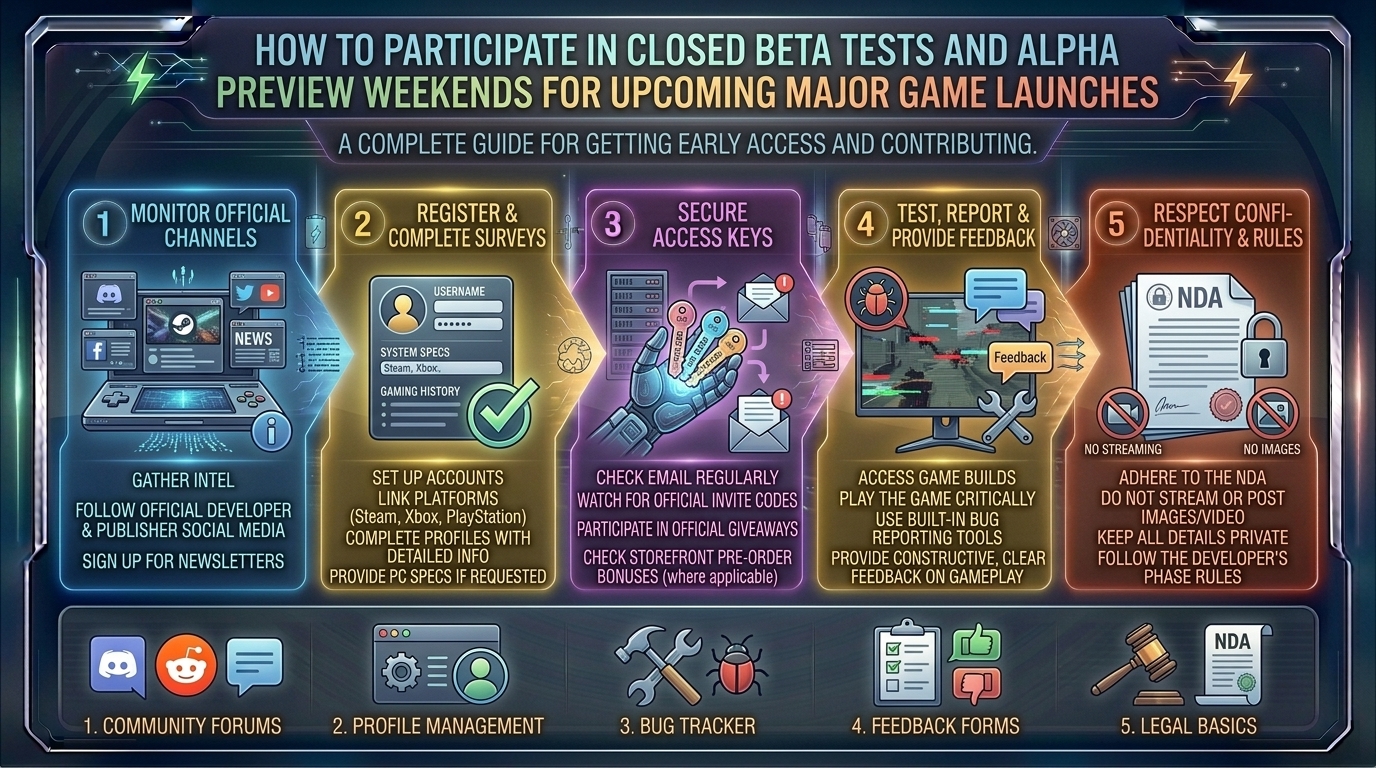
    1. Register Directly on Official Developer Portals Early

    Most AAA and large-scale indie studios open registration landing pages months before a beta occurs.

    • Action: Bookmark official game websites, create publisher accounts (e.g., EA Account, Ubisoft Connect, Activision ID, Square Enix Members), and opt-in explicitly to marketing and beta testing checkboxes. Studios pull user hardware specs directly from these accounts to match their testing criteria.

    2. Leverage Twitch Drops and YouTube Live Campaigns

    Over the past few years, developers like Riot Games, Valve, and Bungie have revolutionized beta access through Drops.

    • Action: Link your gaming accounts (Steam, Xbox, PlayStation, Epic Games) to your Twitch or YouTube accounts. During active promotional weekends, watch participating streamers who have “Drops Enabled.” Leaving a stream running in the background for a few hours is frequently the fastest guaranteed ticket to a closed tactical test.

    3. Monitor and Participate on Official Discord Servers and Subreddits

    Developers of major multiplayer and survival games heavily utilize community platforms to distribute waves of keys.

    • Action: Join the official Discord server of upcoming games. Community managers frequently host community caption contests, trivia events, or direct wave distributions in dedicated #alpha-signup or #beta-keys channels.

    4. Hardware and Insider Program Registrations

    If you live in tech powerhouses like San Francisco or Seattle (Washington), you likely own robust gaming hardware. Manufacturers frequently partner with game studios for exclusive hardware-tied betas.

    • Action: Keep your hardware profiles updated via programs like NVIDIA GeForce Experience, AMD Rewards, or Xbox Insider Hub. The Xbox Insider app on PC and console is a goldmine for quietly dropping unannounced alpha and beta flights.

    Part 3: Regional Advantages for Tech and Gaming Insiders

    Where you live can sometimes offer subtle advantages in the world of game testing:

    • California & San Francisco: Home to massive game publishers, tech incubators, and specialized QA testing hubs. Local gaming meetups and developer showcases (like GDC networking events) often hand out physical beta cards or alpha codes.
    • Washington (Seattle/Bellevue Hub): A titan of the gaming industry (home to Valve, Microsoft Xbox, and numerous AAA studios). Local tech communities frequently host localized playtest events where you can test games in-studio under NDA (Non-Disclosure Agreements).
    • Texas & New York: Huge esports and gaming communities mean regional activation events, convention appearances (like PAX East in New York or local Texas gaming expos), and physical community activations frequently hand out priority access codes.

    Part 4: Etiquette and Best Practices During a Beta Test

    Once you successfully secure your spot in a closed alpha or beta, your behavior matters. Studios track player data closely, and how you act dictates whether you get invited back for future tests.

    • Respect the NDA (Non-Disclosure Agreement): If a beta requires an NDA, do not stream it on Twitch, post screenshots on X (Twitter), or leak video clips to YouTube. Breaking an NDA can result in permanent bans from the publisher’s ecosystem and legal action.
    • Actively Report Bugs: Use the in-game reporting tool or dedicated bug-tracking forms. Provide clear reproduction steps (e.g., “The game crashed when I opened the inventory menu while sprinting uphill”).
    • Stress-Test the Servers: Don’t just play quietly. Log on during peak regional hours to help developers stress-test matchmaking queues and netcode limits.

    Frequently Asked Questions (FAQ)

    1. Do I need to pre-order a game to get into a closed beta?

    Sometimes, but not always. While pre-ordering a digital copy of a game is a common guaranteed method to secure closed beta access, many studios also distribute free keys via random lottery sign-ups, influencer giveaways, and Twitch drops.

    2. What is the difference between an Alpha and a Beta test?

    An alpha test occurs earlier in development when features and assets may still be incomplete or placeholders. It focuses on core functionality and breaking the engine. A beta test happens closer to launch, focusing on server stability, balance, and final polish under real player loads.

    3. Why didn’t I get a key even though I signed up months in advance?

    Closed betas often target specific hardware configurations. If a developer needs to test low-end PC GPUs or specific console configurations, and your system specs don’t match their current testing matrix quota, you may not be selected in the initial waves.

    4. Can I sell or trade an extra closed beta key I received?

    Almost always no. Terms of service agreements strictly prohibit the sale or transfer of beta codes. Publishers routinely track and deactivate keys listed on unauthorized third-party marketplaces or auction sites.

    5. What are Twitch Drops, and how do I earn beta access through them?

    Twitch Drops are promotional incentives where game developers reward viewers with in-game items or beta keys for watching participating streams. You must link your game account to your Twitch account and watch a designated channel for a specified duration.

    6. Do my beta progress and characters carry over to the official launch?

    In 95% of cases, no. Developers typically wipe all character data, levels, and inventories at the conclusion of a beta or alpha test before the official global launch to ensure a level playing field for everyone on day one.

    7. How can I use the Xbox Insider Hub to find betas?

    If you game on PC or Xbox, download the free Xbox Insider Hub app from the Microsoft Store. Navigate to the “Previews” tab to find active alpha tests, preview builds, and upcoming console/PC betas that you can join instantly with a single click.

    8. Will participating in a closed beta cost me money?

    True closed betas and alphas distributed by official developers are free to play once you have an access key or invite. Be wary of online scams or malicious phishing sites claiming to sell “exclusive early alpha access” for cash.

    9. What should I include in a bug report during a beta?

    A great bug report includes: what you were doing right before the bug happened, whether you can replicate the bug consistently, your system specifications (GPU, CPU, RAM), and screenshots or video clips if permitted by the test guidelines.

    10. Where can I find the latest announcements for upcoming game betas?

    Keep your browser locked to industry news aggregators and track release calendars right here at thegamerbuzz.com, where we constantly update upcoming beta test windows and sign-up links!

    Conclusion

    Participating in closed beta tests and alpha preview weekends is one of the most exciting ways to experience modern gaming. It transforms you from a passive consumer into an active contributor shaping the final polish of major titles. By registering early, leveraging Twitch drops, staying active on community channels, and keeping your hardware profiles updated, you can dramatically increase your chances of scoring access.

    At thegamerbuzz.com, we want to see you on the front lines of every major launch. Sign up for those developer portals, keep an eye on your inbox, and see you in the digital trenches!
  • What are the best gaming desk surface and cable management buying guides for clean studio setups

    What are the best gaming desk surface and cable management buying guides for clean studio setups

    For modern gaming enthusiasts, content creators, and professional streamers across tech-forward epicenters like Texas, New York, California, Washington, and San Francisco, the gaming desk is more than just a piece of furniture. It is the central command station of your digital life.

    Whether you are editing 4K video streams in a high-rise New York apartment, managing a multi-PC streaming rig in a spacious Texas home office, or building a sleek, minimalist aesthetic in a San Francisco studio, the foundation of your space matters. A chaotic battle station littered with tangled cables, sagging desktop boards, and scratched surfaces not only destroys your room’s aesthetic but also creates ergonomic bottlenecks and potential safety hazards.

    At thegamerbuzz.com, we know that achieving a pristine, professional “clean studio” look requires deliberate planning. This comprehensive buying guide explores the best gaming desk surfaces, materials, ergonomics, and advanced cable management systems to help you build the ultimate battle station.

    Part 1: Choosing the Ultimate Gaming Desk Surface

    When investing in a gaming desk, the surface material dictates durability, tactile feel, acoustics, and long-term aesthetic appeal. Let’s break down the primary material choices available on the market.

    1. Solid Wood & Butcher Block (The Premium Gold Standard)

    • Materials: Solid oak, walnut, maple, or birch butcher block.
    • Pros: Unmatched durability, stunning natural grain aesthetics, easy to sand and refinish if scratched, and high weight capacity. It provides a warm, premium studio feel.
    • Cons: Heavy, expensive, and requires occasional conditioning with mineral oil or polyurethane to prevent warping.
    • Best For: Creators in California and Texas looking for a timeless, heirloom-quality aesthetic that supports heavy monitor arm mounts.

    2. High-Pressure Laminate (HPL) & MDF (The Practical Choice)

    • Materials: Medium-density fiberboard (MDF) core covered with a bonded laminate skin (often carbon-fiber textured or matte black).
    • Pros: Affordable, resistant to moisture and stains, available in endless colors and textures, and lightweight.
    • Cons: Prone to permanent chipping if edges are impacted; cheap MDF can sag in the middle if unsupported over long spans when burdened with heavy multi-monitor arrays.
    • Best For: Gamers wanting a sleek, modern, carbon-fiber gaming aesthetic without breaking the bank.

    3. Tempered Glass (The Modern Minimalist)

    • Materials: Heavy-duty tempered safety glass atop a metal frame.
    • Pros: Extremely sleek, reflects RGB lighting gorgeously, easy to wipe clean, and feels light in small urban spaces like New York or San Francisco apartments.
    • Cons: Ice-cold to the touch during winter months, prone to showing fingerprint smudges, impossible to clamp traditional monitor arms onto safely without specialized pads, and shatters catastrophically if corner-impacted.
    • Best For: Minimalist setups focusing heavily on under-desk ambient RGB lighting.

    4. Bamboo (The Eco-Friendly Contender)

    • Materials: Rapidly renewable laminated bamboo strips.
    • Pros: Highly sustainable, naturally antimicrobial, flexible, structurally robust, and visually striking.
    • Cons: Can scratch more easily than hardwoods if abused; requires compatible cleaning solutions.
    • Best For: Eco-conscious gamers in Washington state who want a sustainable, modern aesthetic.

    Part 2: Surface Ergonomics & Dimensions

    A gorgeous desk is useless if it causes wrist strain or back pain during an 8-hour raid or editing marathon.

    • Depth: Aim for a minimum depth of 30 inches. Standard 24-inch desks place your monitor too close to your eyes, forcing unnatural neck angles and leaving little room for a deep keyboard and mouse sweep.
    • Width: For a standard single-monitor setup, 48 inches works, but for a dual-monitor or dual-PC streaming setup, 60 to 72 inches is the sweet spot.
    • Standing Desk Integration: Consider a dual-motor standing desk frame. Alternating between sitting and standing boosts circulation and reduces fatigue during long work and play sessions.

    Part 3: The Art of Cable Management – Engineering a Zero-Wire Look

    The difference between an amateur gaming desk and a professional studio setup always comes down to cable management. Achieving that floating, wire-free look requires proper hardware and methodology.

    +-----------------------------------+-----------------------------------+
    | Cable Management Tool             | Primary Function & Benefit        |
    +-----------------------------------+-----------------------------------+
    | Under-Desk Cable Trays / Baskets  | Holds power bricks and excess wire|
    | J-Channel Raceways                | Routes clean lines along desk legs|
    | Velcro Reusable Straps            | Bundles loose cords together safely|
    | Braided Sleeving                  | Protects and unifies visible cords|
    | Grommet Hole Pass-Throughs        | Drops desktop wires straight down |
    +-----------------------------------+-----------------------------------+
    

    Step-by-Step Cable Routing Blueprint

    1. Unify Power Delivery: Mount a heavy-duty surge protector or PDU (Power Distribution Unit) directly underneath the back center of your desk. This ensures power cords never travel down to the floor openly.
    2. Bundle by Signal Type: Keep power cables (AC) physically separated from low-voltage signal cables (HDMI, DisplayPort, USB data) to minimize electromagnetic interference (EMI) and audio hum in your microphone.
    3. Use J-Channels for Vertical Drops: Run cables down the back legs of your desk using adhesive J-channel raceways painted or matched to your desk leg color.
    4. Anchor Slack Securely: Coil any excess slack neatly using Velcro ties and tuck them into your under-desk tray. Never zip-tie power cables tightly together, as heat buildup can pose a safety risk.

    Part 4: Regional Considerations for Your Studio Setup

    Living in different parts of the country introduces unique environmental factors for your desk setup:

    • Texas & California (Warm & Dry / Humid Mix): Solid wood can dry out and crack if exposed to direct, intense AC airflow or radiant heat. Condition your butcher block surfaces annually.
    • New York & San Francisco (Compact Urban Spaces): Space is at a premium. Opt for 48-to-60-inch motorized standing desks with integrated clamp accessories to maximize vertical desk space without cluttering the floor.
    • Washington (Damp & Humid Winters): Ensure MDF or lower-quality particle board desks are properly edge-sealed so moisture doesn’t seep into the core, causing swelling and bubbling.

    Part 5: Essential Accessories to Complete Your Clean Studio

    To elevate your setup from standard to elite, integrate these functional accessories:

    • Heavy-Duty Monitor Arms: Free up massive amounts of desk surface space by lifting your displays off the wood.
    • Desk Mat / Full-Surface Mousepad: Protects your desk finish, dampens keyboard clatter acoustics, and unifies your color scheme.
    • Headphone Under-Desk Mount: Keeps your audio gear safely tucked away yet instantly accessible.

    Frequently Asked Questions (FAQ)

    1. What is the best desk depth for a dual-monitor gaming setup?

    A depth of at least 30 inches is ideal. This gives you enough distance to position large 27-inch or 32-inch monitors comfortably back from your eyes while leaving plenty of room for a full-size mechanical keyboard and mousepad.

    2. Can I use a clamp-on monitor arm with a glass gaming desk?

    No, it is strongly discouraged. Glass desks cannot handle the localized point-pressure of a C-clamp, which can cause the tempered glass to shatter unexpectedly. If you use a glass desk, opt for freestanding monitor stands.

    3. How do I prevent my standing desk from wobbling at max height?

    Choose a frame with a dual-motor system, heavy steel legs, and crossbars. Ensure the desk is not placed on thick, plush carpet without leveling feet adjusted correctly. Rigid walls can also be used with wall-anchored stabilization brackets if needed.

    4. What is the difference between MDF and solid wood for gaming desks?

    Solid wood is a single, natural piece of lumber that can last decades and be refinished. MDF (Medium-Density Fiberboard) is a composite of wood fibers and resin covered with a veneer or laminate; it is cheaper and lighter, but it can sag or warp under heavy loads if unsupported.

    5. How do I hide power bricks under my desk safely?

    Use a heavy-duty metal wire mesh tray or basket screwed directly into the underside of your desk. This keeps power bricks elevated, allowing proper airflow around them while keeping them completely out of sight.

    6. Are standing desks worth the extra cost for gamers?

    Yes. Alternating between sitting and standing improves posture, increases energy during long gaming sessions, and helps prevent lower back strain associated with sedentary gaming habits.

    7. How do I stop cables from slipping behind my desk when unplugged?

    Use silicone desktop cable drops or weighted cable clips adhered to the top back edge of your desk. They hold charging cables securely in place so they never slide down onto the floor when not plugged into your phone or controller.

    8. What is the best way to clean a carbon-fiber textured laminate desk?

    Use a microfiber cloth slightly dampened with a mixture of warm water and a drop of mild dish soap. Avoid harsh chemical solvents or abrasive scouring pads, which can strip the textured coating off the laminate surface.

    9. Why is cable management important for audio quality?

    Running sensitive XLR microphone cables or studio monitor power cords directly parallel to heavy AC power lines can introduce buzzing, electrical hum, and electromagnetic interference (EMI) into your streaming audio feed. Keeping them separated prevents this.

    10. Where can I find more studio setup inspiration and hardware reviews?

    For deep-dive hardware reviews, aesthetic guides, and battle station configurations tailored for modern enthusiasts, explore our extensive library right here at thegamerbuzz.com.

    Conclusion

    Designing a clean, high-performance gaming studio is an investment in both your productivity and your peace of mind. By selecting a durable, deep desk surface tailored to your space—whether in a sprawling home office or a compact city apartment—and executing a disciplined cable management strategy, you transform your room into an inspiring command center.

  • How to understand the environmental impact and energy consumption of high performance gaming hardware rigs

    How to understand the environmental impact and energy consumption of high performance gaming hardware rigs

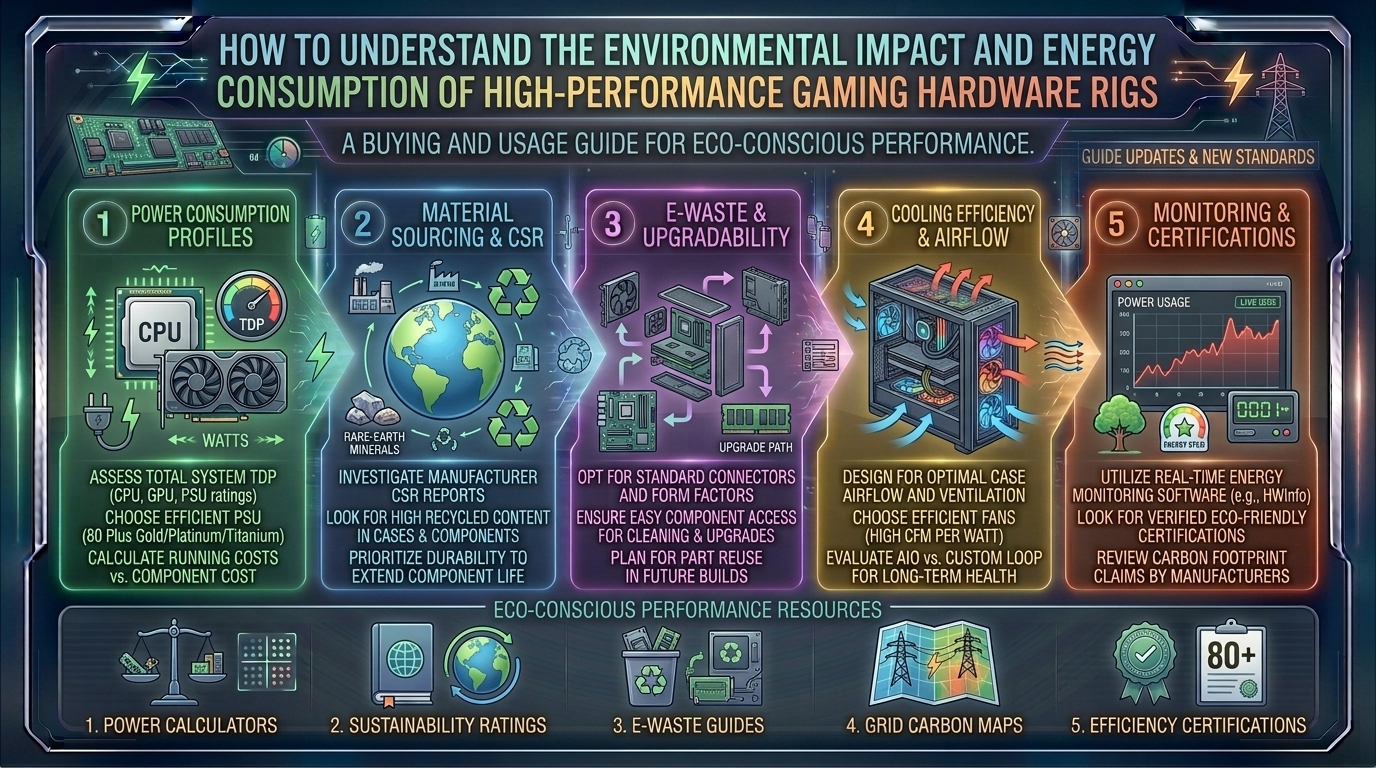
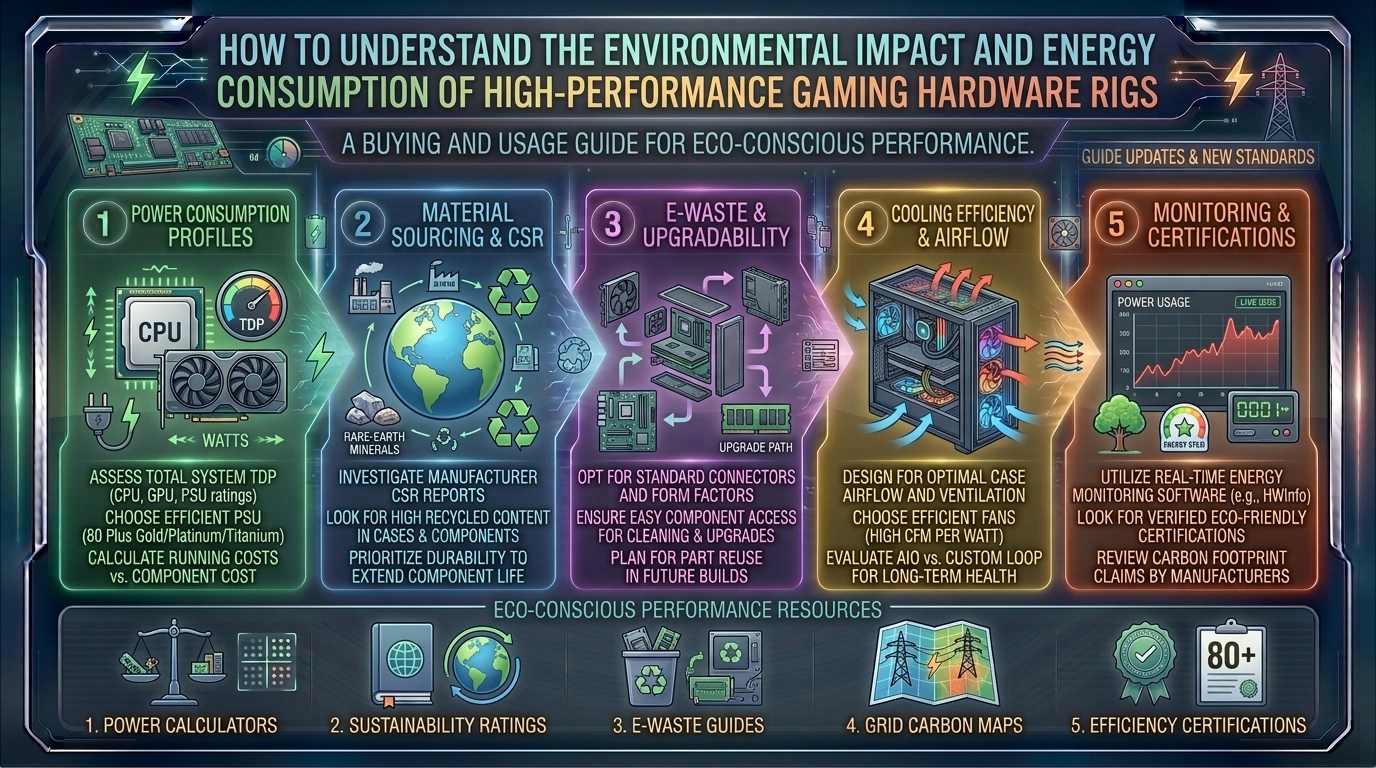
    How to Understand the Environmental Impact and Energy Consumption of High-Performance Gaming Hardware Rigs

    Introduction: The Hidden Power Behind Modern Gaming

    For millions of enthusiasts across tech hubs and gaming epicenters like Texas, New York, California, Washington, and San Francisco, building and operating a high-performance gaming rig is a passion. We chase higher frame rates, ray-traced visuals, 4K resolutions, and ultra-responsive refresh rates. Yet, behind every glowing RGB chassis, fluid-cooled loop, and triple-fan graphics card lies a stark reality: extreme power consumption.

    Modern high-end graphics cards and multi-core processors pull staggering amounts of electricity, transforming your sleek battle station into a localized space heater. As energy grids face rising pressures and electricity costs fluctuate wildly across different states—from the wind-and-hydro heavy grids of Washington to the complex urban grids of New York and San Francisco—understanding the environmental footprint of our hobby is no longer optional.

    At thegamerbuzz.com, we believe that true gaming excellence includes technical awareness. This deep-dive guide explores how high-performance hardware impacts energy grids, the carbon footprint of manufacturing, and actionable tips to optimize your rig without sacrificing a single frame.

    The Anatomy of Power: What Do High-Performance Rigs Actually Consume?

    Unlike standard office laptops or home computers that idle quietly at 15 to 30 watts, a modern enthusiast gaming PC is a miniature power plant. Under heavy gaming loads, a high-end system equipped with top-tier components can easily draw anywhere from 400 to 800+ watts. When factoring in multi-monitor setups, external DACs, audio gear, and charging stations, total power draw can flirt with the 1,000-watt threshold.

    Breakdown of Major Energy-Hungry Components

    • The Graphics Processing Unit (GPU): The undisputed king of power consumption. Modern flagship GPUs can draw anywhere from 300 to 450+ watts under peak gaming loads alone.
    • The Central Processing Unit (CPU): High-end multi-core processors routinely pull between 125 and 250+ watts when pushed during intense simulation, physics processing, or open-world gameplay.
    • Cooling Systems & Aesthetics: Custom liquid cooling loops (pumps and multiple PWM fans) alongside extensive RGB arrays add an extra 30 to 60 watts of parasitic load to your system.
    • Power Supply Unit (PSU) Inefficiency: No power supply is 100% efficient. Even with an 80 PLUS Platinum or Titanium rating, energy is lost as heat during the AC-to-DC conversion process (usually a 5% to 15% overhead penalty).

    From Silicon to Landfill: The Full Lifecycle Carbon Footprint

    The environmental impact of PC gaming extends far beyond the electricity bill sitting on your kitchen counter. It begins years before you plug the system into the wall and continues long after a component becomes obsolete.

    1. Extraction and Manufacturing (Scope 3 Emissions)

    The components that make our games look breathtaking—silicon wafers, rare earth metals (like neodymium for magnets and tantalum for capacitors), gold, copper, and lithium—must first be mined from the earth. Mining operations cause heavy habitat destruction, soil erosion, and chemical runoff.

    Once extracted, processing silicon chips requires ultra-clean industrial environments, massive volumes of ultrapure water, and chemical baths. Manufacturing a single high-end processor or graphics card generates a disproportionately high amount of embedded carbon emissions before it even leaves the assembly plant.

    2. Operational Energy Use

    During its operational lifecycle (typically 3 to 5 years for a hardcore gamer), the system burns continuous kilowatt-hours (kWh). If your local grid relies heavily on fossil fuels (coal and natural gas), every hour spent in a virtual world translates directly into carbon emissions pumped into the atmosphere.

    3. E-Waste and Disposal

    Because hardware cycles move fast, graphics cards and CPUs are frequently retired while still functional simply because they cannot maintain ultra settings on brand-new game releases. Discarded electronics (e-waste) contain toxic materials such as lead, mercury, and cadmium. When dumped improperly into landfills, these elements leach into local soil and water tables.

    Regional Energy Realities: How Location Changes Your Impact

    The environmental cost of running a high-end rig depends heavily on where you live, as local power grid compositions dictate how much carbon is emitted per kilowatt-hour consumed.

    +------------------+----------------------------------+-------------------------------------------------+
    | Region           | Primary Grid Energy Mix          | Environmental / Carbon Intensity                |
    +------------------+----------------------------------+-------------------------------------------------+
    | Washington       | Hydroelectric & Wind             | Very low carbon intensity (Clean energy abundant)|
    | California / SF  | Solar, Wind, Natural Gas         | Moderate intensity; heavy solar penetration     |
    | New York         | Nuclear, Natural Gas, Hydro      | Low to moderate carbon intensity                |
    | Texas            | Natural Gas, Wind, Solar, Coal   | Moderate to high intensity depending on season  |
    +------------------+----------------------------------+-------------------------------------------------+
    
    • Washington State: Thanks to vast hydroelectric infrastructure, gamers in Washington enjoy some of the cleanest and cheapest electricity in the country, meaning their operational carbon footprint is remarkably low.
    • Texas: Texas features an independent grid with massive wind and solar integration, but high reliance on natural gas and fossil peaker plants during extreme heatwaves spikes the carbon output of gaming sessions.
    • California & San Francisco: Driven by aggressive clean energy mandates, the grid features heavy solar and wind presence during the day, though evening gaming sessions often draw on natural gas reserves.
    • New York: New York balances a mix of upstate nuclear and hydro power with downstate natural gas generation, maintaining a moderate overall carbon footprint.

    Actionable Tips to Optimize Your Rig’s Energy Efficiency

    You do not need to quit gaming to protect the planet. Small, intelligent adjustments to your hardware settings can drastically slash your power draw without dropping your frame rates into unplayable territory.

    1. Frame Rate Limiting (Cap Your FPS)

    If your monitor only refreshes at 144Hz, running a game at an uncapped 300 FPS forces your GPU to work at 100% capacity for frames your eyes cannot even perceive. Use the NVIDIA Control Panel, AMD Software, or in-game settings to cap your maximum frame rate to match your monitor’s exact refresh rate. This simple tweak can cut GPU power consumption by 20% to 40% instantly.

    2. Undervolting Your GPU

    Most graphics cards leave the factory with excess voltage pumped into the silicon to guarantee stability across poorly manufactured chips. Undervolting allows you to systematically lower the voltage supplied to the GPU core while maintaining stock clock speeds. The result? Dramatically lower temperatures, quieter fans, and a 15% to 30% reduction in power draw with zero performance loss.

    3. Optimize Power Plans and Sleep States

    Do not leave your high-end rig running idle at the desktop overnight while you sleep. A system sitting idle can still draw 70 to 100 watts. Configure Windows Power Plans to put the display to sleep after 10 minutes of inactivity and spin down hard drives when not in use.

    4. Invest in an 80 PLUS Titanium or Platinum PSU

    If your power supply is old or rated only at 80 PLUS White/Bronze, it wastes a significant amount of electricity as heat. Upgrading to a modern, high-efficiency power supply ensures that less energy is lost during conversion, immediately lowering your monthly utility bill.

    5. Adopt Smart Peripherals

    Use smart power strips or smart plugs that automatically cut power to your monitor, speakers, and peripherals when your PC enters a complete shutdown state, eliminating phantom “vampire draw” loads.

    Frequently Asked Questions (FAQ)

    1. How much does running a high-end gaming PC actually cost on my monthly electric bill?

    A high-end rig consuming an average of 500 watts under gaming loads, played for 3 hours daily, consumes roughly 45 kWh per month. Multiplied by your local utility rate (which varies from roughly 12 cents to over 30 cents per kWh depending on whether you live in Texas, New York, or San Francisco), this adds about $6 to $15+ a month to your bill for the PC alone.

    2. Does undervolting my graphics card void its warranty?

    No. Undervolting is executed via software utilities like MSI Afterburner by lowering voltage curves rather than altering physical hardware or flashing unauthorized BIOS variants. If an undervolt is unstable, the software simply resets or the PC reboots safely back to default stock settings.

    3. Why do graphics cards use so much more power than they used to?

    Modern game engines demand immense parallel processing power for real-time ray tracing, complex physics calculations, and high-resolution textures. To deliver generational performance leaps, chip designers have continuously raised the thermal design power (TDP) thresholds of flagship GPUs.

    4. Are gaming laptops more environmentally friendly than desktop rigs?

    Generally, yes, in terms of raw energy consumption. Gaming laptops typically draw between 100 and 200 watts total because their mobile components are engineered for strict thermal and battery efficiency. However, laptops have a shorter functional lifespan and are significantly harder to repair or upgrade, introducing separate e-waste concerns.

    5. Does cloud gaming (like GeForce NOW or Xbox Cloud) save energy?

    Not necessarily. While cloud gaming shifts the heavy rendering hardware workload away from your local device to a massive data center, those data centers run continuously at immense scale. Studies indicate that high-bitrate streaming over complex network routers can sometimes consume comparable or even higher total end-to-end energy than running efficient local hardware.

    6. How does ray tracing affect my PC’s power consumption?

    Ray tracing introduces complex calculations for light simulation, path tracing, and reflections. Turning ray tracing on forces RT cores inside the GPU to run at maximum capacity, significantly increasing both power draw and thermal output compared to traditional rasterized rendering.

    7. What is the single most effective way to lower my gaming carbon footprint?

    The absolute best approach is hardware longevity. Keeping your existing gaming rig for an extra generation or upgrading individual parts (like just swapping the GPU) rather than buying an entirely new pre-built system every three years cuts down enormously on embedded manufacturing emissions and e-waste.

    8. Do RGB lights and extra case fans consume a noticeable amount of power?

    Individually, a single LED strip or fan uses very little power (2 to 5 watts). However, a fully decked-out enthusiast rig featuring 10 RGB fans, liquid cooling pumps, and elaborate lighting hubs can easily compound into a 50-watt parasitic load—equivalent to leaving a bright household light bulb burning constantly while you game.

    9. What should I do with old PC hardware when I upgrade?

    Never throw old graphics cards or motherboards into household trash bins. Instead, sell functional hardware on secondary markets, donate working components to local school tech programs, or drop them off at certified e-waste recycling facilities that safely reclaim precious metals.

    10. Where can I find more hardware efficiency benchmarks and guides?

    For the latest deep dives into hardware efficiency, green tech initiatives, and performance optimization guides tailored for modern gamers, keep reading right here at thegamerbuzz.com.

    Conclusion

    High-performance PC gaming is an incredible digital art form, offering immersive worlds and unmatched interactive experiences. However, the hardware that fuels these experiences comes with a real environmental price tag. By understanding where our energy goes, choosing efficient components, practicing smart hardware maintenance, and capping unneeded frame rates, gamers can enjoy top-tier performance while minimizing their ecological footprint.

  • What are the best gaming chair buying guides focusing on lumbar support and breathable fabric materials

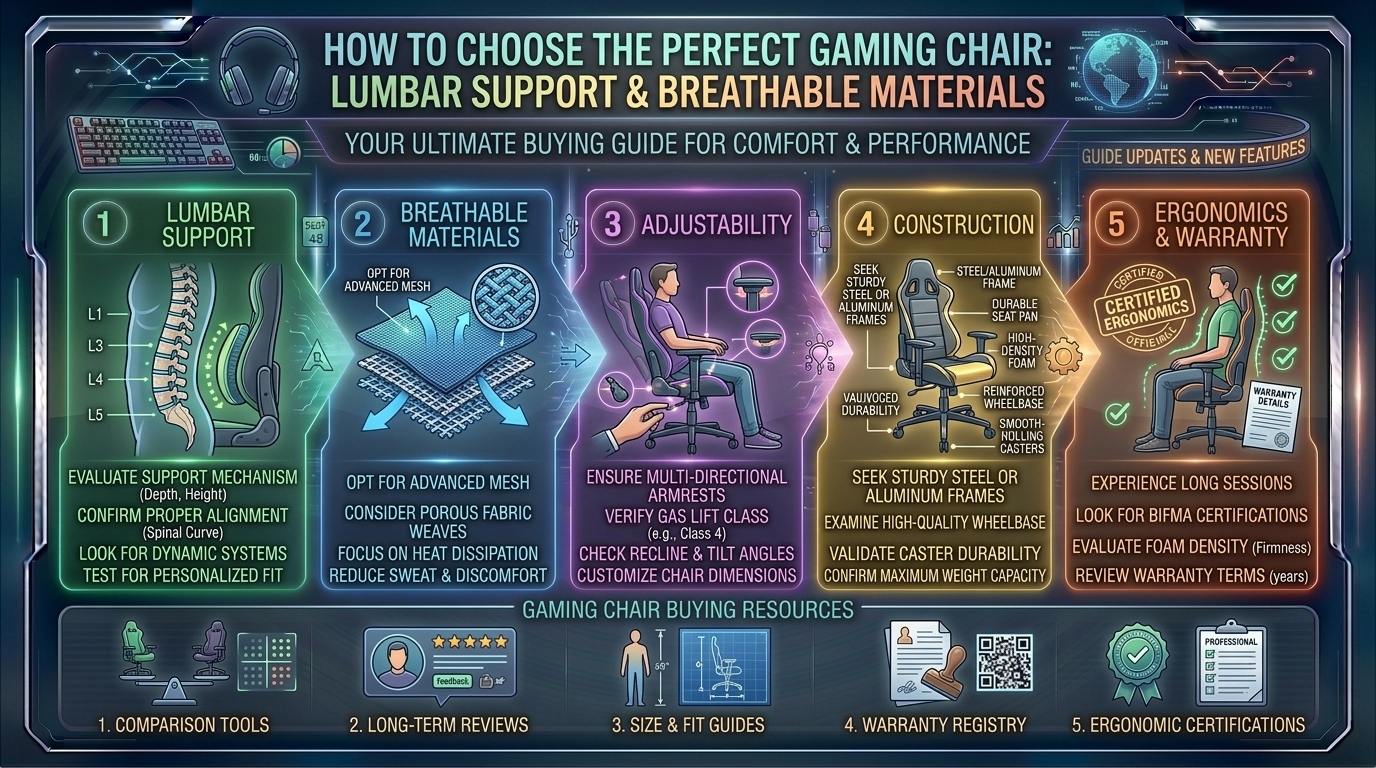
    What are the best gaming chair buying guides focusing on lumbar support and breathable fabric materials

    Welcome to thegamerbuzz.com! Whether you are setting up a state-of-the-art streaming command center in San Francisco or New York, upgrading your office workstation across Washington and Texas, or grinding competitive ladder matches late into the night in California, physical comfort is everything.

    For years, the gaming chair market was flooded with cheap, shiny PU leather “racing bucket” seats that trapped body heat, peeled after a few months, and offered flat, unsupportive lumbar pillows that constantly slipped out of place. Fortunately, the industry has evolved. Modern ergonomic engineering prioritizes two non-negotiable features for long-term health and comfort: advanced dynamic lumbar support and breathable fabric or mesh materials.

    This comprehensive buying guide explores the mechanics of spinal health, evaluates the best breathable upholstery types, and highlights top-tier gaming chairs built to keep you cool, supported, and pain-free through marathon sessions.

    1. Why Lumbar Support and Breathable Fabric Matter

    When you sit for 6 to 10 hours a day, your lower back (lumbar region) naturally flattens or slumps, putting immense pressure on your spine’s discs.

    • The Science of Lumbar Support: Without proper lower-back curvature support, your muscles fatigue, leading to chronic back pain and poor posture. Premium gaming chairs have moved away from cheap, loose pillows to integrated, multi-axis mechanical systems that mold directly to your spine’s natural curve.
    • The Thermal Trap of Cheap Leather: Standard PVC or PU leather acts like an oven wrap, trapping body heat and sweat. Breathable fabrics (such as tight-weave structural yarns, linen blends, or high-tensile elastomeric mesh) allow continuous airflow, keeping your core body temperature regulated during intense gaming sessions.
    +-------------------------------------------------------------------------+
                        CHAIR MATERIAL & SUPPORT BREAKDOWN
    +-------------------------------------------------------------------------+
      1. Integrated 4-Way Lumbar -> Adjusts dynamically up/down & in/out.
      2. SoftWeave / Performance Fabric -> Durable, soft, maximum airflow.
      3. Elastomeric Mesh -> Zero heat retention, suspends weight evenly.
      4. Cold-Cured Molded Foam -> High-density support that prevents bottoming out.
    +-------------------------------------------------------------------------+
    

    2. Top Gaming Chairs Focusing on Lumbar Support and Breathability

    The market features incredible options that combine orthopedic spine alignment with cool, moisture-wicking textiles.

    A. The Gold Standard Overall: Secretlab Titan Evo (SoftWeave Plus Fabric)

    • Lumbar System: Integrated 4-way L-ADAPT™ lumbar system that adjusts dynamically for height and depth without external pillows.
    • Fabric Quality: Custom-engineered SoftWeave Plus loop-knit fabric provides dense, breathable texture with incredible airflow.
    • Why it wins: It remains the pinnacle of high-end gaming ergonomics, offering multiple sizes, a magnetic memory foam head pillow, and a luxurious fabric finish that stays cool in warm climates.

    B. The Adaptive Contender: Razer Iskur V2 (Fabric Edition)

    • Lumbar System: World-class 6D adaptive lumbar system that swivels and reacts dynamically to your spine’s twisting and shifting movements in real-time.
    • Fabric Quality: Multi-layered, spill-resistant woven fabric designed to withstand daily wear while maintaining optimal breathability.
    • Why it wins: If you shift positions constantly while gaming, the Iskur V2’s mechanical pivoting wings ensure your lower back never loses contact support.

    C. The Full Mesh Ergonomic Powerhouse: Herman Miller x Logitech G Embody

    • Lumbar System: PostureFit® spinal support that stabilizes the base of the spine and reinforces your pelvis’s natural forward tilt.
    • Fabric Quality: Medical-grade, translucent pixelated support matrix that eliminates pressure points and provides 360-degree airflow.
    • Why it wins: While expensive, it is widely considered the ultimate hybrid office-gaming chair for eliminating back fatigue through pure suspended mesh engineering.

    D. The Value Comfort Choice: AndaSeat Kaiser 4 (Linen Fabric Edition)

    • Lumbar System: 3D adjustable integrated lumbar support (height, depth, and flip-out components).
    • Fabric Quality: Premium breathable grey linen fabric that feels softer and more casual than dense weaves.
    • Why it wins: It matches many of Secretlab’s high-end features—including massive weight capacities and 6D armrests—at a slightly more accessible price point.

    3. Pro Tips for Choosing and Maintaining Your Fabric Gaming Chair

    1. Match the Chair Size to Your Height and Weight: Never buy a “one-size-fits-all” chair. If you are tall or broad-shouldered, opting for an XL variant ensures the integrated lumbar curve actually hits your lower back instead of mid-torso.
    2. Vacuum and Spot-Clean Fabric Regularly: Unlike faux leather (which can be wiped down with a damp cloth), fabric weaves can trap dust and dead skin cells. Vacuum the crevices monthly and use a mild upholstery cleaner for accidental spills.
    3. Evaluate Your Desk Height: Proper ergonomics require your feet to sit flat on the floor with your knees at a 90-degree angle. Ensure your chair’s gas-lift height range accommodates your specific desk setup.

    10 Frequently Asked Questions (FAQs)

    1. Are fabric gaming chairs harder to clean than leather?

    They require slightly more care since they can absorb liquids, but modern performance fabrics (like Secretlab SoftWeave or stain-resistant linen) are treated to resist spills. Prompt blotting handles most accidents easily.

    2. Is mesh better than cloth fabric for keeping cool?

    Full mesh chairs (like the Herman Miller Embody) offer maximum airflow because air passes completely through the seat and backrest. However, high-end tight-weave fabrics offer a softer, more cushioned feel while still breathing significantly better than PU leather.

    3. Do built-in lumbar systems beat separate pillows?

    Yes. Integrated lumbar systems allow you to fine-tune the exact depth and height using side knobs or dials, whereas separate pillows tend to slide around, sag, or fall off when you recline.

    4. Will a fabric gaming chair pill or fray over time?

    Low-quality fabrics can pill (form little fuzz balls), but premium gaming chairs use dense, industrial-grade yarn blends specifically tested against friction and wear to ensure years of clean aesthetics.

    5. Can I use a gaming chair for 8+ hours of remote work as well?

    Absolutely. In fact, chairs built with advanced ergonomics and breathable fabric are often vastly superior for dual-purpose office work and gaming compared to traditional executive office chairs.

    6. What weight capacity should I look for?

    Standard gaming chairs typically support up to 280–300 lbs, while XL variants support up to 390–400 lbs with reinforced steel frames and wider bases. Always check weight ratings to protect the gas piston.

    7. Do fabric chairs trap pet hair and odors?

    They can hold pet hair more than smooth leather surfaces, but a quick pass with a lint roller solves the issue. For odors, standard fabric deodorizing sprays work safely on high-end weaves.

    8. What is “cold-cured foam” and why does it matter?

    Cold-cured foam is molded inside a custom metal form at low temperatures, resulting in high-density foam that contours to your body shape without sagging or losing its supportive firmness over years of use.

    9. Are 4D or 6D armrests necessary?

    They greatly help reduce shoulder and wrist strain by letting you adjust armrest height, width, depth, and angle so your elbows align perfectly with your desktop keyboard and mouse.

    10. How long should a good gaming chair last?

    A quality gaming chair built with a heavy-duty steel frame, aluminum base, and high-density foam should easily last between 5 to 10 years, often backed by extended manufacturer warranties.

    Conclusion

    Investing in a high-quality gaming chair focused on robust lumbar support and breathable fabric upholstery is an investment in your long-term physical health. Whether you choose the customizable luxury of the Secretlab Titan Evo SoftWeave, the active spine-tracking of the Razer Iskur V2, or the ultimate mesh airflow of the Herman Miller Embody, upgrading your seating setup transforms your daily gaming experience. Stay cool, protect your spine, and game in absolute comfort.

    Ultimate Gaming Chair Ergonomics and Assembly Guide

    This video provides a practical visual demonstration of how to correctly adjust lumbar mechanisms, set optimal desk ergonomics, and assemble fabric gaming chairs step-by-step.

  • How to follow reliable video game journalism outlets and avoid clickbait rumors and unverified leaks

    How to follow reliable video game journalism outlets and avoid clickbait rumors and unverified leaks

    How to Follow Reliable Video Game Journalism Outlets and Avoid Clickbait Rumors and Unverified Leaks

    Welcome to thegamerbuzz.com! Whether you are tracking the pulse of the interactive entertainment industry from a fast-paced media startup in New York or San Francisco, analyzing consumer trends across Washington and Texas, or just checking out breaking announcements from the comfort of your home in California, staying informed about video game news requires a critical eye.

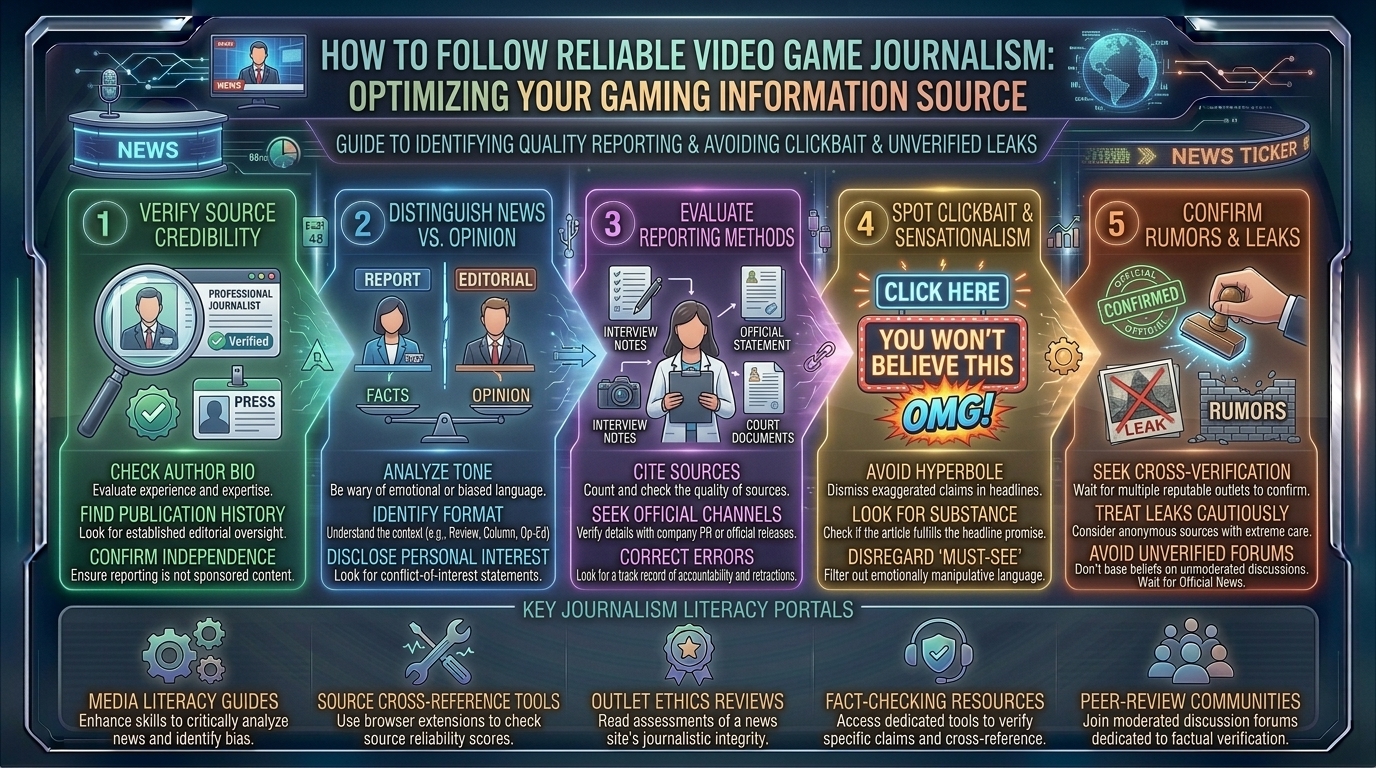
    The modern internet economy thrives on engagement metrics. In the battle for your attention, sensationalized headlines, unverified forum whispers, and manufactured rage-bait often spread faster than verified, professional reporting. For passionate gamers, developers, and industry watchers, sorting fact from fiction is essential.

    This comprehensive master guide explores how to identify trusted video game journalism outlets, decode corporate PR spin, spot clickbait and unverified leaks from a mile away, and curate a healthy, reliable news diet.

    1. The Anatomy of Modern Video Game Journalism

    To understand how to filter the noise, you first need to understand how the sausage is made. Video game journalism generally follows a distinct lifecycle:

    • The Reveal Phase: Publishers officially announce a title via cinematic trailers, developer deep-dives, or media showcase events. Information here is strictly controlled by corporate public relations (PR).
    • The Preview Phase: Outlets are invited to hands-on preview events or given closed beta access. Journalists report on their controlled, hands-on experiences, providing early impressions.
    • The Review Phase: Final game codes are distributed ahead of launch. Independent critics evaluate the complete experience under strict embargo conditions, delivering scored reviews and analytical critiques.

    When news outlets step outside this structured cycle—relying on anonymous forum posts, data-mined strings of text, or vague insider claims—they enter the realm of rumors and leaks.

    2. Red Flags: How to Spot Clickbait and Unverified Leaks

    Internet culture loves a good conspiracy or a juicy insider leak, but malicious actors and low-tier blogs weaponize hype for ad revenue. Watch out for these classic warning signs:

    +-------------------------------------------------------------------------+
                          CLICKBAIT & LEAK RED FLAGS
    +-------------------------------------------------------------------------+
      1. Vague Sourcing     -> "An insider close to the project says..." (No names/proof)
      2. Outrage-Bait Titles -> "X Developer DESTROYS Fanbase With HUGE Mistake!"
      3. Absolute Certainty -> Treating 4chan forum text files as verified facts.
      4. Circular Reporting -> Blog A quotes Blog B, which quoted an unverified Reddit post.
    +-------------------------------------------------------------------------+
    
    • The “Anonymous Insider” Fallback: If an article relies entirely on unverified, anonymous sources without corroborating evidence or a proven track record of accurate insider reporting, take it with a massive grain of salt.
    • Circular Sourcing Loops: This occurs when a random post on Reddit or a 4chan board is picked up by a small blog, which is then quoted by a slightly larger site, until mainstream aggregators treat a fabricated rumor as “breaking news.” Always trace the origin of a claim.
    • Emotional Manipulation: Headlines designed to make you instantly angry, panicked, or overly hyped are engineered for clicks rather than truth. Real journalism uses measured, objective language.

    3. Characteristics of Trusted Video Game Outlets

    Reliable journalism adheres to professional ethics, transparency, and accountability. When evaluating a gaming news outlet, look for these markers of quality:

    • Clear Correction Policies: Reputable publications readily admit when they get something wrong. They issue clear, visible editor’s updates or corrections when new facts emerge.
    • Separation of Church and State (Editorial Independence): High-tier outlets maintain strict boundaries between their commercial advertising departments and their editorial review teams, ensuring reviews cannot be bought or influenced by publisher ad spend.
    • Original Reporting and Interviews: Instead of just rewriting press releases or copying other people’s scoops, trusted outlets invest in original investigative pieces, developer interviews, and deep-dive technical analysis (such as frame-rate and asset analysis).

    4. Pro Tips for Building a Clean, Reliable News Diet

    1. Cross-Reference Major Announcements: If a massive leak drops (e.g., a major studio acquisition or an unannounced game sequel), wait to see if established industry reporters with verified track records (such as journalists from Bloomberg, Eurogamer, or major trade publications) corroborate the story.
    2. Follow Credible Individual Journalists: Often, reliable reporting comes from specific, veteran journalists who have cultivated trusted industry sources over decades. Follow these individuals directly rather than relying solely on aggregate content farms.
    3. Treat Data-Mines as Possibilities, Not Promises: Data-mining game files (extracting unreleased audio, text strings, or placeholder assets from game updates) can reveal interesting clues, but developers frequently cut, alter, or repurpose content. Never treat a data-mine as a confirmed feature.
    4. Support Independent and Specialized Critics: Look beyond mainstream news aggregates. Specialized sites focusing on deep technical breakdowns, preservation history, or indie game spotlights often provide the most honest and passionate coverage in the industry.

    10 Frequently Asked Questions (FAQs)

    1. Are leaks always bad for the video game industry?

    Not always. Sometimes harmless leaks build organic community excitement or build hype for an upcoming announcement. However, malicious leaks can ruin years of narrative surprises for developers and disrupt corporate marketing plans.

    2. How can I tell if a Reddit rumor or 4chan leak is real?

    Look for verifiable hard evidence—such as copyrighted internal design documents, matching registration trademarks, or corroboration from journalists with proven track records. If it’s just text typed into an anonymous post, assume it is fiction.

    3. What is “review bombing” and how does it affect journalism?

    Review bombing is when large groups of users flood a game’s aggregate score page with negative reviews to protest external political, social, or corporate grievances, often before even playing the game. Good journalism separates organic critique from coordinated user campaigns.

    4. Do game publishers pay review outlets for high scores?

    No reputable publication accepts payment for review scores. Doing so destroys their credibility and editorial integrity. However, publisher-hosted junkets (trips for press to preview games) can sometimes create subtle conflicts of interest, which professional sites are expected to disclose.

    5. Why do some websites publish articles based on unverified rumors?

    Traffic and ad revenue. Sensationalized headlines about unverified rumors generate immediate clicks, social media shares, and ad impressions, even if the report turns out to be entirely false.

    6. What is corporate PR “spin”?

    PR spin is the deliberate framing of information by game publishers to highlight positive milestones while downplaying flaws, delays, or technical problems. Good journalists look past this spin by testing games independently.

    7. How do review embargoes work?

    Publishers give critics games ahead of launch under an “embargo agreement” that specifies an exact date and time when reviews can be published. This ensures all outlets publish simultaneously and prevents rushed, low-quality review races.

    8. Are content creators on YouTube and TikTok reliable news sources?

    Some are exceptional and provide thoughtful analysis, but many rely on sensationalized thumbnails and unverified rumors to satisfy algorithmic demands for daily uploads. Always verify claims made by independent creators.

    9. Why do game trailers sometimes look different from final release graphics?

    Often labeled as “vertical slices” or cinematic renders, early promotional trailers show idealized targets or pre-rendered sequences rather than real-time gameplay running on consumer hardware.

    10. How can I support ethical, reliable video game journalism?

    Turn off aggressive ad-blockers for sites you trust, subscribe to independent creator patreons or ad-free tiers, share well-researched articles, and avoid clicking on obvious clickbait rage-farming sites.

    Conclusion

    Navigating the vast ecosystem of video game journalism requires a blend of media literacy, skepticism, and patience. By learning to identify clickbait triggers, ignoring unverified forum leaks, and prioritizing outlets that champion editorial independence and transparency, you can stay genuinely informed. Whether you are running a budding publication in New York or analyzing media consumption trends across Texas, California, and Washington, championing truth in gaming ensures our community remains sharp, knowledgeable, and passionate.

  • What are the best capture card buying guides for recording 4K gaming footage from consoles to pc

    What are the best capture card buying guides for recording 4K gaming footage from consoles to pc

    What Are the Best Capture Card Buying Guides for Recording 4K Gaming Footage from Consoles to PC

    Welcome to thegamerbuzz.com! Whether you are setting up a professional streaming studio in San Francisco or New York, editing high-octane gameplay footage across Washington and Texas, or producing content in California, capturing pristine 4K video from consoles to your PC is the ultimate badge of honor for modern content creators.

    Gone are the days when standard 1080p recording sufficed. With modern powerhouse consoles like the PlayStation 5 and Xbox Series X pushing gorgeous native 4K resolutions at high refresh rates, capturing every single pixel with extreme color fidelity is mandatory if you want your YouTube channel, Twitch stream, or video archive to stand out.

    However, diving into the world of video capture cards can feel overwhelming. Jargon like HDMI 2.1 bandwidth, variable refresh rate (VRR) passthrough, PCIe vs. USB-C interfaces, and uncompressed YUY2 encoding can trip up even tech-savvy creators.

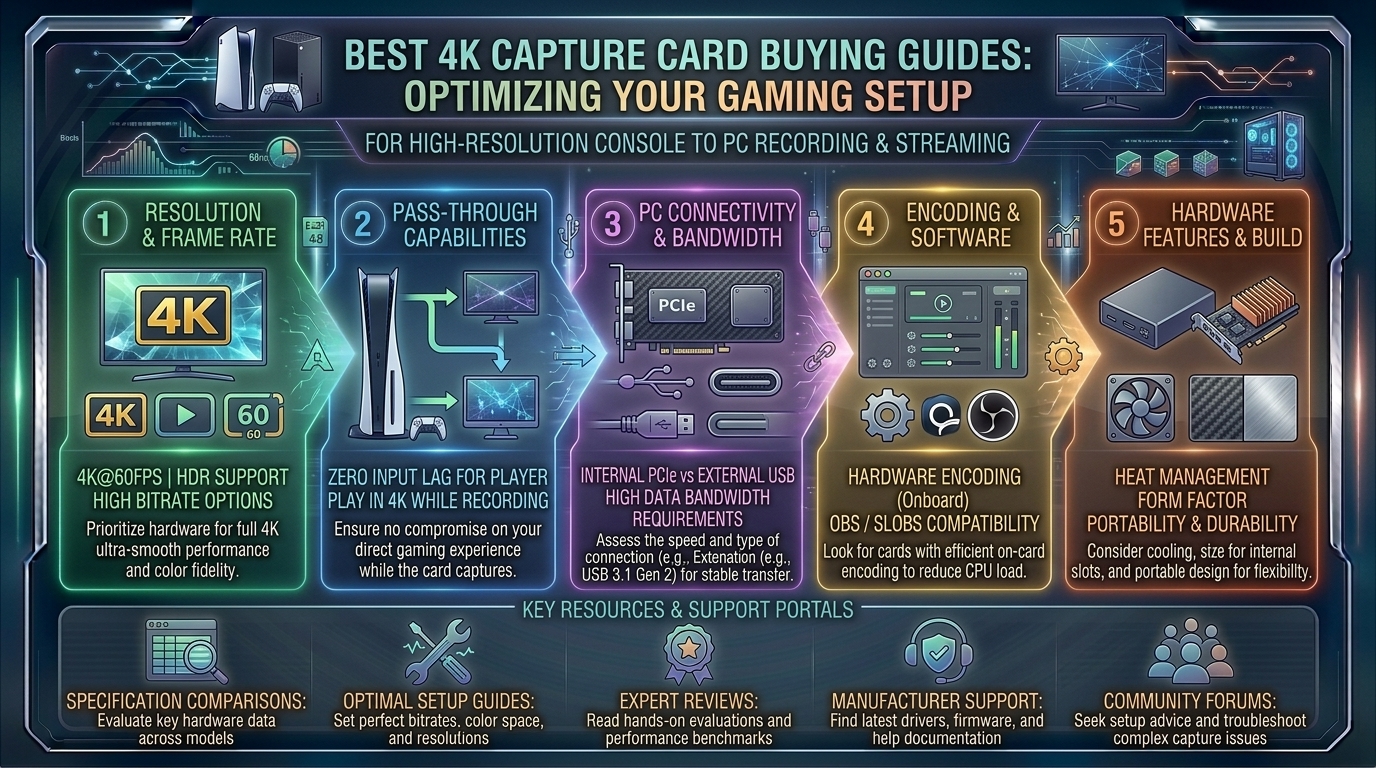
    This master buying guide breaks down everything you need to know to select the absolute best 4K capture card for recording and streaming your console gameplay directly to your PC.

    1. Core Anatomy: How Capture Cards Work for 4K Gaming

    Before looking at specific models, it is vital to understand the basic plumbing of a dual-device console-to-PC recording setup.

    +-------------------------------------------------------------------------+
                          4K CAPTURE ROUTING PIPELINE
    +-------------------------------------------------------------------------+
      [PlayStation 5 / Xbox Series X] 
             │ (HDMI 2.1 Cable)
             ▼
      [4K Capture Card IN Port] ---> Processes / Splits Feed
             │                               │
             ├────── (Passthrough Out) ──────┼──> [4K High-Refresh Monitor]
             │                               │
             └────── (USB-C / PCIe) ─────────┴──> [Recording PC (OBS / 4K Capture)]
    +-------------------------------------------------------------------------+
    
    • The Passthrough Connection: This is what allows you to play your console lag-free on your gaming monitor or television. The card takes the incoming signal from your console and passes it straight through to your display with zero delay.
    • The Capture Connection: This is the secondary data stream sent via high-speed USB-C or a dedicated internal PCIe slot to your computer, allowing recording software (like OBS Studio, Streamlabs, or proprietary publisher apps) to encode and save the footage.

    2. Key Technical Specs to Evaluate Before Buying

    When filtering through the crowded market of video capture hardware, keep your eyes locked on these essential criteria:

    • HDMI 2.1 vs. HDMI 2.0: If you want to play your console at 4K 120Hz or 4K 144Hz while capturing footage, you must have HDMI 2.1 ports on both ends. Older HDMI 2.0 cards will bottleneck your console’s output down to 4K 60Hz or force you to compromise your resolution.
    • Variable Refresh Rate (VRR) Support: Essential for modern console gaming. VRR eliminates screen tearing without introducing input lag. A good modern 4K capture card must support VRR passthrough so your gaming experience remains buttery smooth.
    • Internal (PCIe) vs. External (USB-C):
      • Internal PCIe cards (installed directly onto your PC motherboard) offer maximum throughput, virtually zero latency, and keep your desk free of extra wire clutter.
      • External USB-C boxes offer portability, allowing you to easily plug them between laptops and different consoles.

    3. Top 4K Capture Card Recommendations for Creators

    The market features stellar hardware choices designed for various budgets and workflow needs.

    A. The Best Overall External 4K 144Hz King: Elgato 4K X

    • Specs: External | HDMI 2.1 | Up to 4K144 Passthrough | 4K60 HDR10 Capture
    • Why it wins: Elgato’s flagship external card is a masterclass in engineering. It provides full-fat HDMI 2.1 connectivity, meaning you can hook up your PS5 or Xbox Series X, enjoy ultra-high frame rate gaming with VRR enabled, and record flawless 4K 60 FPS video simultaneously without breaking a sweat.

    B. The Best Internal PCIe Powerhouse: AVerMedia GC575 Live Gamer 4K 2.1

    • Specs: Internal PCIe 2.0 x4 | HDMI 2.1 | Up to 4K144 Passthrough | 4K60 Capture
    • Why it wins: For creators who prefer a clean desk setup with zero external USB boxes, this internal PCIe card handles high-bandwidth data effortlessly. It features gorgeous customizable RGB lighting, ultra-low latency, and full support for HDR and VRR passthrough.

    C. The Best Value Alternative: AVerMedia Live Gamer Ultra S (GC553Pro)

    • Specs: External USB 3.2 | HDMI 2.0 | 4K60 Capture & Passthrough
    • Why it wins: If you don’t require bleeding-edge 120Hz/144Hz high-refresh console gaming and are content playing at standard 4K 60 FPS, this card delivers crystal-clear color fidelity, HDR, and VRR support at a much more accessible price point.

    4. Pro Tips for Setting Up Your 4K Recording Rig

    1. Invest in Certified Ultra High Speed HDMI Cables: 4K video feeds at 120Hz with HDR demand massive bandwidth. Cheap, uncertified HDMI cables will cause black screens, random signal drops, and artifacting. Always use certified HDMI 2.1 cables.
    2. Ensure Your PC Has Enough USB Bandwidth: If using an external USB-C capture card, plug it directly into a rear motherboard port labeled USB 3.2 Gen 2 or higher. Avoid using passive USB hubs, which can bottleneck data throughput and cause choppy frame drops in your recordings.
    3. Configure OBS Encoder Settings Properly: Recording native 4K 60 FPS footage requires a heavy CPU or GPU encoder load. Utilize NVIDIA NVENC (AV1 or HEVC) or AMD AMF hardware encoders rather than software encoding to keep your PC system resources free for gaming and smooth multitasking.
    4. Manage Your Storage Space: Uncompressed or lightly compressed 4K video files consume gigabytes of storage in mere minutes. Ensure your editing rig features a fast NVMe M.2 SSD scratch disk dedicated exclusively to capturing raw footage.

    10 Frequently Asked Questions (FAQs)

    1. Do I need a dual-PC setup to use a 4K capture card?

    No. While many professional streamers use a dedicated second PC to handle encoding, modern internal and external capture cards allow you to record and preview gameplay directly on a single-PC setup using software like OBS Studio.

    2. Can I play games in 4K 120Hz while recording in 4K 60Hz?

    Yes! This is the primary function of high-end HDMI 2.1 capture cards. The card allows your monitor to receive the full 4K 120Hz/144Hz gaming signal via passthrough, while downscaling or capturing the recorded file at 4K 60 FPS.

    3. What is the difference between internal and external capture cards?

    Internal cards plug directly into your PC’s motherboard via a PCIe slot, offering lower latency and zero desk clutter. External cards connect via USB-C, offering easy portability across multiple laptops or consoles.

    4. Will a capture card add input lag to my gameplay?

    No. Because of the hardware “passthrough” port, your console sends the video signal directly to your monitor without routing through your computer’s processing pipeline first. Your gaming latency remains identical to plugging the console straight into the monitor.

    5. Do I need an HDMI 2.1 capture card for the Nintendo Switch or older consoles?

    No. Older systems like the Nintendo Switch, PS4, and Xbox One output at maximum resolutions of 1080p or 4K 30Hz via HDMI 2.0, meaning an entry-level or mid-tier card (like the Elgato HD60 X) is more than sufficient.

    6. Why is my captured video showing a black screen in OBS?

    This is usually caused by HDCP (High-bandwidth Digital Content Protection) copy protection enabled on your console. Go into your PlayStation or Xbox system settings and disable HDCP to allow the capture card to read the video feed.

    7. Can I capture HDR footage with a 4K capture card?

    Yes, provided both your capture card and your recording software support HDR10. High-end cards like the Elgato 4K X and AVerMedia Live Gamer Ultra series fully capture rich, vibrant HDR color ranges.

    8. Does a capture card record game audio as well?

    Yes. The HDMI cable transmits both high-definition video and multi-channel digital audio simultaneously straight into your capture software.

    9. How much hard drive space do I need for 4K recordings?

    A single hour of raw 4K 60 FPS gameplay can easily range from 30GB to over 100GB depending on your bitrate settings. Having a large capacity NVMe SSD or high-capacity HDD archive is essential.

    10. Can I use a 4K capture card to stream on Twitch or YouTube?

    Absolutely. While Twitch generally caps ingest bitrates around lower resolutions/framerates, streaming in 4K to YouTube Gaming or recording pristine 4K video files for polished YouTube edits is what these cards are explicitly built for.

    Conclusion

    Investing in a top-tier 4K capture card bridges the gap between console gaming and professional content creation. Whether you choose the portable flexibility of the Elgato 4K X or the clean internal performance of the AVerMedia Live Gamer 4K 2.1, equipping your setup with the right hardware ensures your gameplay footage looks just as breathtaking on your audience’s screens as it did in your own living room. Gear up, optimize your bitrates, and start creating content that turns heads.

  • How to navigate video game digital refund policies on steam, epic games, xbox, and playstation stores

    How to navigate video game digital refund policies on steam, epic games, xbox, and playstation stores

    How to Navigate Video Game Digital Refund Policies on Steam, Epic Games, Xbox, and PlayStation Stores

    Welcome to thegamerbuzz.com! Whether you are building a pristine game library in a fast-paced tech hub like San Francisco or New York, checking out weekend releases across Washington and Texas, or managing your digital purchases in California, buying video games digitally has become the default way to play.

    However, the convenience of digital storefronts comes with a major catch: buying a game digitally doesn’t always guarantee you’ll love it. Whether an anticipated AAA release runs at an abysmal 15 frames per second, turns out to be completely misadvertised, or accidentally gets purchased twice by a misclick, knowing how to recover your hard-earned money is essential.

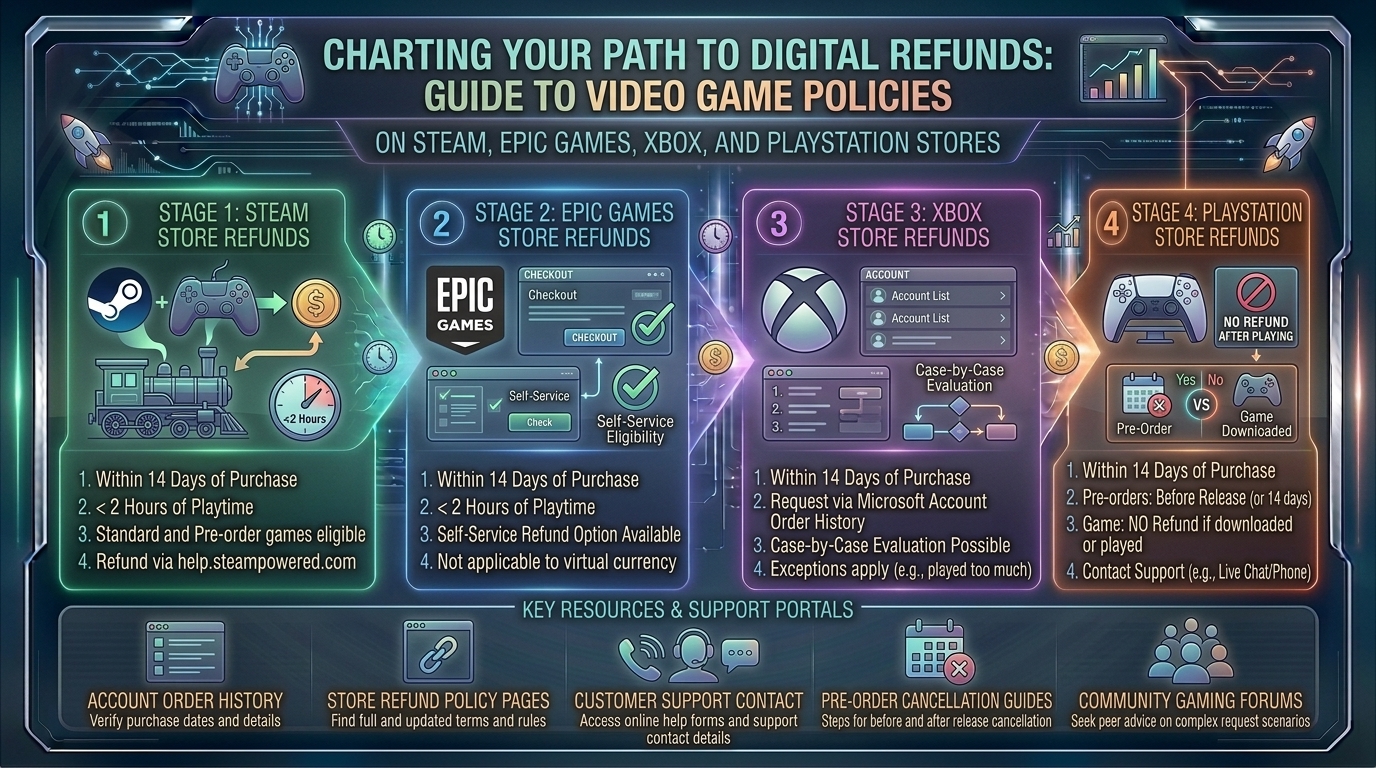
    Every major digital storefront—Steam, Epic Games, Xbox, and PlayStation—operates under its own distinct set of rules, timeframes, and fine print. This master guide breaks down everything you need to know to successfully navigate digital refund policies across all major gaming platforms.

    1. Steam: The Gold Standard of Flexible Refunds

    Valve’s digital storefront has long maintained the most transparent and consumer-friendly refund policy in the industry, largely thanks to strict consumer protection laws in regions like the European Union.

    The Core Rules

    • The Time Window: You must request a refund within 14 days of purchase.
    • The Playtime Limit: You must have played the game for less than 2 hours (including online, offline, and Family Sharing playtime).
    • No Reason Required: Under the automated system, you do not need to justify your request. “I didn’t like it” or “Purchased by accident” are fully valid grounds for an automatic approval.

    Nuances & Edge Cases

    • Pre-Orders: You can refund any pre-ordered game at any time before its official release date for a full refund. Once released, the standard 14-day/2-hour window kicks in.
    • DLC and Bundles: Downloadable Content (DLC) is generally refundable within 14 days if the base game has less than 2 hours of playtime and the DLC has not been consumed or modified. Bundles calculate playtime across the entire package combined.
    • Manual Reviews: If you fall outside the 2-hour or 14-day window (e.g., a game is completely broken on launch day or riddled with fatal bugs), you can still submit a manual ticket. Valve reviews these on a case-by-case basis.

    2. Epic Games Store: Simple, Clean, and Match-Style

    Following in Steam’s footsteps, the Epic Games Store features a straightforward automated refund policy for its PC platform.

    The Core Rules

    • The Time Window: Requests must be made within 14 days of purchase.
    • The Playtime Limit: You must have logged less than 2 hours of total playtime.
    • Self-Refundable Tag: The game or product must be designated as “self-refundable” in your account profile.

    Nuances & Edge Cases

    • Pre-Orders: Unreleased pre-orders can be cancelled and refunded at any time prior to launch.
    • In-Game Purchases: Virtual currency, microtransactions, and third-party add-ons purchased outside of specific titles may carry separate restrictions or be entirely non-refundable unless explicitly stated.

    3. Xbox / Microsoft Store: Generous Windows with Discretionary Limits

    Microsoft provides a generalized automated framework for its digital Xbox and PC Windows storefront, balancing structured timelines with human review.

    The Core Rules

    • The General Window: Generally, requests should be submitted within 14 days of purchase.
    • The Playtime Limit: Unlike Steam’s strict 2-hour hard limit, Xbox evaluates requests based on “cumulative playtime,” looking for minimal usage.
    • Digital Code Redemptions: Games or add-ons bought via third-party retail keys generally cannot be refunded directly through Microsoft; you must contact the original retailer.

    Nuances & Edge Cases

    • Pre-Orders: Charged up to 10 days before release, pre-orders can be cancelled at any time before launch through your Microsoft account management page without penalty.
    • Abuse Prevention: Microsoft explicitly notes that its refund system is designed for occasional consumer protection. Habitual purchasing and refunding patterns will trigger automated blocks on your account.

    4. PlayStation Store (Sony): The Most Rigid Policy in Console Gaming

    Sony’s PlayStation Network (PSN) enforces the strictest rules among major publishers, requiring extreme caution before hitting the “Buy” button on a PS5 or PS4.

    The Core Rules

    • The Time Window: You have 14 days from the date of purchase to request a refund.
    • The Catch (No Downloading): You must not have started downloading or streaming the game. The moment game data begins downloading to your console, you forfeit your right to a standard automated refund.

    Nuances & Edge Cases

    • Faulty or Defective Games: If a game is demonstrably broken, corrupted, or unplayable due to server failures or critical bugs, Sony will often grant an exception upon manual review via customer support live chat, even if downloaded.
    • Subscriptions: PlayStation Plus or other recurring subscriptions can be refunded within 14 days of purchase, though Sony may prorate the refund based on how much you have already utilized the service.
    +-------------------------------------------------------------------------+
                      PLATFORM REFUND COMPARISON QUICK-SHEET
    +-------------------------------------------------------------------------+
      Platform     | Time Limit | Playtime Limit  | Download Rule
    +--------------+------------+-----------------+---------------------------+
      Steam        | 14 Days    | Under 2 Hours   | N/A (Playtime-based)
      Epic Games   | 14 Days    | Under 2 Hours   | N/A (Playtime-based)
      Xbox Store   | 14 Days    | Minimal Usage   | Varies by use
      PlayStation  | 14 Days    | N/A             | MUST NOT DOWNLOAD/STREAM
    +-------------------------------------------------------------------------+
    

    5. Pro Tips for Maximizing Your Refund Success Rate

    1. Never Download Right Away on PlayStation: If you are buying a risky or unverified game on PS5, do not queue the download if there’s even a slight chance you might want your money back.
    2. Be Direct and Concise in Support Tickets: If you are filing a manual ticket outside standard guidelines (e.g., technical failure past the 2-hour Steam mark), write a clear description of the technical error rather than venting about the game’s quality.
    3. Opt for Store Credit for Faster Turnarounds: When given the choice of refunding back to a credit card or receiving platform wallet funds (Steam Wallet, PSN Wallet), choosing store credit usually results in funds hitting your account within 24 to 48 hours, whereas credit card reversals can take up to 7–10 business days.
    4. Watch Out for Sale Timing Exploits: Bought a game full price 2 days before a massive seasonal sale? Platforms like Steam explicitly allow you to refund the full-price game (provided you meet criteria) and immediately repurchase it at the discounted sale price.

    10 Frequently Asked Questions (FAQs)

    1. Can I get banned from Steam for requesting too many refunds?

    You will not be banned for using the system as intended, but Valve reserves the right to revoke refund privileges if it detects clear pattern abuse—such as buying and finishing short games within two hours repeatedly.

    2. What happens to my trophies or achievements if I refund a game?

    On platforms like Steam and PlayStation, any achievements or trophies unlocked during your brief playtime typically remain logged on your public profile history, even after the refund is processed.

    3. Can I refund a game on PlayStation after I have downloaded it?

    Generally, no. Sony’s strict terms state that starting a download voids standard automated refunds, unless the product is proven to be faulty or defective.

    4. How long do digital refunds take to appear in my bank account?

    Once approved, store wallet funds return within 24–48 hours. Credit card and PayPal refunds typically take between 3 to 10 business days depending on your financial institution.

    5. Can I refund in-game microtransactions or virtual currency?

    On most platforms (like PlayStation and Xbox), microtransactions, V-Bucks, and currency packs are entirely non-refundable once applied to your account. Steam allows in-game item refunds within 48 hours only if unconsumed.

    6. Are pre-orders refundable?

    Yes. Across Steam, Epic Games, Xbox, and PlayStation, you can cancel and fully refund any pre-ordered game at any time prior to its official release date.

    7. What if my PC specifications didn’t meet the game’s requirements?

    If you bought the game on Steam or Epic Games and discovered it wouldn’t run, as long as you have less than 2 hours of runtime and bought it within 14 days, your refund will be automatically approved regardless of hardware specs.

    8. Can I refund a game bought as a gift for a friend?

    On Steam, the original purchaser initiates the refund. If the gift has already been redeemed, the recipient must first initiate a consent waiver through their support interface before the funds go back to the buyer.

    9. What should I do if my automated refund request is denied?

    You can submit a secondary manual ticket or reach out via customer support live chat (available on platforms like Xbox and PlayStation), explaining your situation politely to a human representative.

    10. Do digital storefronts refund taxes?

    Yes. When a refund is approved, the total transaction value—including state or local digital sales taxes applied at checkout—is fully returned to your original payment method or wallet.

    Conclusion

    Navigating digital refund policies doesn’t have to be a headache. While platforms like Steam and Epic offer generous automated safety nets for accidental purchases or buyer’s remorse, console ecosystems like PlayStation require strict adherence to pre-download rules. By understanding these guidelines before you buy, you can shop with absolute confidence across PC and console storefronts alike.

  • What are the best ultra wide curved monitor buying guides for immersive flight and racing simulation games

    What are the best ultra wide curved monitor buying guides for immersive flight and racing simulation games

    What Are the Best Ultra Wide Curved Monitor Buying Guides for Immersive Flight and Racing Simulation Games

    Welcome to thegamerbuzz.com! Whether you are finalizing a high-end sim rig in a sleek San Francisco apartment, configuring a multi-monitor enthusiast setup in New York, calibrating controls across Texas and Washington, or optimizing frame rates in California, immersion is the holy grail of simulation gaming.

    When you are dropping into the cockpit of an F/A-18 Hornet in DCS World or fighting for apex positioning through Eau Rouge in Assetto Corsa Competizione, flat standard displays fail to trick your brain into believing you are actually there. Enter ultrawide curved monitors and super-ultrawide display systems—the ultimate compromise-free solution to massive fields of view (FOV) without the structural nightmares and bezel lines of traditional triple-screen setups.

    This master buying guide walks you through every technical nuance, curvature specification, panel type, and top hardware recommendation to help you choose the best curved ultrawide monitor for your sim rig.

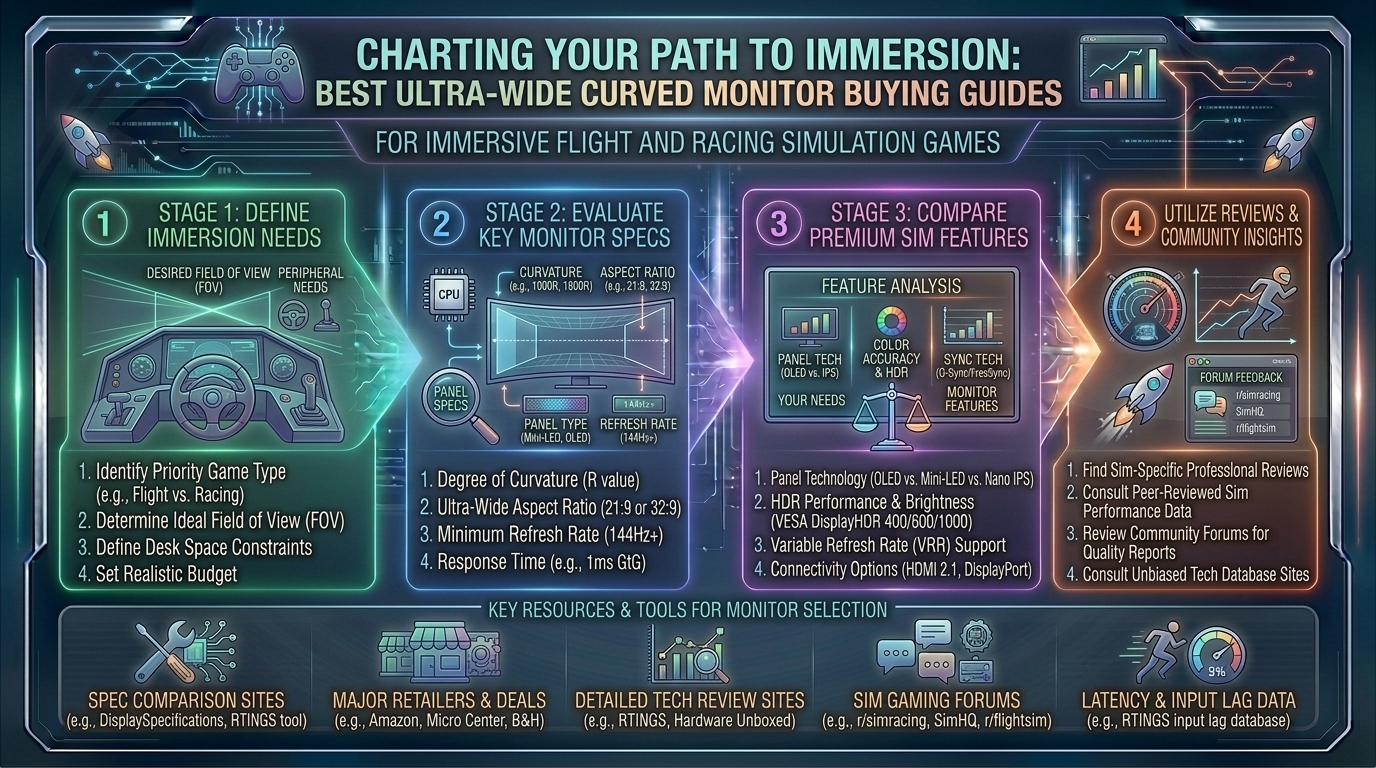
    1. Why Curved Ultrawides Rule Flight and Racing Sims

    Simulation games are unique. Unlike fast-paced first-person shooters where your eyes lock onto a crosshair dead center, simulation titles require active peripheral awareness.

    • Natural Peripheral Vision Expansion: A 21:9 or 32:9 aspect ratio wraps images around your natural sightlines, letting you track clipping points, apexes, runway approach lights, and rival racing mirrors without panning your camera manually.
    • The Curvature Factor (R-Rating): Monitor curves are measured in radii (e.g., 1000R, 1800R). A lower number means a tighter, more aggressive curve. For simulation rigs where your face sits 70cm to 90cm from the glass, an aggressive curve (like 1000R) mirrors the wrap-around geometry of a real vehicle or aircraft cockpit.
    • Bezel-Free Immersion: Unlike triple-monitor rigs—which suffer from plastic frame lines slicing right through your side mirrors or cockpit gauges—a single continuous curved ultrawide panel delivers uninterrupted visual flow.

    2. Understanding Aspect Ratios: 21:9 vs. 32:9 Super-Ultrawides

    Before shopping, you must decide how much horizontal stretch your desk space and graphics card can handle.

    +-------------------------------------------------------------------------+
                        ASPECT RATIO COMPARISON GUIDE
    +-------------------------------------------------------------------------+
      Option A: 21:9 Ultrawide (e.g., 3440 x 1440 UWQHD)
      -> Ideal screen sizes: 34-inch to 38-inch panels.
      -> Sweet spot: Balances immense peripheral depth with manageable GPU loads.
      
      Option B: 32:9 Super-Ultrawide (e.g., 5120 x 1440 DQHD)
      -> Ideal screen sizes: 49-inch panels (replaces dual/triple setups).
      -> Sweet spot: Maximum cockpit wrap-around; requires high-end GPU power.
    +-------------------------------------------------------------------------+
    

    3. Top Curved Ultrawide Monitors for Simulators

    The market features incredible panels tailored specifically for high-speed motion, deep shadow contrast, and rapid response times.

    A. The Ultimate 32:9 Super-Ultrawide King: Samsung Odyssey OLED G9 (G93SC / G95SC)

    • Specs: 49-inch | 5120 x 1440 (DQHD) | OLED | 240Hz | 0.03ms GtG | 1800R Curve
    • Why it wins for Sims: If you want total cockpit dominance without messing with three separate monitors, the Samsung Odyssey OLED G9 is the gold standard. The combination of infinite OLED contrast, absolute true blacks for night racing, and a blistering 240Hz refresh rate makes every track surface texture and runway light pop with stunning realism.

    B. The Best Balanced 21:9 Performance Pick: Alienware AW3423DWF (or ASUS ROG Swift OLED PG34WCDM)

    • Specs: 34-inch | 3440 x 1440 (UWQHD) | QD-OLED / OLED | 165Hz–240Hz | 0.1ms–0.03ms GtG | 1800R Curve
    • Why it wins for Sims: For sim racers or flight simmers with limited desk space or mid-tier graphics cards, a 34-inch 21:9 QD-OLED display hits the absolute sweet spot. It provides a clean, highly immersive FOV without demanding the massive pixel-pushing power of a 49-inch super-ultrawide.

    C. The High-Speed Alternative: MSI MPG 341CQR QD-OLED X36

    • Specs: 34-inch | 3440 x 1440 | QD-OLED | 360Hz | 0.03ms GtG | 1800R Curve
    • Why it wins for Sims: Featuring a stunning 360Hz refresh rate and advanced DisplayPort 2.1a connectivity, this monitor is engineered for hardcore enthusiasts who want zero motion blur during high-speed open-wheel racing.

    4. Crucial Buying Considerations & Pro Tips

    1. Match Your GPU Power: Running a 5120×1440 super-ultrawide at 144Hz+ requires heavy lifting. Ensure your graphics card (e.g., NVIDIA RTX 4070 Super / 4080 or AMD Radeon equivalent) can handle high resolutions before buying a top-tier panel.
    2. OLED vs. VA Panels: OLED panels offer instantaneous 0.03ms response times and pitch-black levels, which drastically elevate night-flying or night-racing immersion. High-end VA panels remain a great budget-friendly alternative with deep contrast, though they may suffer from minor black smearing.
    3. VSI / Mount Compatibility: Ultrawide and super-ultrawide monitors are heavy. If you are mounting your display directly to an aluminum profile sim rig (like a Next Level Racing, Track Racer, or Sim-Lab chassis), check the VESA mount dimensions (usually 100x100mm) and weight limits carefully.
    4. Field of View (FOV) Calculators: Always use online sim-racing FOV calculators (such as those provided by Coach Dave Academy or Kunos Simulazioni) once your monitor is mounted. Correct FOV math prevents spatial distortion and ensures accurate speed perception.

    10 Frequently Asked Questions (FAQs)

    1. Are curved ultrawides better than VR headsets for flight and racing sims?

    It depends on user preference. VR offers unmatched 3D depth and head-tracking, but curved ultrawides offer superior visual clarity, vibrant HDR brightness, zero screen-door effect, and long-term comfort without motion sickness.

    2. Is 32:9 too wide for flight simulators?

    Not at all. In flight sims like Microsoft Flight Simulator, a 32:9 super-ultrawide lets you view the entire main instrument panel, yoke, and side windows simultaneously without awkward camera panning.

    3. What is the ideal curvature for a simulation monitor?

    For single-monitor setups viewed at close range (70–80 cm), a tight 1000R to 1800R curve is ideal because it wraps the edges into your natural peripheral vision.

    4. Do I need G-Sync or FreeSync support?

    Yes. Variable Refresh Rate (VRR) technologies like NVIDIA G-Sync and AMD FreeSync synchronize your monitor’s refresh rate with your GPU frame output, eliminating screen tearing when frame rates fluctuate during heavy grid starts.

    5. Will my console (PS5 or Xbox Series X) work with a 32:9 super-ultrawide?

    Console support for ultra-wide aspect ratios is limited. Most current-gen consoles output natively in 16:9, meaning a 32:9 monitor will display black vertical bars on the sides unless the console stretches or crops the image.

    6. Can I use a curved ultrawide for work and productivity too?

    Absolutely. A 49-inch 32:9 super-ultrawide replaces a dual-monitor setup seamlessly, offering immense workspace real estate for multitasking, video editing, and daily office tasks.

    7. Do OLED monitors suffer from burn-in with static racing HUDs?

    Modern OLED monitors feature advanced built-in protections (such as pixel shifting, logo brightness reduction, and custom heatsinks), minimizing burn-in risks during long simulation sessions.

    8. What cable should I use to get maximum refresh rates?

    Always use a high-speed DisplayPort 1.4 / 2.1 cable or an HDMI 2.1 cable that matches your monitor’s maximum bandwidth specifications to avoid bottlenecking your refresh rate.

    9. How do I calculate the correct FOV for an ultrawide monitor?

    You plug three metrics into an in-game calculator: your monitor’s screen width, your exact eye distance from the screen, and your game selection. This computes a mathematically accurate perspective.

    10. Are curved monitors difficult to mount on a sim rig?

    They can be heavy and awkward due to their length. It is always recommended to have two people assemble and mount 49-inch or larger super-ultrawide monitors onto a dedicated cockpit stand.

    Conclusion

    Upgrading to a curved ultrawide monitor is single-handedly one of the most transformative investments you can make for your flight or racing simulation rig. Whether you choose the immersive, expansive canvas of the Samsung Odyssey OLED G9 or the refined performance workspace of a 34-inch QD-OLED panel, your virtual cockpit will never look or feel the same. Gear up, dial in your FOV, and claim your spot on the podium.

    Sim Racing Monitor Setup and FOV Guide

    This video provides a practical, visual demonstration of how to mount ultrawide screens, configure correct in-game FOVs, and optimize graphic settings for maximum immersion.

  • How to check if your current computer hardware meets the official system requirements for upcoming game releases

    How to check if your current computer hardware meets the official system requirements for upcoming game releases

    How to Check If Your Current Computer Hardware Meets the Official System Requirements for Upcoming Game Releases

    Welcome to thegamerbuzz.com! Whether you are building a cutting-edge battle station in San Francisco or New York, upgrading a rig across Washington or Texas, or checking your frame rates in California, knowing whether your computer can handle the newest AAA blockbusters is essential.

    With game developers pushing the envelope using advanced technologies like ray tracing, path tracing, and complex procedural world generation, official system requirements have become increasingly nuanced. Simply looking at an Intel Core i7 label no longer tells the whole story.

    This comprehensive, highly informative master guide walks you through every step of identifying your current computer hardware, decoding publisher system requirements, utilizing automated compatibility checkers, and preparing your rig for upcoming game releases.

    1. How to Find Your Computer’s Current Hardware Specs

    Before you can compare your PC against an upcoming game’s target specifications, you need to know exactly what hardware is running under your hood.

    The Fastest Method: Windows Task Manager

    1. Press Ctrl + Shift + Esc simultaneously to open the Task Manager.
    2. Click on the Performance tab on the left-hand menu.
    3. Select CPU to view your processor model and clock speed.
    4. Select Memory to see your total RAM capacity and speed.
    5. Select GPU (GPU 0 or GPU 1) to identify your dedicated graphics card model and Video RAM (VRAM) size.

    The Detailed Method: DirectX Diagnostic Tool (dxdiag)

    1. Press Windows Key + R to open the Run dialog box.
    2. Type dxdiag and hit Enter.
    3. Under the System tab, note your exact operating system, processor, and RAM.
    4. Click on the Display (and Display 2, if applicable) tab to view comprehensive details about your graphics card and integrated video memory.
    +-------------------------------------------------------------------------+
                          CORE HARDWARE CHECKLIST
    +-------------------------------------------------------------------------+
      1. CPU (Processor)    -> Intel Core / AMD Ryzen series & generation
      2. GPU (Graphics)     -> NVIDIA GeForce RTX / AMD Radeon RX series
      3. VRAM (Video RAM)   -> Dedicated memory on your graphics card (e.g., 8GB/12GB)
      4. System RAM         -> System memory (16GB, 32GB, etc.)
      5. Storage Type       -> NVMe SSD vs. traditional mechanical HDD
    +-------------------------------------------------------------------------+
    

    2. Decoding Publisher System Requirements: Minimum vs. Recommended

    When publishers drop system requirements for an upcoming title, they typically split them into tiers. Understanding what these tiers actually mean prevents disappointment on launch day.

    • Minimum Requirements: This usually targets a 720p or 1080p resolution at 30 frames per second (FPS) using low or medium graphic presets. If your hardware sits below this tier, expect severe stuttering, unplayable frame rates, or outright failure to launch.
    • Recommended Requirements: This baseline generally targets a 1080p or 1440p resolution at a smooth 60 FPS on high graphical settings. This is the sweet spot most gamers aim for.
    • Ultra / Enthusiast Requirements: Designed for 4K resolution, high refresh rates, and maxed-out ray tracing features. These requirements often demand top-tier flagship GPUs and massive amounts of RAM.

    3. Best Tools to Automatically Check Game Compatibility

    Instead of manually cross-referencing your components line-by-line, several trusted online tools can automate the process instantly.

    • Can I Run It (System Requirements Lab): A staple in the PC gaming community, this tool allows you to search for any game from a database of over 15,000 titles and compare it against a quick detection scan of your system.
    • PCGameBenchmark: Excellent for rating your overall gaming PC score, checking specific component bottlenecks, and viewing real-world estimated FPS charts based on community benchmarks.
    • IObit Rate My PC: A lightweight, browser-based tool that lets you input your CPU, GPU, and RAM to generate instant compatibility scores and performance expectations.

    4. Pro Tips for Future-Proofing Your Rig

    1. Never Ignore the Storage Requirement: Modern blockbuster games heavily utilize DirectStorage and massive open-world streaming assets. If an upcoming game states “SSD Required,” installing it on an old mechanical Hard Disk Drive (HDD) will cause severe texture pop-in and infinite loading screens.
    2. Pay Close Attention to VRAM: While system RAM (like 16GB or 32GB) is important, Video RAM (VRAM) on your graphics card is critical for high-resolution textures. Modern games running on Unreal Engine 5 frequently demand 8GB to 12GB of VRAM minimum at high settings.
    3. Check for Upgraded Upscaling Support: If your GPU is slightly older, check if the game supports DLSS (NVIDIA), FSR (AMD), or XeSS (Intel). Upscaling technologies can breathe new life into older hardware, allowing you to hit target frame rates without buying a whole new graphics card.
    4. Keep Your Drivers Fresh: Always update your NVIDIA, AMD, or Intel graphics drivers right before a major game launch. Publishers release “Day-0 game-ready drivers” that provide massive performance optimizations specifically tailored for upcoming titles.

    10 Frequently Asked Questions (FAQs)

    1. What happens if my CPU meets minimum requirements, but my GPU does not?

    Your graphics card will bottleneck your system. Even if your processor can process game logic, your GPU will fail to render frames smoothly, resulting in abysmal frame rates and choppy gameplay.

    2. Can I run a game if I only have 8GB of RAM when 16GB is required?

    You may be able to launch the game, but expect severe stuttering and hitching as Windows constantly swaps data to your page file due to a lack of physical memory. 16GB is the modern gaming baseline.

    3. Do laptop graphics cards perform the same as desktop graphics cards?

    No. Mobile (laptop) variants of GPUs are physically restricted by thermal and power limits. A laptop labeled with an RTX 4060 will typically perform around 15% to 25% slower than its desktop equivalent.

    4. What is VRAM and why is it so important for new games?

    VRAM (Video Random Access Memory) is dedicated memory on your graphics card used to store image textures and geometry data. Running out of VRAM forces the system to use regular system RAM, causing extreme stuttering.

    5. Why do some games require an SSD instead of an HDD?

    Modern games stream massive amounts of map data dynamically as you move through the world. Traditional HDDs are too slow to feed data to the CPU and GPU fast enough, leading to frozen assets.

    6. Can integrated graphics (like Intel Iris Xe or AMD Radeon Graphics) run upcoming AAA games?

    Generally, integrated graphics are designed for basic productivity, media streaming, and older or indie games. They lack dedicated VRAM and structural hardware pipelines required for modern AAA blockbusters.

    7. How accurate are online compatibility checkers like “Can I Run It”?

    They are generally very accurate for baseline hardware comparisons. However, they rely on general algorithms and cannot always predict day-one optimization patches or unique software conflicts on your specific operating system.

    8. What is a “bottleneck” in a gaming PC?

    A bottleneck occurs when one component (usually the CPU or GPU) limits the performance potential of the other component because it cannot process data fast enough to keep up.

    9. Should I upgrade my CPU or GPU first for upcoming games?

    For 90% of modern games, the graphics card (GPU) is the most critical component. Upgrade your GPU first unless your processor is severely outdated (causing a massive bottleneck).

    10. How far in advance do publishers release system requirements?

    Publishers typically release official system requirements anywhere from a few weeks to a few months before a game’s launch, once optimization passes are finalized.

    Conclusion

    Checking your computer hardware against upcoming game releases doesn’t have to be a guessing game. By leveraging built-in Windows diagnostics tools, understanding the nuances between minimum and recommended publisher metrics, and using automated compatibility checkers, you can make informed decisions before spending your hard-earned money. Whether you are prepping for the next big RPG in New York or optimizing your hardware setup out in San Francisco, staying informed ensures your rig is always ready for action.

    How to Check and Benchmark Your PC Hardware

    This video provides a practical, visual walkthrough of how to utilize task manager, diagnostic tools, and benchmarking software to evaluate your PC’s gaming readiness.

  • What are the best Wi-Fi routers and mesh network systems designed specifically for minimizing gaming lag

    What are the best Wi-Fi routers and mesh network systems designed specifically for minimizing gaming lag

    What Are the Best Wi-Fi Routers and Mesh Network Systems Designed Specifically for Minimizing Gaming Lag

    Welcome to thegamerbuzz.com! Whether you are setting up a competitive command center in a bustling apartment in San Francisco or New York, sprawling across a multi-story home in Texas or Washington, or optimizing a modern suburban build in California, network stability is everything.

    Few things are more frustrating than rubberbanding across the map, suffering unexpected packet loss, or experiencing sudden latency spikes right in the middle of a clutch 1v4 match. While internet service providers (ISPs) and game servers play a role, your home network hardware is often the ultimate bottleneck.

    This comprehensive, highly informative guide explores the best Wi-Fi routers and mesh network systems designed specifically to eliminate gaming lag, breaks down core technologies like Wi-Fi 7 and QoS, and helps you pick the right hardware for your setup.

    1. Understanding the Culprits of Gaming Lag

    Before choosing a router, it helps to understand what causes lag in a wireless environment.

    • Latency (Ping): Measured in milliseconds (ms), this is the time it takes for data to travel from your gaming rig to the server and back. High latency results in delayed reactions.
    • Jitter: The variability in your ping over time. Even if your ping is 30ms, high jitter causes erratic fluctuations that disrupt smooth gameplay.
    • Packet Loss: Occurs when data packets fail to reach their destination, causing characters to teleport or actions to drop entirely.
    • Bufferbloat: Occurs when your router’s queue gets overloaded with too much data (e.g., someone else streaming 4K video or downloading a large update), causing massive ping spikes for everything else.

    2. Standalone Routers vs. Mesh Systems: Which Do You Need?

    Choosing between a traditional high-end gaming router and a mesh network system depends entirely on your living space and structural obstacles.

    +-------------------------------------------------------------------------+
                          ROUTER VS. MESH FOR GAMING
    +-------------------------------------------------------------------------+
      Option A: Standalone Gaming Router (e.g., TP-Link Archer GE800)
      -> Best for: Single rooms, apartments, direct line-of-sight wired setups.
      -> Pros: Maximum raw throughput, dedicated hardware acceleration ports.
    
      Option B: Gaming Mesh Network (e.g., ASUS ROG Rapture GT6)
      -> Best for: Multi-story homes, thick concrete/brick walls, sprawling layouts.
      -> Pros: Seamless roaming, uniform blanket coverage, zero dead zones.
    +-------------------------------------------------------------------------+
    

    3. Top Wi-Fi Routers and Mesh Systems for Minimizing Lag

    The market features specialized hardware equipped with multi-gig ports, custom game dashboards, and multi-link operation (MLO) to keep your connection laser-stable.

    A. Best Overall Dedicated Gaming Router: TP-Link Archer GE800 (Wi-Fi 7)

    • Why it wins: The Archer GE800 is a powerhouse built from the ground up for competitive gaming. Featuring Wi-Fi 7 capabilities, dual 10Gbps ports, and four 2.5Gbps ports, it offers blistering speeds and hardware-level game prioritization.
    • Key Feature: A dedicated game control panel that identifies and accelerates gaming traffic, ensuring your session takes absolute priority over background network traffic.

    B. Best High-End Performance Mesh System: ASUS ROG Rapture GT6 (Wi-Fi 6E)

    • Why it wins: Most mesh systems focus entirely on streaming movies, but the ROG Rapture GT6 is engineered for gamers. It is a multi-node mesh system that delivers low-latency device roaming across large floor plans.
    • Key Feature: Triple-level game acceleration that boosts game traffic all the way from your device to the game server, coupled with built-in lifetime commercial-grade security software.

    C. Best Cutting-Edge Flagship Mesh: Netgear Orbi 770 / TP-Link Deco BE68 (Wi-Fi 7)

    • Why it wins: If your home requires a multi-node mesh layout and you want next-gen Wi-Fi 7 speeds to combat interference, these systems utilize dedicated wireless backhauls or multi-gig wired backhauls.
    • Key Feature: Multi-Link Operation (MLO) allows devices to transmit and receive data across multiple bands simultaneously, radically cutting down latency and packet loss in congested wireless environments.

    4. Pro Tips for Optimizing Your Network to Eliminate Lag

    Investing in premium hardware is only half the battle. Use these expert configurations to bulletproof your setup:

    1. Prioritize Quality of Service (QoS): Enable adaptive QoS or Game-Boost settings in your router’s firmware. This ensures that bandwidth-heavy tasks (like cloud backups or family streaming) never starve your gaming session of data.
    2. Utilize Ethernet Backhaul for Mesh Satellites: If your mesh nodes communicate over Wi-Fi, you lose a fraction of speed on every hop. Connecting your mesh nodes via physical Ethernet cables (wired backhaul) drops wireless jitter to near-zero.
    3. Harness the 6GHz Band: If you must play over Wi-Fi, connect your modern devices (PC, PS5, Xbox Series X) to the 6GHz band (available on Wi-Fi 6E and Wi-Fi 7 routers). It features significantly less congestion and interference than traditional 2.4GHz or 5GHz bands.
    4. Lock Down Port Forwarding / UPnP: Ensure your gaming console or PC has an open NAT type by configuring port forwarding or Universal Plug and Play (UPnP) safely, avoiding matchmaking bottlenecks.

    10 Frequently Asked Questions (FAQs)

    1. Do gaming routers actually reduce ping?

    A gaming router cannot change the physical distance between your house and the game servers, but it can eliminate local network congestion, prioritize game packets, and prevent bufferbloat, keeping your ping stable and low.

    2. Is a mesh system better than a traditional router for gaming?

    Not necessarily for raw speed. A traditional standalone gaming router usually wins on pure throughput and lower latency if you are close to it. However, a mesh system is better if you game far away from the main modem and need seamless whole-home coverage.

    3. What is Wi-Fi 7 and why does it matter for gaming?

    Wi-Fi 7 introduces features like Multi-Link Operation (MLO) and 320MHz channels, drastically reducing latency, increasing throughput, and handling interference infinitely better than older generations.

    4. What is “Bufferbloat” and how do gaming routers fix it?

    Bufferbloat happens when data queues up in your router’s memory buffer, causing massive latency spikes. Gaming routers use advanced Smart Queue Management (SQM) algorithms to keep queues short and prevent lag spikes.

    5. Should I connect my gaming PC via Wi-Fi 7 or Ethernet?

    Hardwiring via an Ethernet cable (Cat6a or better) is always superior to any wireless connection, completely eliminating wireless interference and packet jitter.

    6. Can I mix different brands of mesh routers together?

    Generally, no. Mesh systems rely on proprietary node-to-node communication protocols. To ensure seamless roaming, stick to nodes from the exact same manufacturer and model family.

    7. What is a “Dedicated Backhaul” in mesh networks?

    It is a separate, dedicated radio frequency channel or wired connection used exclusively for communication between mesh nodes, freeing up the other bands for your actual devices.

    8. Does QoS slow down my overall internet speed?

    No. QoS intelligently manages existing bandwidth distribution in real-time, ensuring time-sensitive tasks like gaming and video calls get priority over passive downloads.

    9. Why does my ping spike when someone else streams video?

    This is classic bufferbloat. High-bandwidth streaming saturates your upload/download pipeline. Enabling QoS or SQM on your router solves this instantly.

    10. How often should I reboot my gaming router?

    Even high-end routers benefit from a system reboot once every month or two to clear out cache memory, apply background security patches, and refresh local IP leases.

    Conclusion

    Eliminating gaming lag is a science that starts right at your internet gateway. Whether you choose an aggressive, port-heavy standalone beast like the TP-Link Archer GE800 or a high-performance multi-node system like the ASUS ROG Rapture GT6, upgrading your networking hardware changes your entire competitive experience. By pairing top-tier gear with proper QoS configurations and wired connections where possible, you can wave goodbye to lag spikes forever.

    Ultimate Gaming Router Setup Guide

    This video provides a practical visual walkthrough of how to configure router QoS settings, open NAT types, and optimize wireless bands for competitive gaming performance.