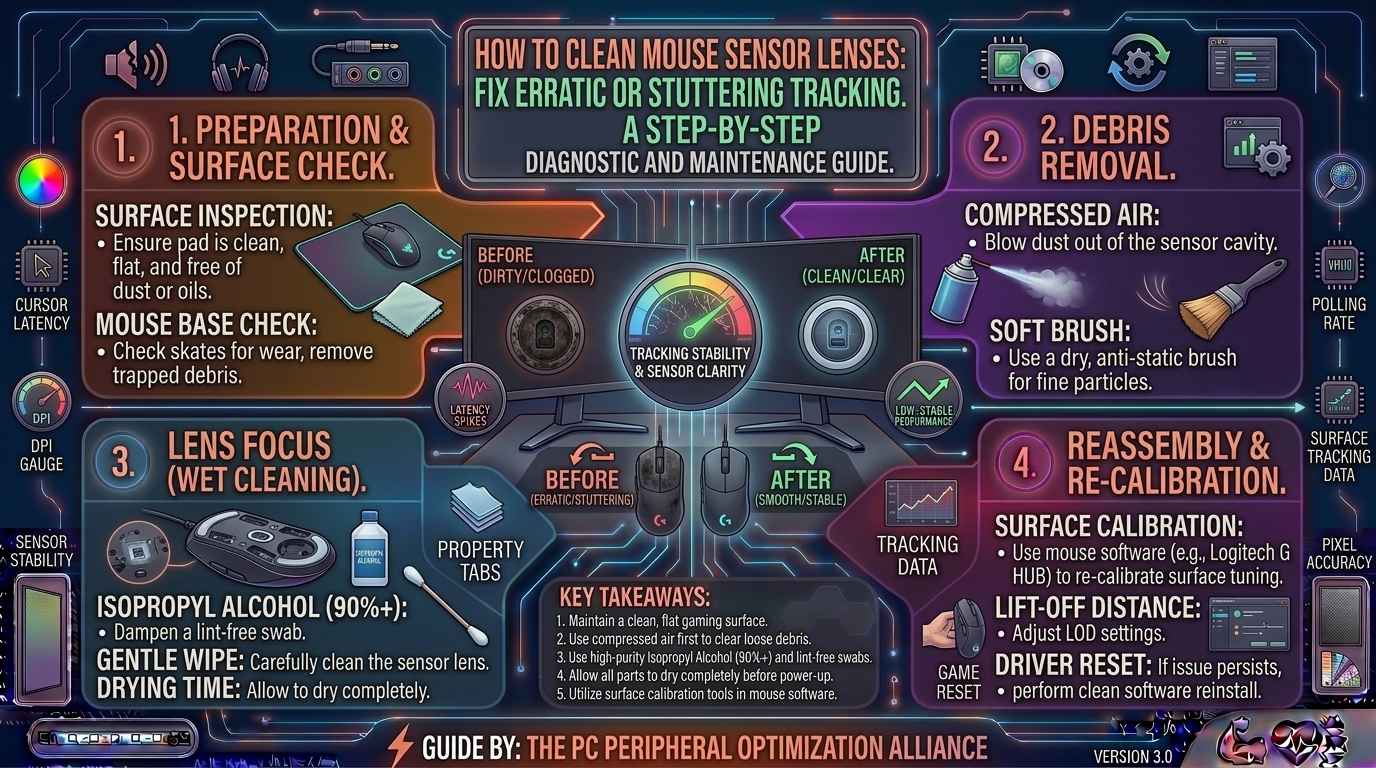
Precision is everything in modern competitive gaming. Whether you are flicking across a target in Counter-Strike 2, tracking an opponent in Apex Legends, or managing precise camera movements in an immersive strategy title, your success relies entirely on uninterrupted tracking accuracy.
Nothing shatters that precision faster than sudden cursor stuttering, erratic jumping, erratic spinning out, or total dead spots where your crosshair freezes while your hand keeps moving.
While gamers frequently blame broken sensors, frayed USB cables, or worn-out mousepads, the root cause is often far simpler: microscopic dust, lint, pet hair, and skin oils trapped inside the recessed optical sensor window.
This comprehensive, expert-backed guide details how optical sensors work, why they fail when dirty, and how to safely clean your mouse sensor lens to restore flawless tracking performance.
1. The Science of Optical Tracking: Why a Dirty Lens Causes Stuttering
To understand why a speck of dust can ruin your gameplay, you must look at how modern gaming mouse sensors operate.
+-------------------------------------------------------------------------+
|                  THE OPTICAL SENSOR IMAGING PIPELINE                    |
+-------------------------------------------------------------------------+
| Infrared LED / Laser ──► Illuminates Mousepad Texture Surface           |
|                                                                         |
| Reflected Light ──► Micro-Lens & CMOS Sensor ──► Image Processing Engine|
| (Takes thousands of high-speed surface snapshots per second)             |
|                                                                         |
| [X] The Failure: Dust particle or hair blocks lens/LED path             |
| [X] The Result : Stuttering, cursor jumping, or total tracking lockouts |
+-------------------------------------------------------------------------+
Modern gaming mice (utilizing top-tier sensors like the PixArt PAW3395, HERO 2, or Focus Pro optical sensors) do not use old-school rubber tracking balls. Instead, they act as high-speed microscopic cameras.
An infrared LED or laser illuminates your mousepad surface. The tiny optical lens focuses this reflection onto a CMOS sensor, which takes thousands of photos per second. The sensor’s onboard digital signal processor (DSP) compares consecutive frames to calculate exactly how far and in what direction your hand has moved.
When a stray piece of dust, a carpet fiber, or a greasy smudge settles directly over the lens or LED emitter, it acts as an obstruction. The sensor captures a distorted or blocked image, resulting in erratic tracking behavior, sudden cursor jumps, or complete tracking failure.
2. Tools Required for Safe Sensor Cleaning
Before attempting to clean your sensor, ensure you are using the correct materials. Using the wrong tools can permanently scratch the delicate optical plastic lens or ruin internal electronics.
+-------------------------------------------------------------------------+
|                  SAFE CLEANING TOOLKIT CHECKLIST                        |
+-------------------------------------------------------------------------+
| [X] 91% to 99% Isopropyl Alcohol (IPA) - Never use rubbing alcohol below 70%|
| [X] Lint-Free Microfiber Cloth or Precision Cotton Swabs (Q-Tips)       |
| [X] Compressed Air Can or Bulb Air Blower                               |
| [X] Clean, well-lit workspace                                           |
+-------------------------------------------------------------------------+
- High-Purity Isopropyl Alcohol (91%+): High-percentage IPA evaporates cleanly without leaving residue or moisture behind. Avoid household window cleaners, soap, or acetone, which will melt or fog plastic sensor lenses.
- Lint-Free Microfiber Swabs: Standard cotton Q-tips can leave behind tiny, stray cotton fibers inside the sensor recess if you aren’t careful. Specialized medical-grade foam swabs or tight-wound microfiber tips work best.
3. Step-by-Step Guide to Cleaning Your Mouse Sensor Lens
Follow this precise step-by-step workflow to clean your mouse sensor without risking static damage or optical scratches.
Phase 1: Preparation and Power Down
- Unplug the Mouse: Disconnect your wired mouse USB cable or turn off your wireless gaming mouse via its physical power switch. This prevents accidental short circuits or erratic inputs while cleaning.
- Inspect the Sensor Cavity: Flip your mouse upside down and examine the sensor recess under a bright desk lamp or smartphone flashlight. Look closely for trapped hairs, dust bunnies, or oily smears directly over the plastic glass window.
Phase 2: Clearing Loose Debris
- Use Dry Air First: Before touching the lens with any liquid, take a compressed air can or a manual rubber bulb air blower and gently puff air across the sensor opening.
- Crucial Warning: If using a canned air duster, hold the can completely upright. Tilting canned air sideways can spray liquid propellant freezing-chemicals onto your mouse sensor, which can crack internal components or leave an oily chemical film.
Phase 3: Chemical Cleaning of Oily Residue
- Dampen, Don’t Soak: Lightly dampen a precision cotton swab or foam swab with 91%+ Isopropyl Alcohol. It should be damp, not dripping wet.
- Gently Wipe the Lens: Carefully insert the swab into the sensor recess and gently wipe the tiny plastic lens window using circular motions. Do not press down hard; let the chemical solvent dissolve skin oils and grime naturally.
- Dry and Inspect: Take a dry swab and wipe the area once more to absorb any lingering moisture. Wait 2 to 3 minutes for the isopropyl alcohol to evaporate completely before plugging the mouse back in.
4. Summary Table: Cleaning Methods & Safety Comparison
| Cleaning Method | Safety Level | Effectiveness | Risk Factors |
| Dry Compressed Air | Very Safe | Moderate (Removes loose dust) | Liquid propellant spray risk if tilted |
| 91%+ IPA + Cotton Swab | Safe | Maximum (Removes oils & dirt) | Excessive liquid pooling if soaked |
| Household Window Cleaner | Unsafe | High temporary clean | Chemicals can fog or melt plastic lenses |
| Fingernail or Sharp Needle | Dangerous | Low | Scratches the delicate optical glass permanently |
5. Beyond the Sensor: Other Causes of Erratic Tracking
If you have thoroughly cleaned your mouse sensor lens and your cursor is still stuttering, the issue may stem from other environmental factors:
- Mousepad Surface Contamination: Microfiber and hard mousepads collect dead skin cells, sweat, and dust over time. Wipe your mousepad down periodically with warm water and a tiny drop of dish soap, then let it air dry completely.
- Wireless Interference (2.4GHz Dropouts): If you use a wireless gaming mouse (like a Logitech G Pro X Superlight or Razer Viper), ensure your USB receiver is plugged into a dedicated extension cable sitting directly on your desk close to the mousepad. Having the receiver plugged into the back of a metal PC case under a desk introduces heavy 2.4GHz interference and packet drops that mimic sensor stutter.
- Lift-Off Distance (LOD) Misconfiguration: Open your mouse companion software (e.g., Logitech G HUB, Razer Synapse, or SteelSeries GG) and check your Lift-Off Distance setting. If set too low on a textured mousepad, the sensor may momentarily lose tracking when you slightly tilt the mouse during rapid swipes.
6. Frequently Asked Questions (FAQ)
1. Can a single hair cause a gaming mouse to stutter?
Yes. A single human hair or pet hair draped across the tiny LED or sensor window blocks the optical reflection path, causing the sensor’s image processor to fail to calculate motion vectors accurately, resulting in erratic cursor jumps.
2. Is it safe to use rubbing alcohol (70%) on a mouse sensor?
70% rubbing alcohol contains 30% water and other additives that can leave a cloudy residue behind on the plastic lens as it dries. Always use 91% to 99% pure isopropyl alcohol for electronics cleaning.
3. Why does my mouse cursor shake wildly when I lift it off the pad?
This is usually related to a dirty sensor lens reflecting stray light, or a Lift-Off Distance (LOD) setting that is configured incorrectly in your mouse software. Cleaning the lens and recalibrating the surface in your software usually resolves this.
4. Can canned air damage a mouse sensor?
Canned air can only damage the sensor if the can is tilted sideways while spraying, which expels sub-zero liquid chemical propellants that can shock or crack delicate surface-mount electrical components. Always keep the can completely vertical.
5. How often should I clean my gaming mouse sensor?
If you game in a dusty room or have pets, inspecting and cleaning your sensor every 2 to 4 weeks prevents dust buildup. If you notice sudden tracking stutter mid-game, check the sensor immediately.
6. What should I do if my mouse still stutters after cleaning the sensor?
Test the mouse on a completely different surface (like a plain wooden desk or a different mousepad). If the issue persists, test the mouse on another computer to rule out a corrupt USB driver or a failing hardware sensor.
7. Does mousepad color or design affect optical sensor tracking?
Modern high-end optical sensors track exceptionally well on almost any surface, including complex RGB designs. However, extremely reflective glass desks or ultra-glossy surfaces can confuse older sensors, requiring a dedicated cloth or hard gaming mousepad.
8. Can I use a toothpick to dig out dirt stuck inside the sensor hole?
No. Using sharp wooden toothpicks or metal pins inside the sensor recess risks scratching the delicate plastic optical lens or puncturing internal ribbon cables. Always stick to compressed air and soft swabs.
9. Why does my wireless mouse stutter only when my battery is low?
When lithium-ion mouse batteries drop below 10–15% charge, power delivery to the sensor and wireless transceiver can fluctuate, causing temporary polling rate drops and tracking stutter. Recharge your mouse fully to test.
10. Does mouse polling rate (1000Hz vs 4000Hz) cause tracking stutter?
Running a mouse at ultra-high polling rates (2000Hz, 4000Hz, or 8000Hz) demands significant CPU resources. If your CPU experiences background spikes, high polling rates can amplify perceived stuttering. Lowering the polling rate to 1000Hz in software is a great troubleshooting step.
Maintaining immaculate optical tracking on your gaming mouse is vital for peak performance in competitive environments. By regularly inspecting your sensor cavity, gently clearing dust with compressed air, and removing stubborn skin oils with 91%+ isopropyl alcohol and precision swabs, you can eliminate erratic cursor stutters and ensure your aim remains razor-sharp during every match.
Leave a Reply