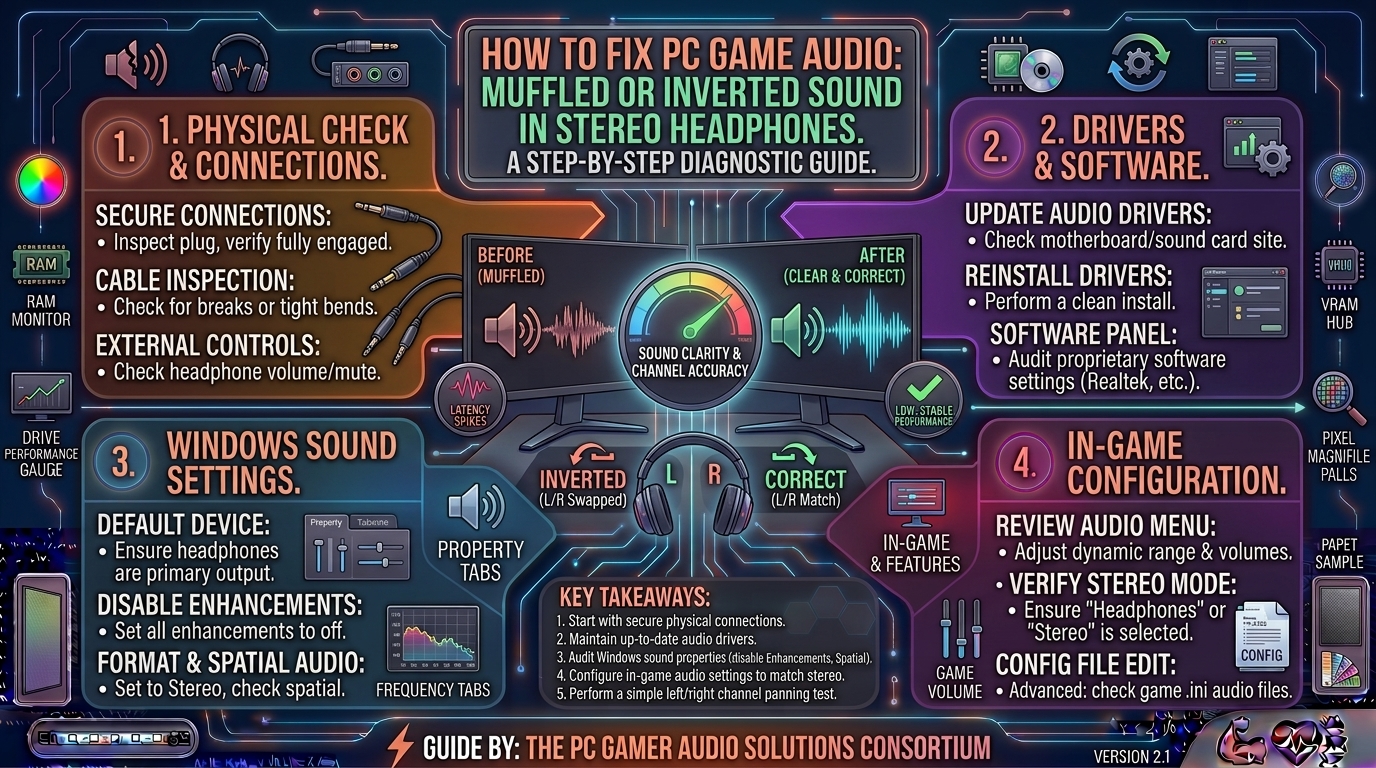
How to Fix Game Audio Sounding Muffled or Inverted in Stereo Headphones While Playing PC Games
Few things ruin immersion faster than firing up an atmospheric open-world epic or a high-stakes tactical shooter like Counter-Strike 2 or Apex Legends, only to realize your premium stereo headphones sound like they are underwater, hollow, or completely backwards.
When footsteps coming from the front-right sound like they are coming from behind you, or dialogue sounds distant, muffled, and washed out, your spatial audio pipeline is misconfigured.
Audio muffling and inversion on PC are almost never caused by broken hardware. Instead, they stem from software conflicts: overlapping virtual surround sound layers, incorrect Windows spatial audio configurations, outdated audio drivers, or inverted 3.5mm/USB channel assignments.
This exhaustive guide covers the root causes of muffled and inverted headphone audio and provides step-by-step solutions to restore crystal-clear, accurate directional sound.
1. The Core Culprit: Spatial Audio Conflicts and Channel Inversion
To fix your sound, you must understand how your operating system processes multichannel audio down into a stereo headset.
+-------------------------------------------------------------------------+
|                  THE AUDIO PROCESSING PIPELINE CONFLICT                 |
+-------------------------------------------------------------------------+
| Game Engine (7.1 Surround) ──► Windows Spatial Audio ──► Headphone OEM Software
|                                                                         |
| [X] The Conflict: Multiple software layers trying to process 3D audio   |
| [X] The Result  : Phase cancellation (muffled sound) or left/right swap |
+-------------------------------------------------------------------------+
- What Causes Muffled Sound (Phase Cancellation)? If you have multiple virtual surround sound layers active simultaneously—such as Windows Sonic, Dolby Atmos, and proprietary software like Razer THX Spatial or Logitech G HUB—the audio signals overlap. This causes acoustic phase cancellation, where certain sound frequencies cancel each other out, making audio sound hollow, distant, and muffled.
- What Causes Inverted Sound? Channel inversion happens when the Left and Right audio streams are flipped due to a corrupted driver registry key, a backwards physical headset connection, or incorrect multi-channel speaker configuration settings in Windows.
2. Step-by-Step Fixes for Muffled PC Game Audio
Work through these targeted troubleshooting steps to strip away conflicting audio filters and restore high-frequency clarity.
+-------------------------------------------------------------------------+
|                    AUDIO CLARITY CHECKLIST                              |
+-------------------------------------------------------------------------+
| [X] Disable conflicting third-party virtual surround sound wrappers     |
| [X] Reset Windows Spatial Audio to "Off" or configure a single standard |
| [X] Disable Windows "Enhancements" and "Loudness Equalization"          |
| [X] Perform a clean reinstall of Realtek or USB audio drivers           |
+-------------------------------------------------------------------------+
1. Strip Away Conflicting Virtual Surround Layers
If you are using Dolby Atmos for Headphones or DTS Headphone:X, ensure that Windows isn’t also trying to apply its own spatial filters.
- Press
Windows Key + R, typemmsys.cpl, and press Enter to open the classic Sound Control Panel. - Right-click your primary gaming headset and select Properties.
- Navigate to the Spatial Sound tab.
- If you aren’t actively using a dedicated paid spatial app, set the dropdown menu strictly to Off. If you are using Dolby Atmos, ensure only Dolby is handling the virtualization.
2. Disable Audio Enhancements
Windows often applies generic audio enhancements that degrade dynamic range.
- In the same headset Properties window, go to the Enhancements tab (or Advanced tab depending on Windows 10/11 version).
- Check the box for “Disable all enhancements” (or uncheck individual enhancements like Bass Boost and Virtual Surround).
- Click Apply and test your game audio.
3. Check Sample Rate Mismatches
If your Windows audio sample rate doesn’t match your game’s audio engine output, audio can sound distorted or muffled.
- In headset properties, navigate to the Advanced tab under the Default Format section.
- Set your format to 24-bit, 48000 Hz (Studio Quality) or 16-bit, 48000 Hz. Avoid exotic 192kHz rates unless specifically required, as many game engines struggle to process them cleanly.
3. Step-by-Step Fixes for Inverted (Reversed) Stereo Channels
If footsteps or gunfire are coming from the exact opposite direction of where they should be, your left and right channels are inverted.
1. Check for Physical Misalignment
- Headset Orientation: It sounds simple, but check if you are wearing your headphones backwards. Many gaming headsets have subtle “L” and “R” markings on the inner headband or earcups.
- Cable Connections: If your headset uses a detachable 3.5mm audio cable that plugs directly into the left earcup, make sure it isn’t plugged in upside down or improperly seated in an extension splitter.
2. Verify Windows Speaker Configuration
- Open the classic Sound Control Panel (
mmsys.cpl), select your headset, and click Configure in the bottom-left corner. - Ensure it is set strictly to Stereo. If it is accidentally set to 5.1 Surround or 7.1 Surround while you are plugged into a standard 2-channel stereo jack, Windows will route center and rear channels into the wrong earcups, creating inverted audio.
- Click Test to verify that the “Left” audio sample plays in your left ear and “Right” plays in your right ear.
3. Reverse Channels via Third-Party Utility (If Hardware Locked)
If a specific motherboard Realtek audio driver bug permanently inverts your front panel jacks and no setting fixes it, you can use lightweight system utilities like Equalizer APO with the Channel Mixer plugin to permanently invert Left and Right channels back to correct orientation.
4. Summary Table: Audio Troubleshooting Matrix
| Symptom | Primary Root Cause | Effective Solution |
| Muffled / Hollow Audio | Phase cancellation from overlapping surround apps | Disable redundant spatial audio apps & Windows enhancements |
| Reversed Left/Right Sound | Windows configured for 5.1/7.1 instead of Stereo | Reconfigure Sound Control Panel to standard Stereo |
| Static / Crackling Audio | Sample rate mismatch or outdated USB driver | Set sample rate to 24-bit/48kHz & update audio drivers |
| Distant / Tinny Dialogue | Faulty 3.5mm jack seating or loose TRRS pole | Fully seat the audio jack until it clicks firmly |
5. Pro-Tips for Optimizing Competitive Gaming Audio
- In-Game Audio Profiles: Always check the settings menu inside your game. Games like CS2, Valorant, and Call of Duty have dedicated audio presets for “Headphones,” “Studio,” or “Night Mode.” Avoid using “Home Theater” or “Surround” profiles when playing on standard stereo headphones.
- Dedicated USB DAC/Amps: If your motherboard’s integrated audio chipset suffers from static interference or poor signal routing, investing in a clean USB external DAC/Amp (like a Schiit Fulla, Creative Sound Blaster, or FiiO unit) completely isolates your audio pipeline from electrical computer noise.
- Keep Drivers Clean: Avoid bloated manufacturer audio suites (like massive Sonic Studio or Nahimic background apps) unless necessary. A clean Microsoft UAB audio driver or official Realtek driver package provides the most stable performance.
6. Frequently Asked Questions (FAQ)
1. Why does game audio sound like it is coming from inside a tunnel?
This “tunnel” or muffled effect is almost always caused by phase cancellation resulting from two competing virtual surround sound applications running at the same time. Turn off extra spatial layers in Windows and your headset software.
2. How do I test if my left and right headphone channels are reversed?
You can search YouTube for a “Stereo Sound Test” or “Left Right Audio Test.” The video will explicitly play audio files that state “Left channel” and “Right channel,” letting you verify whether the sound matches the ear cup you are hearing it in.
3. Does Windows 11 handle headphone audio differently than Windows 10?
Windows 11 features a modernized Sound Settings menu, but the underlying classic multimedia control panel (mmsys.cpl) remains identical, meaning all traditional troubleshooting steps function the same across both operating systems.
4. Can a broken 3.5mm audio cable cause muffled sound?
Yes. If a 3.5mm headphone cable is partially unplugged or has a damaged internal copper wire, the ground connection can drop out. This causes a phenomenon where stereo channels bleed together, making vocals disappear and sound extremely muffled.
5. Should I use “Loudness Equalization” in Windows for competitive gaming?
No. While Loudness Equalization compresses dynamic range—making quiet sounds like footsteps louder and loud explosions quieter—it severely distorts directional audio cues and degrades overall audio fidelity in modern game engines.
6. Are virtual 7.1 surround sound gaming headsets good for competitive play?
Most audio engineers recommend keeping virtual 7.1 surround sound off. High-quality stereo headphones combined with a game’s native binaural audio engine provide much more accurate directional awareness than software-simulated 7.1 surround.
7. What sample rate should I choose in Windows sound properties?
For 99% of PC games, 24-bit, 48000 Hz (Studio Quality) is the gold standard. It matches standard movie and game production standards without introducing CPU overhead or sample rate conversion errors.
8. Why does my USB headset sound muffled compared to my 3.5mm headset?
USB headsets rely on their own internal digital-to-analog converter (DAC) and firmware. If the headset’s proprietary companion software (like Corsair iCUE or Logitech G HUB) has an EQ preset enabled (like “Movie” or “Bass Boost”), it can muddy the sound. Reset the software EQ to “Flat.”
9. Can outdated motherboard audio drivers ruin game sound?
Yes. Corrupted or outdated Realtek audio drivers can cause incorrect channel routing, sample rate locking, and severe distortion during high-load gaming sessions. Clean reinstalling your motherboard audio drivers fixes this.
10. How do I fix audio delay (lip-sync or sound lag) in PC games?
Audio lag is usually caused by high buffer sizes in your audio device settings or Bluetooth audio latency. If you are gaming competitively, avoid Bluetooth headphones entirely and use a wired 2.4GHz wireless or wired connection to eliminate lag.
Fixing muffled or inverted game audio in stereo headphones transforms your gaming experience, restoring sharp directional clarity and rich acoustic immersion. By stripping away conflicting virtual surround layers, correcting Windows channel configurations, and optimizing your sample rates, you ensure every footstep and gunshot is heard accurately and clearly.
Leave a Reply