Welcome to The Gamer Buzz, your premier competitive hardware authority. Whether you are tuning custom rig configurations from high-end tech hubs in San Francisco, New York, and Seattle, or benchmarking system stability across gaming dens in Texas, California, and Washington, one performance standard defines modern competitive play: the 240 FPS threshold.
In fast-paced tactical and hero shooters (such as Counter-Strike 2, Valorant, Apex Legends, Overwatch 2, and Call of Duty), moving from a standard 60Hz or 144Hz setup to a buttery-smooth 240Hz monitor changes everything. It cuts display input latency down to roughly 4.17 milliseconds, smooths out motion blur, and gives you crucial visual feedback fractions of a second before your opponents.
However, pairing a high-refresh monitor with a frame rate that constantly fluctuates between 140 and 240 FPS introduces severe stuttering and erratic input lag. To achieve a rock-solid, unyielding 240+ FPS baseline, you need a targeted hardware upgrade path. In this exhaustive, master-level guide, we break down system bottlenecks, memory architecture, and the absolute best component upgrade sequences to guarantee a stable 240 FPS.
1. The Core Bottleneck: Why Competitive Games Need Specific Hardware
Unlike cinematic single-player AAA games that lean almost entirely on your graphics card (GPU) at high resolutions, competitive multiplayer titles place the vast majority of their workload squarely onto your processor (CPU) and memory subsystem.
- The 240 FPS CPU Wall: Rendering 240 distinct frames every single second forces your CPU to calculate player hitboxes, netcode packets, physics engines, and tick rates every 4.16 milliseconds. If your CPU cannot keep up, your graphics card sits idle waiting for instructions, resulting in sudden frame drops during chaotic teamfights.
- The Golden Rule of Upgrades: Never blindly buy the most expensive graphics card while leaving an aging processor in your system. Identify your primary performance bottleneck first.
2. The 4-Stage Strategic Upgrade Path
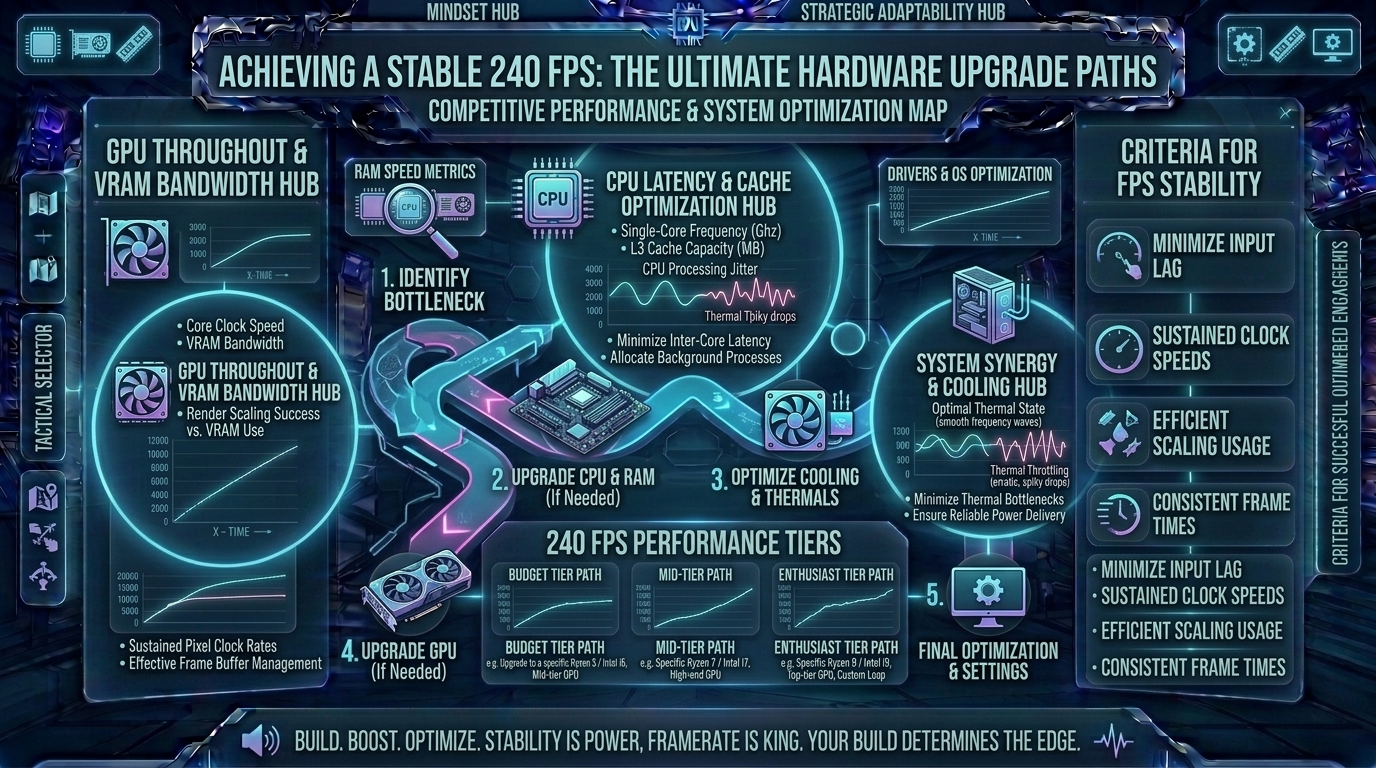
If you are currently struggling to maintain stable high frame rates, do not tear down your entire computer at once. Follow this optimized, budget-conscious upgrade path:
[Stage 1: RAM & Storage Audit] ➔ [Stage 2: The CPU & Motherboard Core] ➔ [Stage 3: GPU & VRAM Matching] ➔ [Stage 4: Power & Thermal Delivery]
Stage 1: Memory (RAM) and Storage Overhaul
If you are running old DDR4 memory kits running below 3200MHz or single-stick configurations, your CPU is constantly starved for data.
- The Upgrade: Jump straight to a dual-channel 32GB DDR5 kit running at 6000MHz (with low CAS latency like CL30 or CL32). Dual-channel DDR5 bandwidth drastically stabilizes your 1% low frame rates, eliminating micro-stutters when turning corners quickly.
- Storage: Ensure your game is installed on a fast NVMe PCIe Gen4 or Gen5 SSD to accelerate asset streaming and eliminate texture-loading hitches.
Stage 2: The CPU Core (The 240 FPS Engine)
This is the most critical upgrade for competitive titles. You need a processor featuring massive single-core instruction-per-clock (IPC) performance and large L3 cache pools.
- The Champion Choice: Processors equipped with AMD’s 3D V-Cache technology—such as the legendary AMD Ryzen 7 7800X3D or newer X3D chips—are the absolute gold standard for competitive esports. Their massive stacked L3 cache allows game assets to sit directly on the CPU die, virtually eliminating memory latency and guaranteeing sky-high, stable minimum frame rates well past 300+ FPS.
- Alternative Value: Modern mid-range multi-core powerhouses like the Intel Core i5 or AMD Ryzen 5 series handle high refresh rates effortlessly when paired with fast memory.
Stage 3: The Graphics Card (GPU) Match
Once your CPU can push 240 frames, your GPU needs to render them cleanly—especially if you play at native 1080p or competitive 1440p resolutions.
- The Sweet Spot: Cards in the mid-to-high tier (such as NVIDIA’s RTX 4070 / RTX 5070 series or AMD’s Radeon RX lines) chew through competitive graphic presets (all settings low-to-medium for maximum visibility) with absolute ease, ensuring your frame rate never dips when smoke grenades or utility explosions flood your screen.
Stage 4: Power Supplies (PSU) and Cooling Reserves
Pushing components to maintain 240+ stable frames generates steady thermal output.
- Cooling: Invest in a robust dual-tower air cooler or a 240mm/280mm AIO liquid cooler. Thermal throttling lowers clock speeds instantly, destroying your frame stability mid-match.
- Power: Ensure an 80+ Gold certified power supply (750W to 850W) provides clean, uninterrupted electrical current to prevent voltage drops under sudden gaming loads.
3. Comprehensive Matrix: Component Upgrade Impact on 240 FPS
| Hardware Component | Impact on 240 FPS Stability | Recommended Target Spec for 240+ FPS |
| CPU (Processor) | Critical (The Bottleneck): Dictates average FPS and 1% lows. | AMD Ryzen 7 X3D series or equivalent high-IPC chip. |
| RAM (Memory) | High: Prevents stuttering and stabilizes frame pacing. | 32GB DDR5-6000MHz (Dual-Channel, Low Latency). |
| GPU (Graphics Card) | Moderate-High: Renders frames cleanly at competitive resolutions. | Modern mid-to-high tier card with robust VRAM headroom. |
| Storage (SSD) | Low-Moderate: Eliminates load-screen stutter and asset lag. | Fast NVMe PCIe Gen4/Gen5 SSD. |
| Cooling & PSU | Foundational: Prevents thermal throttling and system crashes. | Quality 750W+ 80+ Gold PSU with efficient tower cooler. |
4. In-Game Optimization Tricks Alongside Hardware Upgrades
Even with flagship hardware, sloppy in-game settings can sabotage your 240 FPS goal. Maximize your hardware investment with these adjustments:
- Drop Resolution Scaling and Shadows: Turn down shadow quality, particle detail, and ambient occlusion. Shadows calculated by the CPU eat up precious frame overhead during team fights.
- Unlock and Cap: Never leave your frame rate uncapped if it violently swings between 200 and 400 FPS (which introduces variable input lag). Instead, use an in-game frame cap or specialized limiter set right above your stable minimum (e.g., capped steady at 300 FPS) to ensure consistent frame delivery times.
- Disable Fullscreen Optimizations: Right-click your game’s
.exefile, navigate to properties, compatibility, and disable fullscreen optimizations to ensure direct hardware access.
10 Frequently Asked Questions (FAQ)
1. Is a 240Hz monitor required if my PC hits 240 FPS?
Yes, absolutely. If your PC renders 240 frames per second but you display them on a standard 60Hz monitor, your screen can only physically show 60 of those frames, making your hardware upgrades pointless.
2. Why do my average frames say 300 FPS, but the game still feels stuttery?
Check your 1% low and 0.1% low frame rates. If your average is 300 FPS but your 1% lows drop to 110 FPS during action sequences, your game will experience noticeable stutters. Upgrading your RAM speed and CPU cache fixes this.
3. Does resolution matter for achieving 240 FPS in competitive games?
Yes. Playing at 1080p shifts the workload heavily onto your CPU, while 1440p shifts more weight onto your GPU. Most competitive professionals play at 1080p or stretched resolutions to maximize raw frame rates.
4. Is 16GB of RAM enough, or do I need 32GB for 240 FPS?
While 16GB is technically enough for pure game execution, modern background apps (Discord, web browsers, recording software) easily saturate 16GB, causing micro-stutters. Upgrading to 32GB of fast DDR5 provides a safe buffer for absolute frame stability.
5. Why are AMD X3D processors recommended so heavily for competitive games?
Their massive L3 cache allows games to store large datasets directly on the processor die, bypassing slower system RAM lookups and driving industry-leading minimum frame rates.
6. Can an outdated power supply cause my computer to drop frames?
Indirectly, yes. If your power supply is old or lacks sufficient wattage headroom, voltage fluctuations can cause your CPU or GPU to down-clock automatically to protect components, tanking your frame rate.
7. Should I overclock my CPU and RAM to hit 240 FPS?
Enabling XMP or EXPO profiles in your BIOS to run your RAM at its rated high speed is mandatory. However, manual aggressive CPU overclocking yields minimal real-world FPS gains compared to the thermal risks involved.
8. Does background software affect competitive frame stability?
Yes. RGB lighting apps, overlay software, and browser hardware acceleration consume valuable CPU threads. Close unnecessary background apps before launching ranked matches.
9. How do I monitor my frame rates and 1% lows accurately?
Use lightweight performance monitoring overlays like MSI Afterburner with RivaTuner Statistics Server (RTSS) to track real-time frame times, CPU usage, and 1% lows while playing.
10. Where can I find more hardware benchmarking guides and PC optimization tips?
Bookmark The Gamer Buzz and check back regularly for our comprehensive database of professional esports hardware reviews, component testing, and competitive optimization guides!
Conclusion
Achieving a stable, unyielding 240 frames per second in competitive multiplayer games is the ultimate hardware milestone for serious competitors. By prioritizing single-core CPU power, fast dual-channel DDR5 memory, balanced GPU muscle, and clean thermal management, you eliminate micro-stutters and input lag bottlenecks. Upgrade your system intelligently, lock in your performance settings, and experience the fluid clarity of true 240 FPS gaming!
Leave a Reply